Last Updated: Jul 30, 2020
This document outlines the set-up for integrating Easyship's Warehouse Partner’s Program with InfiPlex Inventory & Order Management System (OMS).
InfiPlex - EasyPost Set-up
 This document outlines the set-up for integrating Easyship's Warehouse Partner’s Program with InfiPlex Inventory & Order Management System (OMS).
This Warehouse Integration is designed for 3PL warehouse companies looking to ship products for sellers who use Easyship.com services to create and buy their shipping labels. InfiPlex will pull in shipments from a client’s Easyship account for you to ship. You can also manage shipping in InfiPlex for other clients who are connected with other marketplaces or stores like Shopify.
Easyship Warehouse Partner Set-up
- After logging in, Click the Shop/OMS button for the Client's Site Area (SA)
- The initial dashboard page shows a list of Site Areas set-up in your InfiPlex site
- InfiPlex can set-up multiple SAs, one for each client
- This will allow you to connect to a client's Easyship account, and other marketplaces if needed
- You can also use this for other clients who do not use Easyship
- Enter a Client’s Easyship Key:
- Go to Settings > Integrations
- Click the Easyship logo or select it from the drop-down at the top of the page
- Enter the Easyship Auth Token key
- Important: you must use the warehouse integration key. If you do not see this key, please contact support at Easyship.
- Set easyship_pull_orders to YES
- Click Save
- InfiPlex will start looking for shipments that have been added by that Easyship account and pull over the order details and shipping label
- Printing Labels
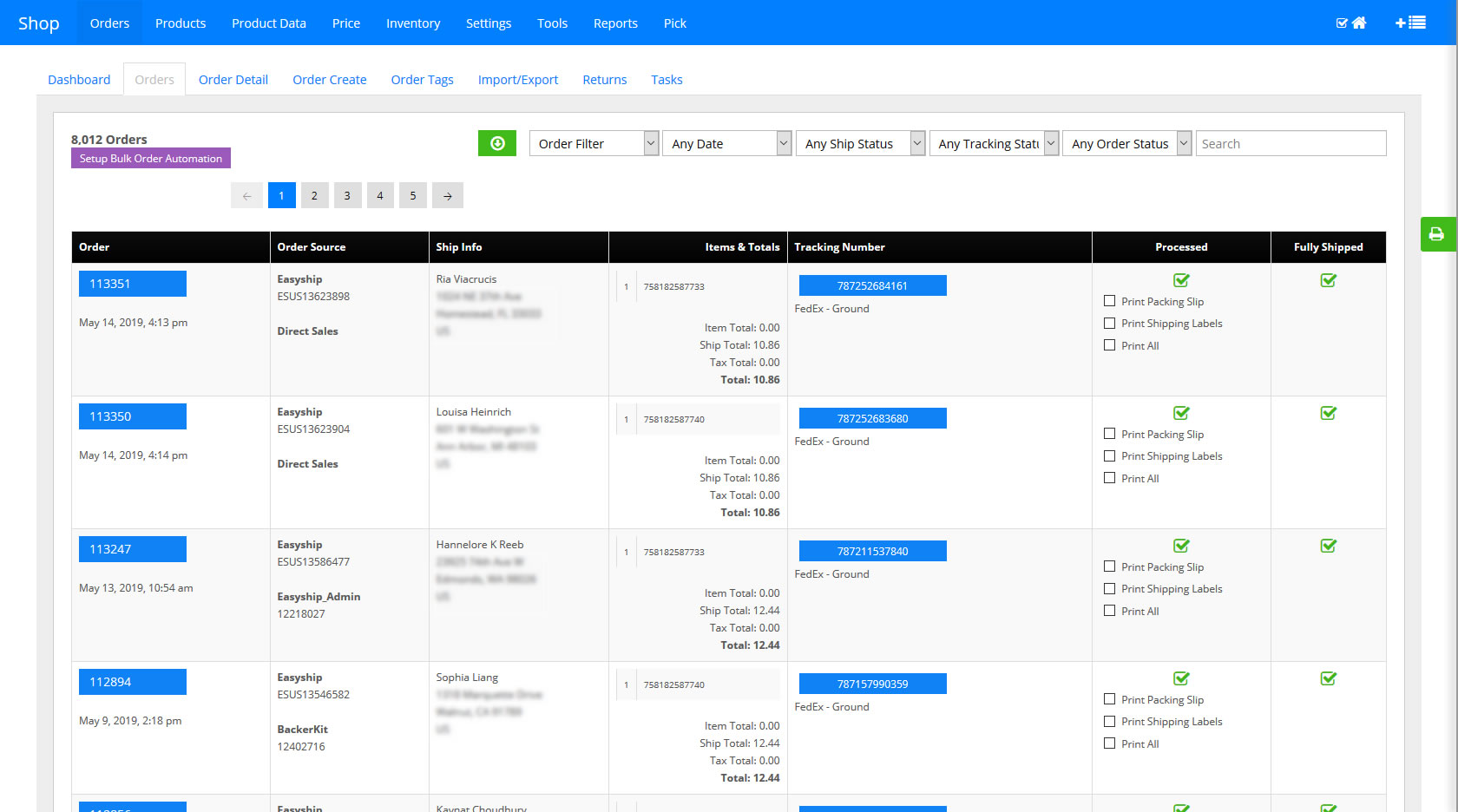
- Go to Orders > Orders list page
- As orders get pulled you will see the tracking number in the Tracking Number Column
- You will be able to click on the tracking number which will open a pop-up window with the label
- You can then print the label
- Confirm Processing of order:
The Processed icon will initially show as NOT PROCESSED . Once you have printed the label and prepared the package for shipment, click the not processed icon to set the order as processed . This will update Easyship that the package has been Packed. See item 3 in Efficiently Managing Easyship Warehouse Orders below to see how to mass select orders to set as Processed and send the Packed Status to Easyship. - Note: the client sets the size of the label in their Easyship account
Canceling Orders
The process established by Easyship for order cancellation is for the client to call the warehouse to have an order cancelled. The warehouse can then follow the steps below to cancel the order in InfiPlex and have that cancel request submitted to the client's Easyship account.
- Go to the order detail page for the order you want to cancel and then click the "set as not fully shipped" link near the top of the order
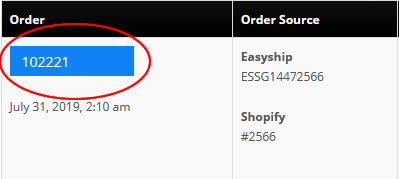
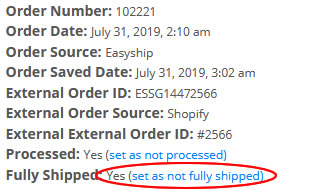
- Go back to the Orders page, and click on the order detail page again.
- When the order detail page reloads, you will see an orange Cancel button on the top right side of the Order detail page. Click the Cancel button to cancel the order and send the cancel request to the client's Easyship account.
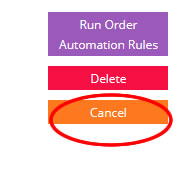
- The canceled order will display with an orange background on the Order List page.
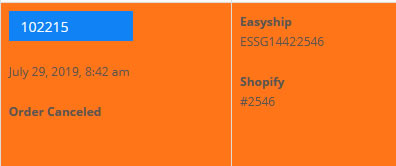
Setting Order as Backordered, Returned, or Canceled - No Stock
As a warehouse shipper for an Easyship client, you have several options for managing the order that get communicated back to the client's Easyship account.
- Cancel an Order:
You can cancel an order by following the instructions above for canceling an order. - Cancel an Order because of No Stock:
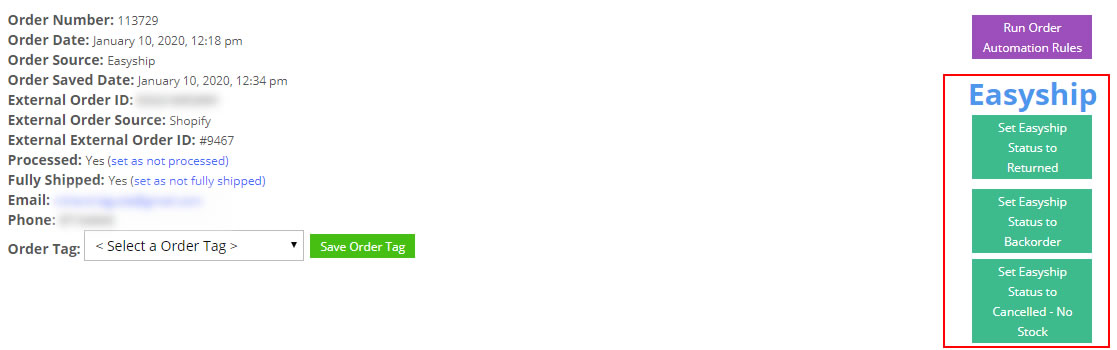
You can cancel an order and send the reason as no stock by setting the order as fully shipped and then clicking the "Set Easythip Status to Cancelled - No Stock" button. - Set an Order as Backordered:
Go to the Order Detail page and click on the Set Easyship Status to Backorder button. This will be located at the top right of the order detail page. This will set the status of the order to backordered in the client's Easyship account. When you actually ship the order the status will get updated to shipped. The order status of shipped gets sent when you set the the order as Processed. - Set an Order as Returned:
Go to the Order Detail page and click on the Set Easyship Status to Returned button. This will be located at the top right of the order detail page. This will change the status on the client's Easyship to account as Returned, alerting them that a returned item has been received at the warehouse.
Efficiently Managing Easyship Warehouse Orders
InfiPlex allows you to quickly and systematically process orders for your Easyship clients. Follow these steps to set-up
- In your Client's Site Area (SA), go to the Settings > Base Settings > Standard page and set order_processed_packing_slip to YES. This will auto set orders as processed when you print the Packing Slip, which updates Easyship that you have received and processed the order.
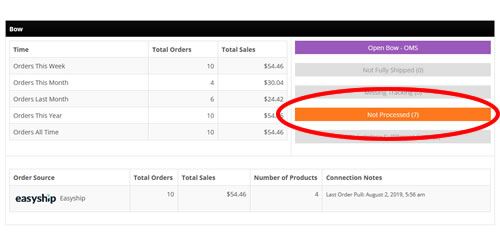
- Go to the OMS Overview App by clicking on the wrench icon in the top right of the admin area. You must have Admin security access to view this application. The OMS Overview App will allow you to quickly see which clients have orders that are Not Processed. Click on the orange Not Processed button for each client to open up their not processed orders.
- Print Packing Slips:
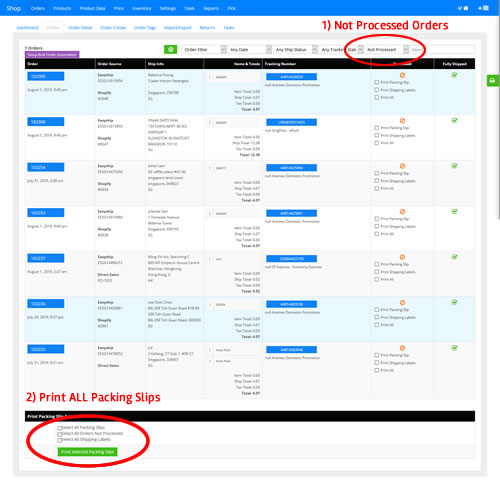
Scroll to the bottom of the Order List page that opened when you clicked on the orange Not Processed button. You can also use the filters at the top of the page to select Not Processed. Click the Select All Packing Slips option and click the green Print Selected Packing Slips button. This will allow you to print the packing slips for all selected orders so you can now pick all of these orders together.
Printing the packing slips will also send the Packed status back to Easyship for all selected orders.
Note: It is recommended that you keep all SKUs for a particular client in the same area for picking. This will allow for the most efficient picking strategy when picking by client.
- Print Labels:
From the Order List page, print each individual label by clicking on the blue tracking number button. This will open the Easyship label file which you can then configure for your printer and print the label. You can also Use the Select All Shipping Labels option at the bottom of the page to print all labels on the page.
- Pack Orders:
Use the packing slips to pick and pack your orders and affix the shipping label.
- Confirm Shipment back to Easyship:
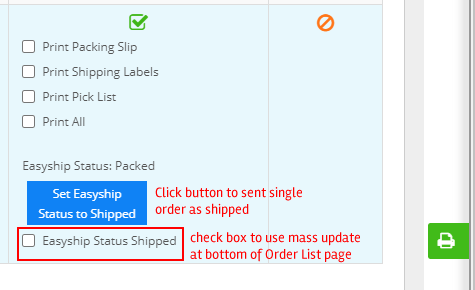
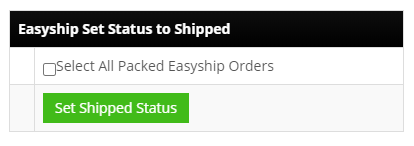
After your packages have been picked up by the carrier, you need to confirm that the orders have been shipped for Easyship. You can filter the Order List page on "Not Fully Shipped" and "Processed". This will bring up orders that still need to have the Shipped status sent to Easyship. To send the shipped status, click the blue "Set Easyship Status to Shipped" button for each order. You can also use the Easyship Status Shipped checkbox and the green "Set Shipped Status" button at the bottom of the page to mass select orders. This action will send the Shipped status to Easyship for the selected orders. A pop-up will appear and show the status of each API request to set the Shipped status. Note that it is possible that some requests may not process due to Easyship’s API rate limits. If this happens, you will need to repeat the process again after a few minutes to resend any remaining orders.