
Last Updated: Dec 4, 2015
This document outlines the set-up for integrating the UPS Shipping module with the InfiPlex Webstore & Order Management Systems. You will need to create an account with UPS.com to get started.
http://www.ups.com/
InfiPlex Set-up Steps
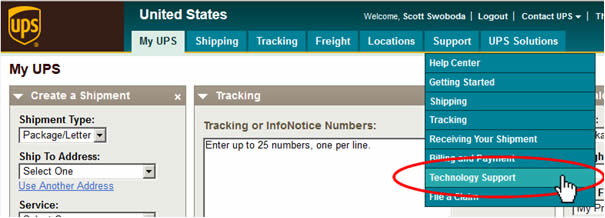
- Log into UPS.com and go to the Technology Support Page under the top level Support menu.
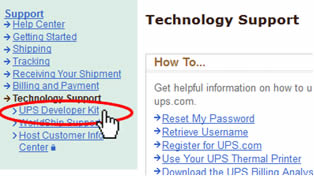
- On the Technology Support main page, select UPS Developer Kit from the left navigation.
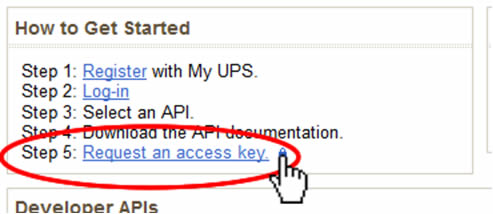
- On the UPS Developer Kit page, click on the Request An Access Key link – Step 5 in the How to Get Started box.
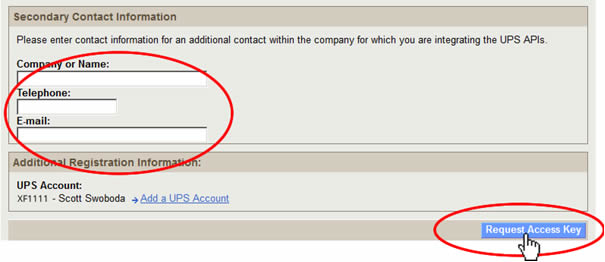
- Request Access Key Page – on this page you will fill out your Secondary Contact Information for the person managing your UPS integration. Add that information and then click the Request Access Key button.
- Request Access Key – Confirmation Page
The confirmation page will list your new Access Key and UPS Account associated to it.
IMPORTANT: You must copy and save your access key into a text document and save it. The site will not show you a list of your keys. You will receive a confirmation email from UPS.com with the access key, so be sure to save that email as well. - Required fields for webstore integration for Live Rates: The following fields are in the Shop > Settings > Shipping > Live Rates area within your InfiPlex Webstore.
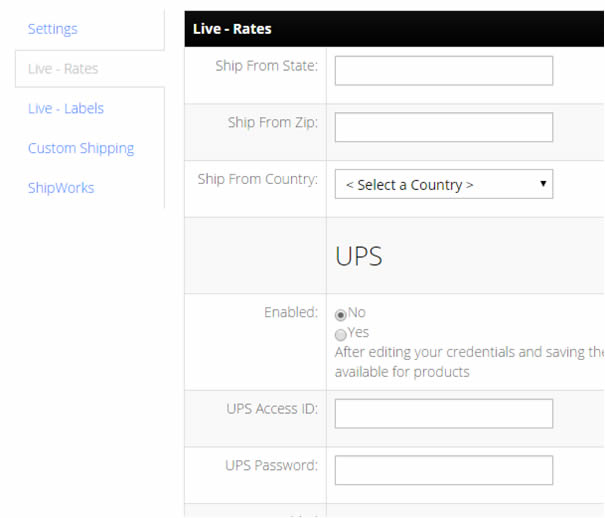
Fill out all of the following required fields. Once you save your settings, you can then go back and check off the shipping options you want to use on your website.- Ship From State
- Ship From Zip
- Ship From Country
- UPS Access ID: this is the Access Key you created in Step 5 above
- UPS Password: this is the account password for www.ups.com.
- Required fields for webstore integration for Live Labels:
The Live Labels settings will allow you to get actual shipping labels from UPS to ship your orders. This makes it quick and easy to fully manage your orders from one administrative interface.- Fill out the top Ship information fields so the UPS API has your shipping location information. This is the location you will be shipping from.
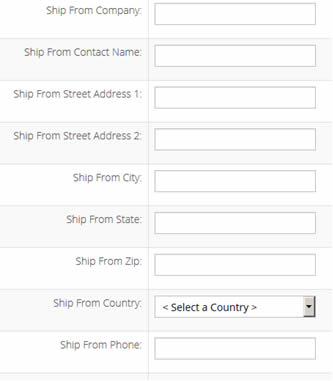
- On the same page, fill out the UPS fields and enable UPS.
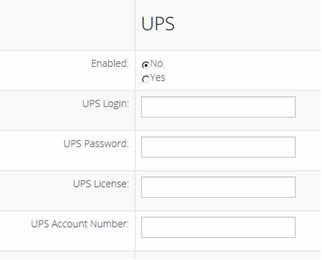
- UPS Login: your user name for UPS.com
- UPS Password: your password for UPS.com
- UPS License: enter your UPS Access Key from Step 5
- UPS Account Number: your UPS account number
- Click the Green Save button at the bottom of the page to save your new settings.
- Fill out the top Ship information fields so the UPS API has your shipping location information. This is the location you will be shipping from.
- Live Rates and the ability to print shipping labels for orders are now functional.
