Last Updated: Apr 10, 2023
ShipStation is the #1 web-based shipping platform, making it easy to manage all of your e-commerce shipping needs. It includes automation capabilities and connections to all major US based shipping carriers. It also includes shipping carriers in Australia, Canada, and the UK.
Try ShipStation.com - Get 2 Months FREE!
Set-up Steps
Follow the steps outlined below to connect your ShipStation application with your InfiPlex OMS or webstore. This will allow ShipStation to pull all incoming orders and send back tracking information to the OMS and connected marketplaces in the OMS.
- InfiPlex OMS Set-up:
Log into your admin area and go to the OMS or Shop Application. Select the Settings menu tab and then click the Shipping tab and select the ShipStation tab on the left. You must create a Username and Password that will be used when you create your Custom Store in your ShipStation.com account.
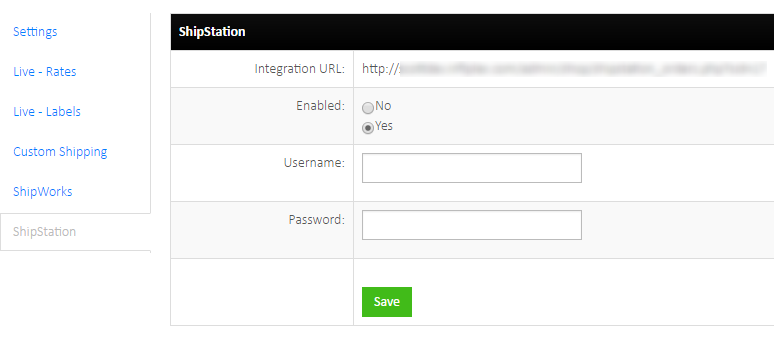
Click SAVE to save your information.
- Log into ShipStation.com or start your 2 Months FREE trial for ShipStation.com. Once your account is made, you can then set-up your Custom Store:
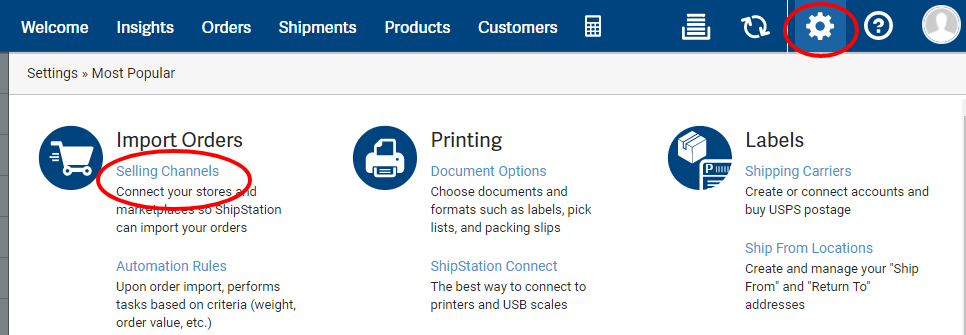
- Click the Settings icon in the top right and then click Selling Channels on the Settings page.
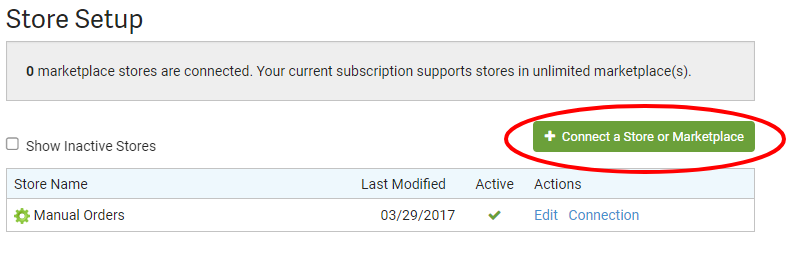
- Store Setup – click the green Connect a Store or Marketplace button.
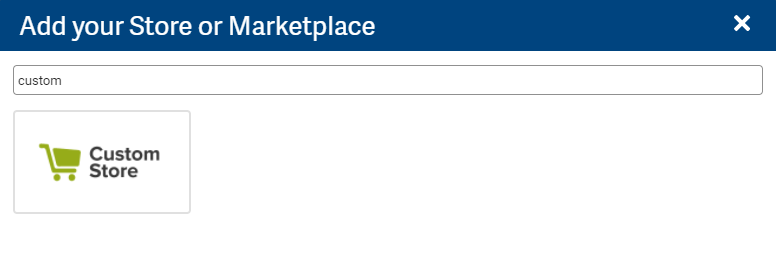
- In the search bar enter the word "custom" and click on the Custom Store icon:
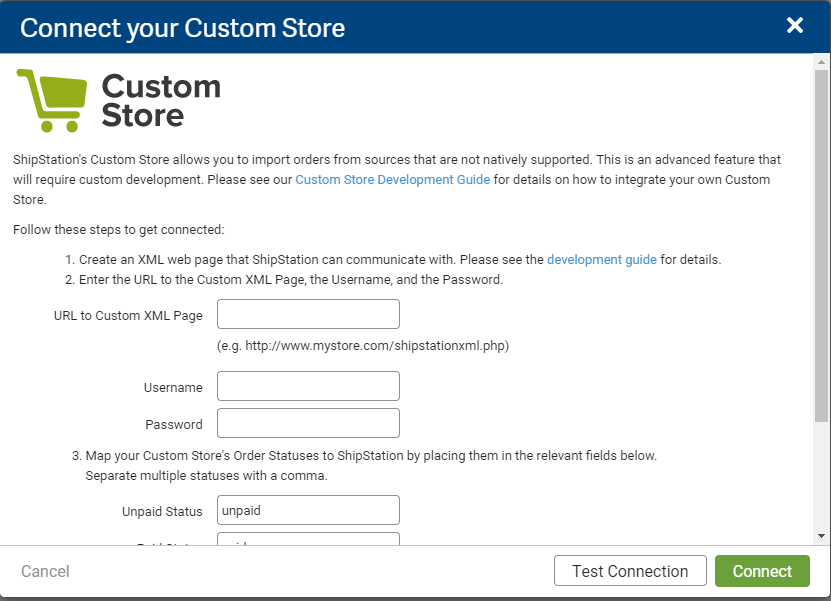
- Enter Your Custom Store Configuration:
Fill out the URL, Username, and Password from the values shown in the OMS set-up page listed above. You can review the ShipStation help file that outlines the additional fields in the Custom Store set-up form.
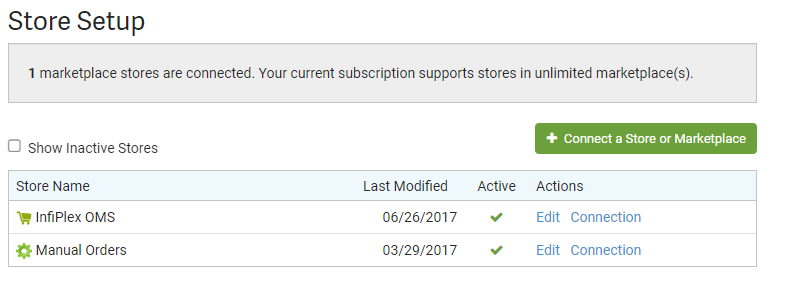
- Editing Your Custom Store:
You can click the Edit link in the Store Setup list to change the display name and other settings including the ability to auto-update.
- Set-up Complete.
- Click the Settings icon in the top right and then click Selling Channels on the Settings page.
- For any questions on how to use ShipStation, please go to the ShipStation website:
- https://help.shipstation.com/hc/en-us
Pulling Orders
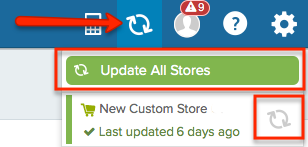
OMS orders can be pulled in automatically or manually. You can pull orders into ShipStation by clicking the Update icon in the top menu or set it up to auto-update by editing your Custom Store setup via the link mentioned above in the set-up instructions.
ShipStation Order # & Custom Fields
The order number that is pulled into ShipStation is the order number used by the associated marketplace. You will be able to use the order number for 3rd Party shipping requirements for marketplaces like Wayfair, Overstock, and Walmart DSV.
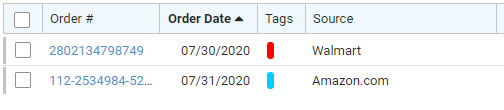
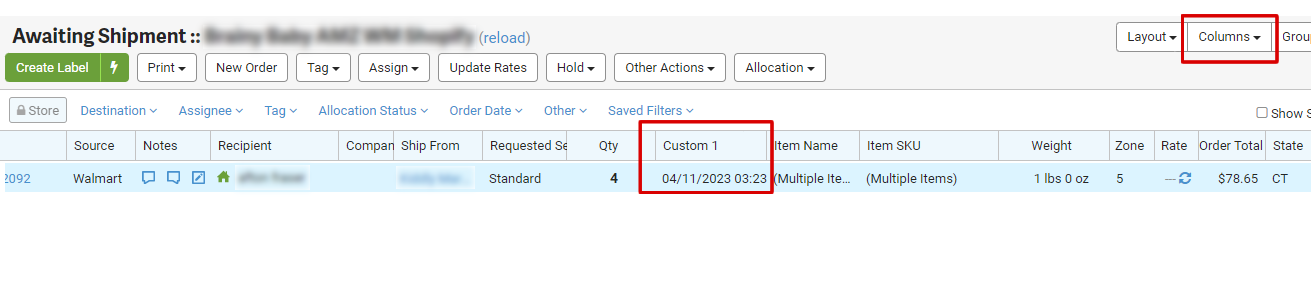
Some marketplaces include a Ship By Date or an additional Order ID. These two fields are sent in the following ShipStation custom fields:
- CustomField1: Ship By Date
- CustomField2: Additional Order ID
You can easily add these custom fields to your Order List page in ShipStation and sort by these fields. Simply click on the Columns button in the upper right of the Order List page.