
Last Updated: August 18, 2023
This document outlines how to turn on and set-up the Shipping Label Package Info area which displays additional information under the label.
InfiPlex Shipping Label Display Package Info
The Shipping Label Info Area can be turned on by going to the Settings > Base Settings > Miscellaneous page and turning the shipping_label_display_package_info setting to "Yes". Once that is turned on, the Package Info area will be displayed below a label as shown below.
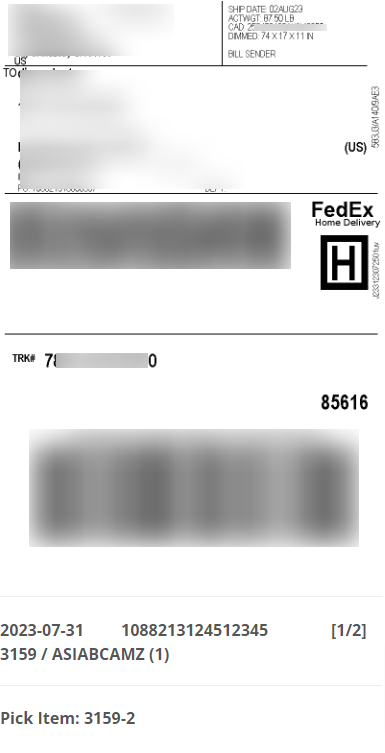
The Package Info area includes informatoin about the package and the SKUs in the package. This includes the following:
- Order Date
- Order Source Order #
- Box # - 1 of X
The Box # field is based on the number of Packages associated with the order and the specific items added to the package. - SKU / ASIN / Quantity
Each SKU in the package will have its own line. - Custom SKU Text
A line of Custom Text can be included for each SKU. See below on how to set that up.
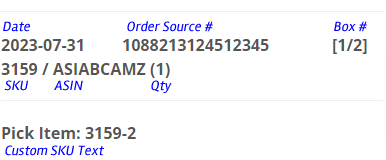
Custom SKU Text - Overview
Custom SKU Text can be added to InfiPlex by adding SKU Data for the specific SKUs you want to display the Custom SKU Text for, at the bottom of the Package Info area. An example scenario is a SKU ordered from a marketplace that actually maps to another Master SKU and you want to identify the correct Pick SKU.
Custom SKU Text - How It Works
Custom SKU Text needs to be defined for each possible package the SKU may be added to. If the max number of packages you ever ship is 4, then we recommend adding 4 package note lines for the SKU into SKU Data. The Package Info area looks at the SKU(s) in the package and looks for corresponding SKU Data for that specific SKU based on the package number. These SKU Data entries are named as "sldpi_note_package_1". "sldpi" stands for Shipping Label Display Info. See the naming below where we have an "sldpi_note_package_X" entry up to 4 for up to 4 packages. So in our example we would add 4 of these entries as shown below:
- Name: sldpi_note_package_1
Value: Pick Item: 3159-1 - Name: sldpi_note_package_2
Value: Pick Item: 3159-1 - Name: sldpi_note_package_3
Value: Pick Item: 3159-1 - Name: sldpi_note_package_4
Value: Pick Item: 3159-1
Custom SKU Text - Adding SKU Data
SKU Data is added in bulk using the Tools > SKU Utilities tool. The SKU Utilities tool allows you to set identifying data for specific SKUs. In our example, we would use a .csv file with the following columns to add the necessary Custom SKU Text.
- sku
- sldpi_note_package_1
- sldpi_note_package_2
- sldpi_note_package_3
- sldpi_note_package_4
You can download this file that would be used to set the desired information for our example SKU, 3159.
SKUs that require a multi-package shipment
The Custom SKU Text data can also be used to display the Pick Item information for a multi-box/package shipment. In our example of SKU 3159, assuming this SKU requires 2 boxes to ship with to parts in each package, 3159-1 in one box and 3159-2 in another box, we can add the following SKU Data via the .csv file upload.
- Name: sldpi_note_package_1
Value: Pick Item: 3159-1 - Name: sldpi_note_package_2
Value: Pick Item: 3159-2 - Name: sldpi_note_package_3
Value: Pick Item: 3159-1 - Name: sldpi_note_package_4
Value: Pick Item: 3159-2 - Name: sldpi_note_package_5
Value: Pick Item: 3159-1 - Name: sldpi_note_package_6
Value: Pick Item: 3159-2 - Name: sldpi_note_package_7
Value: Pick Item: 3159-1 - Name: sldpi_note_package_8
Value: Pick Item: 3159-2
Assuming SKU 3159 could be part of a larger order, we have added 8 sldpi entries to ensure that we get the proper note added to the Print Label function based on the package number for the order. Regardless of what package number 3159 is in, 1 through 4, it will allow the appropriate "Pick Item" message to appear on 2 packages.
