
Last Updated: Jan 27, 2016
The Shop Packages Export/Import tool allows an admin to download all order/package data for open orders and import it into an internal ERP or Order System. Shipping Tracking Numbers can then be pushed back to the OMS and then to any external marketplaces you are connected to, like Amazon and eBay.
You will need to configure your internal systems to read the exported .csv file to pull the data into your systems and then code your internal system to export the tracking numbers into the required .csv format.
Set-up Steps
Follow the steps outlined below to turn the Package Export/Import tools on and begin downloading order/package data.
- Turn the Settting On:
Log into the admin area of your site and navigate to the Shop > Settings > Base Settings > Miscellaneous tab.
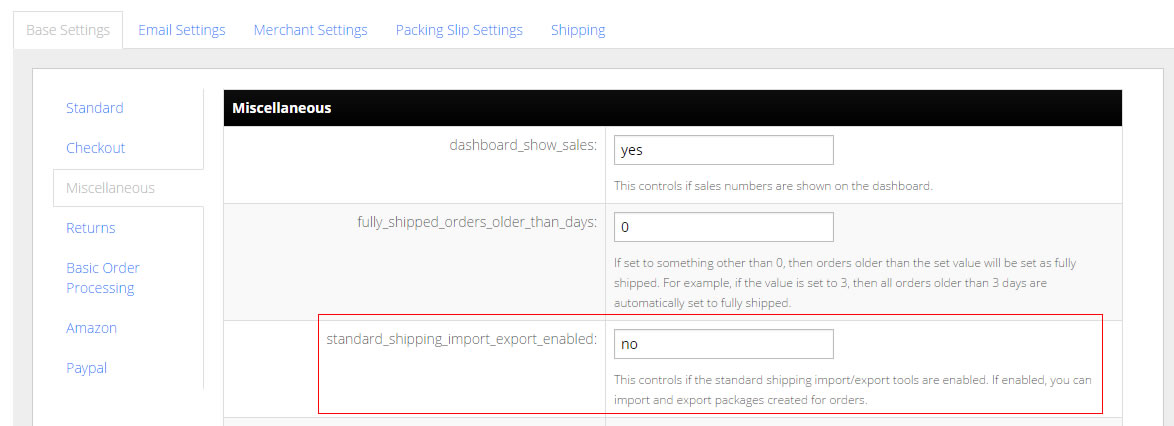
- Update the standard_shipping_import_export_enabled setting to say "yes".
- Click the Save button at the bottom of the settings page to update your setting.
- Download Packages Information:
With the setting turned on, you will see the Packages Export/Import options at the top of your Orders page.
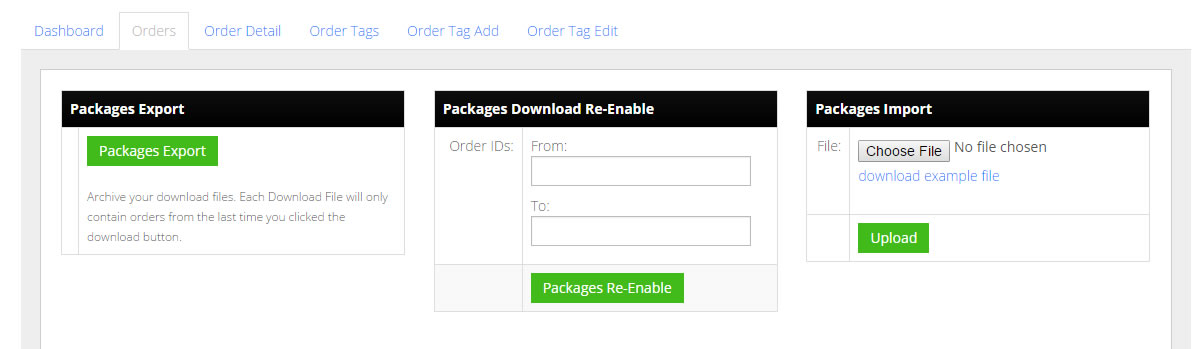
Click on the Packages Export button to download order information from the last time you downloaded the file. The download file will contain all orders that have not been previously downloaded and that are not set as Fully Shipped.
Important: Each order must have a package created in order for their to be any data in the download file. You can set the system to auto create packages or you can create them manually by going into each order and creating your packages. If you do it manually, you must leave the Tracking Number field blank. If you want to have the system auto create a package for every order, update the auto_create_package_on_order setting to be "yes".
We also recommend that you archive all of your download files in case you want to reference them again for some reason.
The package_export_.csv files will contain the following fields:- package_id
- order_id
- external_order_id
- carrier_name
- carrier_method
- company
- first_name
- last_name
- street1
- street2
- city
- state
- zip
- country
- phone
- item1_sku
- item1_external_id
- item1_product_name
- item1_quantity
- item1_weight_ounces_per_item
- item1_length_inches_per_item
- item1_width_inches_per_item
- item1_height_inches_per_item
- item2_sku
- ... item entries will continue for each item in the package
- Process the downloaded file into your existing systems or warehouse processes:
You will need to take the download file and put the Order Packages into your own system. From there you will process them using your existing shipping processes.
- Create the Order Package Import File:
Once you have tracking numbers in your system for the orders, you will need to create the package_import.csv file to upload back to your InfiPlex Webstore/OMS. The OMS will read the package_id and/or the order_id number and then associate the tracking number to that order. The fields in the package_import.csv file are as follows:- package_id - from the package_export_.csv file
- order_id - from the package_export_.csv file
- tracking_number
- cost
- carrier_name
- carrier_method
- Upload the package_import.csv file:
Use the Packages Import form to upload the package_import.csv file back to the Webstore/OMS. The system will associate tracking numbers with the corresponding package_id numbers and then forward the tracking number to any external marketplaces you are integrated with, like Amazon or eBay.
