
Last Updated: Jul 31, 2017
This document outlines how to get started and set-up your InfiPlex OMS when using the Shopify OMS App.
InfiPlex OMS Getting Started Instructions for the Shopify OMS App
InfiPlex OMS has been designed to help you get started quickly. The basic process includes:
- Add Access Keys for Your Marketplaces
- Download Your Products
- Update Your Inventory Levels
- Ship Your New Orders!
Each step is outlined in more detail below.
1) Add Access Keys for Your Marketplaces
Each Marketplace has a set of keys and/or login information that is required for the OMS to pull your orders from that marketplace and then pass shipping tracking numbers and inventory levels back to the marketplace. The available marketplaces are listed in the Getting Started page on the main menu. Click on the name of the marketplace you want to add to the OMS and click on the set-up instructions link to read how to get the necessary access information.
2) Download Your Products
Your InfiPlex OMS Shopify App will automatically start the download of all of your produts from your Shopify store. The system will also check once a day for new SKUs added to your store and add them to your OMS.
The Sell On tab in the main menu will give you a view of the SKU's downloaded and set-up for each marketplace. Each marketplace will include a purple Download SKUs button that will allow you to pull down all of your active SKU's from the marketplace and update your system with those SKUs and flag them as Sold On that marketplace.
3) Update Your Inventory Levels
You can use the tools in the Inventory area to update your inventory levels. You can quickly update individual SKUs on the Inventory page from the main menu or you can upload all of your inventory levels using the Tools > Price & Inventory Tools using a .csv file.
4) Ship Your New Orders!
Once you have activated a marketplace, new orders will start pulling into your OMS. When an order is pulled, inventory is tracked and inventory updates are sent to all of your activated marketplaces.
You can integrate your OMS with the following Shippers:
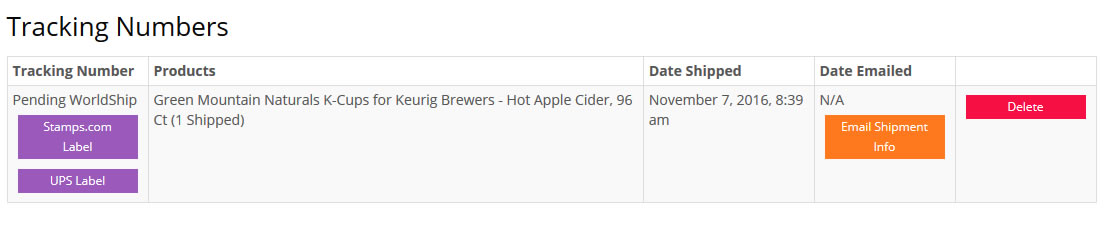
If you integrate directly with a carrier like UPS or Stamps.com, shipping labels can be easily selected and printed from the order detail page. Look for the purple label options that are part of the Tracking Numbers area at the bottom of the order detail page.
ShipStation.com Integration
ShipStation.com is the leading online eCommerce shipping solution. The InfiPlex OMS is fully integrated with it to give you enterprise level shipping capabilities. Check out our ShipStaiton.com Integration page for more details and a link to 2 months free.
If you use ShipStation.com or ShipWorks.com, you will manage all of your shipping from within those applications. Tracking will be sent back to the OMS to send out to the marketplaces.
