
Last Updated: Nov 16, 2016
The InfiPlex Webstore integrates with UPS WorldShip (version 17.0) using the XML import/export utilities within WorldShip. The instructions below outline the basic set-up and process for the InfiPlex / WorldShip integration.
InfiPlex Set-up Steps
- Enable UPS WorldShip option in the InfiPlex Webstore
- Go to the Settings menu within the Shop application.
- Under Base Settings select the Miscellaneous tab and update the WorldShip settings:
- ups_worldship_enable: This controls if the UPS WorldShip export/import tools are enabled for the shop system. Set to "yes" to enable the WorldShip integration. The remaining options are set to their defaults, so you can start using WorldShip simply by setting this to yes and saving your settings.
- ups_worldship_export_type: This controls the type of XML export created for UPS WorldShip. Valid values are batch and auto. The Default setting is "batch". You should ONLY use the Batch option. Auto-import requires additional set-up and programming costs.
- ups_worldship_export_enable_forward_service: This controls if forward service is included in the export for UPS WorldShip. Default setting is "yes".
- ups_worldship_export_enable_usps_tracking: This controls if usps tracking is included in the export for UPS WorldShip. Default setting is "yes".
- ups_worldship_export_enable_delivery_confirmation: This controls if delivery confirmation is included in the export for UPS WorldShip. Default setting is "yes".
- ups_worldship_export_enable_usps_delivery_confirmation: This controls if USPS delivery confirmation is included in the export for UPS WorldShip. Default setting is "yes".
- Under Base Settings select the Standard tab and update the following setting:
- auto_create_package_on_order: set this to yes.
This will auto create a package when orders are received. If you don't set this setting, you will have to manually add packages before you can download your orders for Worldship.
- auto_create_package_on_order: set this to yes.
- Save Your Settings
- Go to your Orders listing page:
You will now see the WorldShip Download and Upload options to manage the transfer of order data to and from WorldShip.

WorldShip Set-up Steps
The following steps outlines how to set-up a manual XML import into WorldShip. In order for this to work correctly, you must do a manual XML import, not an auto-import.
- Do a manual XML import rather than the Auto-Import. This will put the base shipment information into WS without doing anything else.
- To get this set-up, you will need to create a new custom Import Map
- Under the Import-Export tab, select Create/Edit Map
- In the New Map area, select Import from XML
- Map Type: Shipment XML
- Name: OMS-Orders
- Click the Create button
- a new pop-up comes up asking for the XML file folder to look for your uploaded xml files
- the best default folder to choose is c:UPS/WSTD/ImpExp/Shipment/ – this is an existing folder within the UPS program
- You can choose your own location outside the UPS folder structure if you want
- Click OK button to save the folder location
- You should now see the new Map name in the Existing Maps listing
- Click the Close button
- Next, you will need to create a new custom Export Map
This is used to save your XML export files to a specified folder.- Under the Import-Export tab, select Create/Edit Map
- In the New Map area, select Export to XML
- Map Type: Shipment XML
- Name: OMS-XML-Export
- Click the Create button
- a new pop-up comes up asking for the XML file folder to save the exported xml files
- create a new folder, ideally on your desktop, and call it something like "WorldShip Exports - Order Tracking Numbers"
- You will then be able to find your XML export files in this folder, which you will then upload to the Webstore
- Click OK button to save the folder location
- You should now see the new Map name in the Existing Maps listing
- Click the Close button
Export/Import of Orders
Follow this process to get all of your new orders into WorldShip and then back out again to get the Tracking Numbers back into your InfiPlex Webstore.
Important Note: The Worldship Download button on your orders list page will download all orders that have not been set as Fully Shipped and have not previously been downloaded. This will pull the orders into the WorldShip XML batch import format and give you a file to save on your computer. You can manually set orders as Fully Shipped by editing an order and clicking the set as fully shipped link at the top of the order detail.
- From your InfiPlex Webstore or OMS, click the WorldShip Download button to download your new orders. This will give you an XML file that you should save in the folder that you set during the WorldShip set-up process above.
- From within WorldShip, select the Import-Export tab and do the following to download the XML file
- place the XML file into the folder you set during the process above
- Click the Batch Import button and select Batch Import from the drop-down
- Select the OMS-Orders Map you created, and leave the check box options unchecked.
- Follow the prompts – Next buttons
- and you should get a final dialogue box showing the new imported orders.
- You can Save the log or discard it, and your done.
- Once you are ready to finalize the orders and print your labels, you can then manually control all of that from within WorldShip.
- If you need to find an order, the Search within WorldShip is only available within the Home tab under History (F3 key shortcut)
- You will then need to click on the Search History button and then enter the Reference 1 or Reference 2 number into the Reference search box AND select the “Any Package Reference No” option from the drop-down
- As of this version of WorldShip, there is no way to do a search from the main Shipping Window (F2 key shortcut). You must access the History button from within the Home tab.
- Editing Imported Shipments:
- Go to History under the Home tab (F3 key shortcut)
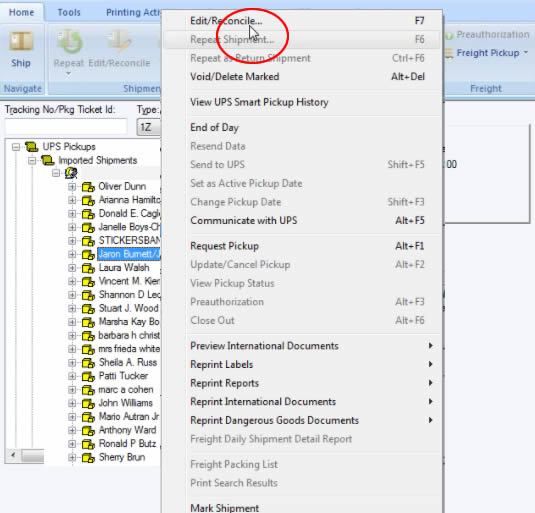
- Select your package and right-click (or hit F7 for the keyboard shortcut)
- This will bring you to the package shipment screen to finalize your shipment
- Downloading additional orders form the website: You can use the WorldShip Download from the Webstore/OMS multiple times during a day. This function will only download orders that have not been previously downloaded. If for some reason you delete out a shipment in the WorldShip software, you will need to re-enter that shipment by hand. It is not possible to download the order again if it was previously downloaded.
- Exporting Your Shipments / Transaction Numbers:
WorldShip allows you to export a specific day's shipments, so you should only export your orders at the end of the day when you are done shipping.- When you are done processing your new shipments in WorldShip, you will then use the Batch Export tool to export an XML file that will get loaded back to the InfiPlex Webstore.
- Select the Import-Export tab in WorldShip and click on the Batch Export button.
- Select the export map you created - OMS-XML-Export
- Select the date you want to export orders from. Most of the time this will be "All records on or after ...", with your selection being today's date.
- Click Next and follow the rest of the prompts to finish the export
- Use the WorldShip Upload form at the top of the InfiPlex Orders page to upload the tracking numbers back into Webstore. Select your saved XML Export file from the step above.
- Once you have uploaded the file back into the Webstore, the tracking numbers will automatically get added to the orders. If the order was from a marketplace like Amazon, it will automatically be sent back to the marketplace. If it is an InfiPlex Webstore order, you will need to go into the order and manually submit the tracking information by clicking the "Email Shipment Info" button.
