
Last Updated: Nov 14, 2019
Follow these steps to update your InfiPlex OMS monthly billing information.
InfiPlex OMS Recurring Billing Update
If you have received an email alert saying that your recurring billing has failed, you will need to add a new credit card to your account and associate the new card with your recurring billing item. Please follow the steps below to add the card and associate it with your recurring billing item.
- Click on My Account link to access your My Account Tools page.
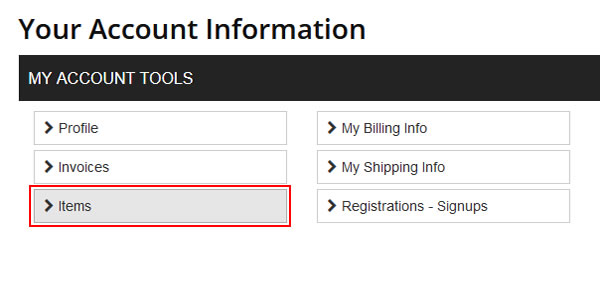
- Click on the Items tool button to review your recurring billing items.
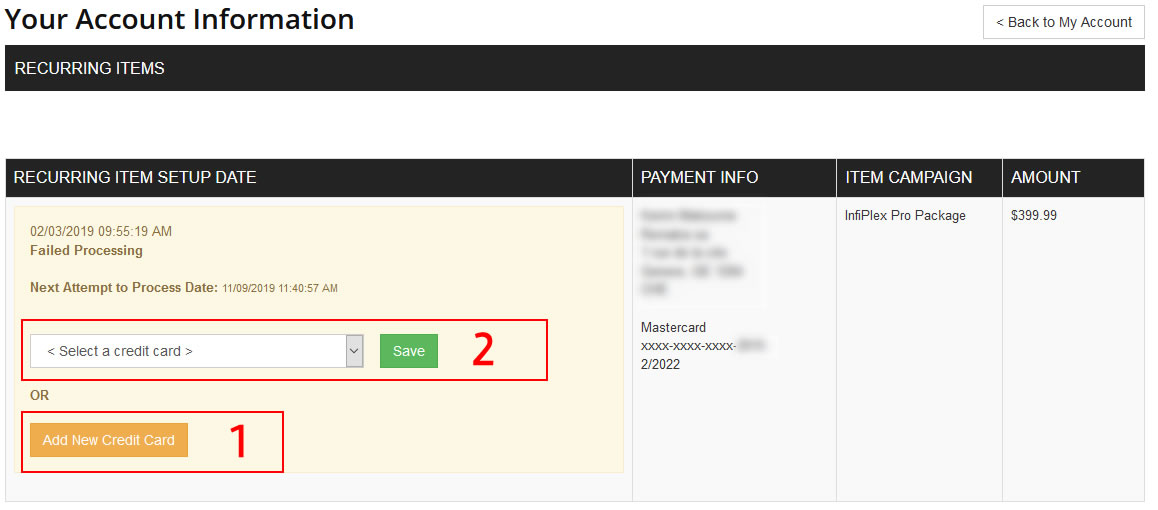
- 1) The first step is to Click the Add New Credit Card button to add a new card to your account>
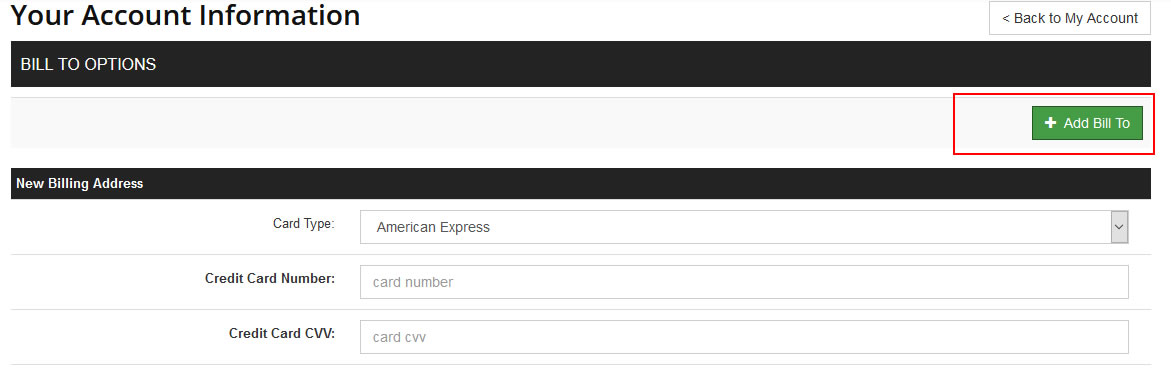
- 2) From the Bill To Options page, click on the green + Add Bill To button and add your new card information. Click the Save button at the bottom of the form to save your new credit card.
- 3) Go back to the Items page and select the new card
as shown in Step 2 above. Click the green Save button to assign the new card to your Recurring billing item.
