
Last Updated: Mar 25, 2021
Use the Order Lines tool in conjunction with Order Filters and Order Automation to add new line items to any order before it is picked for shipping. Add a flyer or marketing insert or add the specific line items of a product Bundle to ensure it is picked properly. The new line items are added before the order is sent to a 3PL shipper.
Order Lines Set-up
Creating a New Rule:
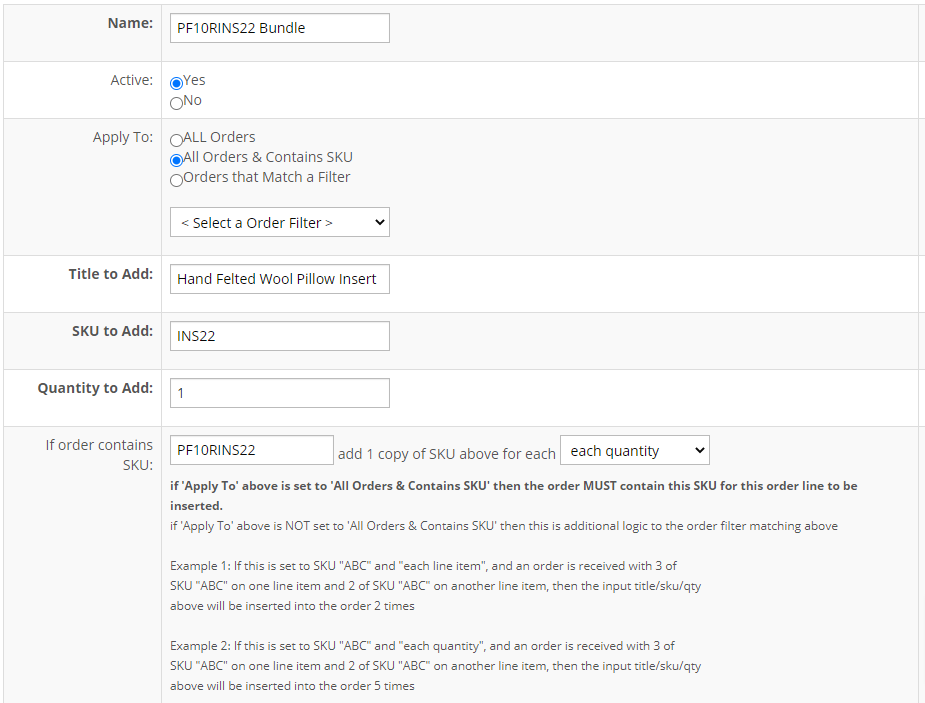
An Order Line Rule is created to add a single line item to a specific type of order. You can use Order Filters to define what types of orders the rules run against or you can specify a specific SKU number that will trigger the insertion of the new order line.
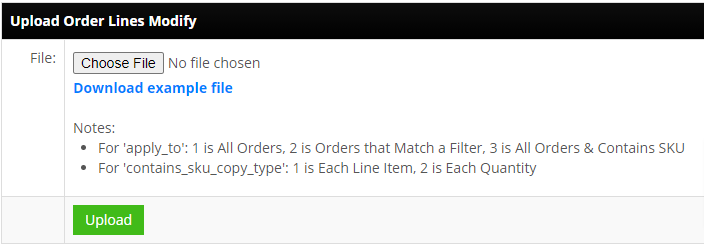
The fields below are the fields in the .csv upload file and mirror the fields available in the Create New Rule form.
IMPORTANT: The upload file only INSERTS new rules. You cannot use the file to edit an existing rule, you need to click on the Rule name to edit an individual Rule.
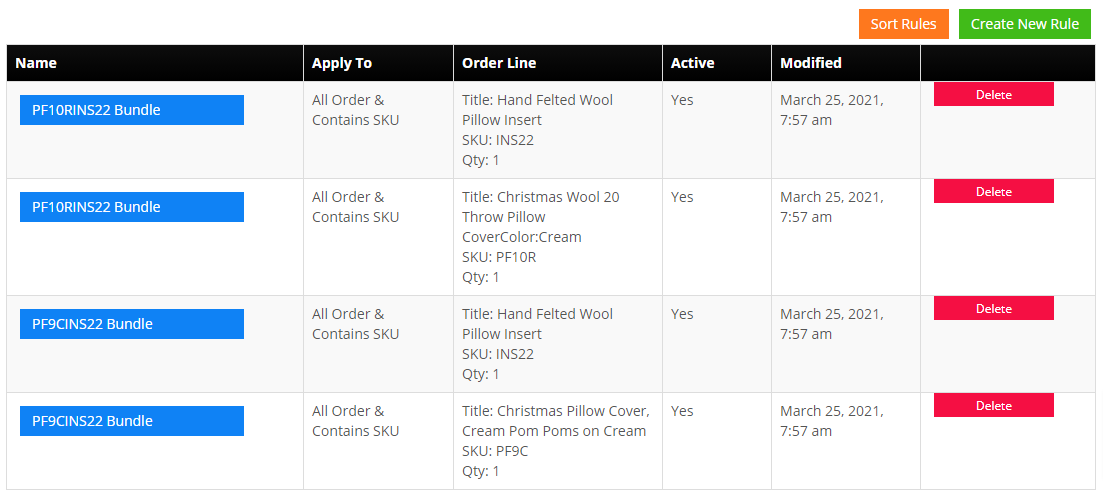
| rule_name: | Descriptive title to identify the Rule. For Bundles, you need to add a rule for each associated SKU in the Bundle, so you will have an entry for each line item and quantity that is part of the Bundle. |
| is_active: | Values: 0 or 1. 1 = active, 0 = in-active |
| apply_to: | Values: 1, 2, or 3. 1 is All Orders, 2 is Orders that Match a Filter, 3 is All Orders & Contains SKU. If your adding Order Lines for a Bundle SKU, you will choose number 3. |
| apply_to_order_filter_id: | You can view the Filter ID's from the Filter drop-down in the Create New Rule form. |
| order_line_title: | This will be the Title of the SKU that appears in the line item. |
| order_line_sku: | This is the SKU number that will be added to the new line item. For Bundles, this would be one of the Bundle SKUs and the associated quantity would be entered in the order_line_quantity field. |
| order_line_quantity: | This is the quantity of SKU for the new line item. |
| contains_sku: | This field applies if the apply_to option is set to 3 - All Orders & Contains SKU. For Bundles, this is where you would enter the Bundle SKU number. |
| contains_sku_copy_type: | Values: 1 or 2. 1 is Each Line Item, 2 is Each Quantity. Flyer Example: Select 1 for a particular SKU to add a single flyer to an order with a specified SKU line in it. Bundle Example: Select 2 to add the specified SKU and quantity for each Bundle ordered. If 2 Bundles are ordered then 2 line items of the new SKU will be added to the order. |
Upload Form:
Order Lines Listing:
Create New Rule Form:
Fulfillment Module / 3PL Integrations
3PL Warehouses that are integrated with our Fulfillments Module can be set to only receive orders with the SKUs they fulfill. This means that you can creat your own bundle SKU that they do not carry and send them only the individual SKUs that comprise the bundle.
