
Last Updated: Dec 8, 2017
This document outlines the set-up for integrating the InfiPlex OMS with your ChannelAdvisor account. It can be set to push orders into ChannelAdvisor or pull orders out of ChannelAdvisor.
Pull Orders From ChannelAdvisor
- Go to Settings > ChannelAdvisor to connect your account
Important: You can only select ONE of the following types of connections - Pull or Push. - Pull Orders from ChannelAdvisor
The Pull Orders connection lets you select one of your ChannelAdvisor connection to pull orders from and insert them into your InfiPlex OMS. This will make the OMS the System of Record (SOR) for inventory. Inventory updates and tracking information can then be set to be sent back to your selected ChannelAdvisor connection.- Connect your account by clicking on the connection link under the channel_advisor_pull_orders_enabled settings
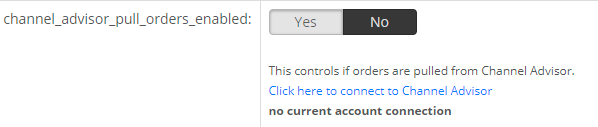
- Log into your ChannelAdvisor account
A pop-up window will open and give you a ChannelAdvisor login page.
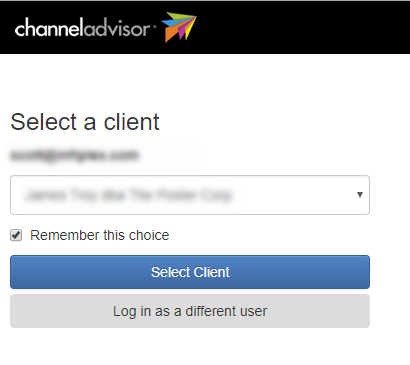
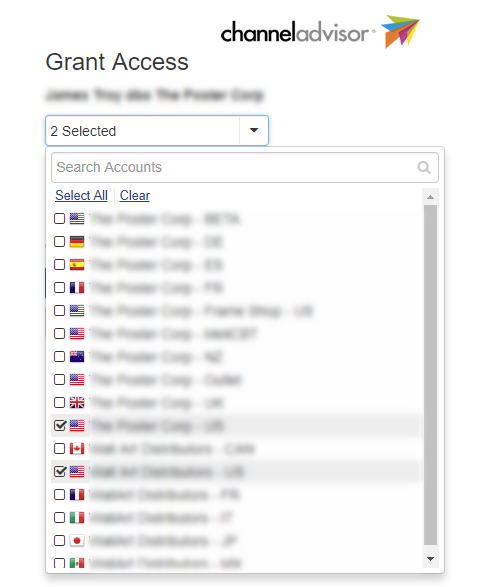
- Select your ChannelAdvisor connection Next you will see a page with the option to select one of your existing connection accounts within your ChannelAdvisor account. You must select the specific connections that you want orders to be pulled from.
Important: if no accounts load, please click the "Select a different client" button to go back and log back into your account. Sometimes the accounts do not load and require another login attempt to have them load.
- Connected
Your selection will be automatically saved and connected to your InfiPlex OMS account.
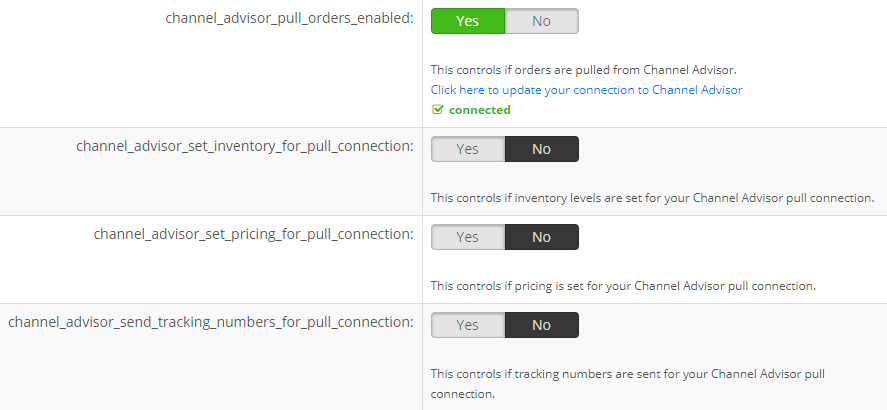
- channel_advisor_set_inventory_for_pull_connection - Set this setting to YES if you want to send inventory levels back to ChannelAdvisor.
- channel_advisor_set_pricing_for_pull_connection - Set this setting to YES if you want to send pricing back to ChannelAdvisor.
- channel_advisor_send_tracking_numbers_for_pull_connection - Set this setting to YES to send tracking numbers back to ChannelAdvisor.
- Connect your account by clicking on the connection link under the channel_advisor_pull_orders_enabled settings
Push Orders into ChannelAdvisor
- Push Orders into ChannelAdvisor The Push Orders connection allows you to push orders from other marketplaces into one of your ChannelAdvisor connections. Selecting the Push connection will make your ChannelAdvisor the System of Record (SOR) for inventory. The OMS will pull inventory from your connected account. The OMS will also pull tracking numbers from your connected account. With this type of connection the OMS is expecting that you will be managing shipping from your ChannelAdvisor connection.
- Connect your account by clicking on the connection link under the channel_advisor_push_orders_enabled settings
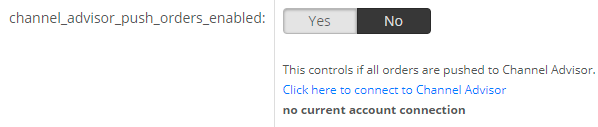
- Log into your ChannelAdvisor account
A pop-up window will open and give you a ChannelAdvisor login page.
- Select your ChannelAdvisor connection Next you will see a page with the option to select one of your existing connection accounts within your ChannelAdvisor account. You must select the specific connections that you want orders to be pulled from.
Important: if no accounts load, please click the "Select a different client" button to go back and log back into your account. Sometimes the accounts do not load and require another login attempt to have them load.
- Connected
Your selection will be automatically saved and connected to your InfiPlex OMS account.
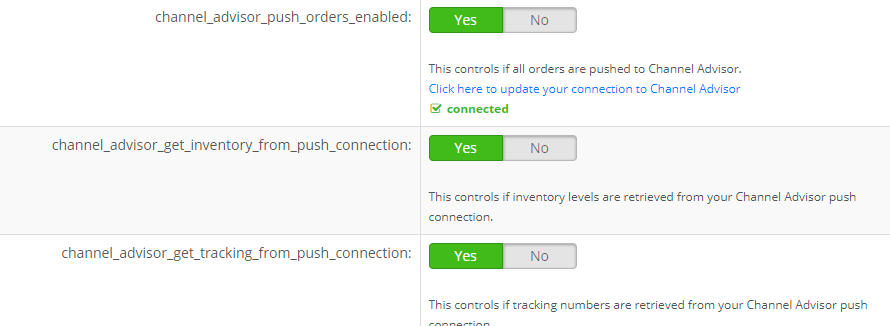
- channel_advisor_get_inventory_from_push_connection - Set this setting to YES if you want to pull inventory levels into the OMS from ChannelAdvisor.
- channel_advisor_get_tracking_from_push_connection - Set this setting to YES to pull tracking numbers into the OMS from ChannelAdvisor.
- Connect your account by clicking on the connection link under the channel_advisor_push_orders_enabled settings
