
Last Updated: Apr 29, 2020
This document outlines the set-up of Third-Party Shipping with your Walmart Drop Ship Vendor (DSV) account.
Walmart DSV Third-Party Shipping
Walmart supplies all Walmart DSV sellers with shipping accounts for UPS and FedEx. These accounts can be used to do Third-Party billing in InfiPlex OMS and shipping software like ShipWorks or ShipStation.
Walmart DSV Third-Party Shipping Set-up with EasyPost
These instructions are specific to InfiPlex OMS integration with EasyPost. Once you have added your UPS and FedEx accounts to your EasyPost set-up you can then easily select them when getting a label for a shipment within the OMS.
Reference the base set-up for your EasyPost account. Click the Green "Add a Carrier Account" from the EasyPost settings page and select FedEx as the carrier
- Add a FedEx Carrier Account
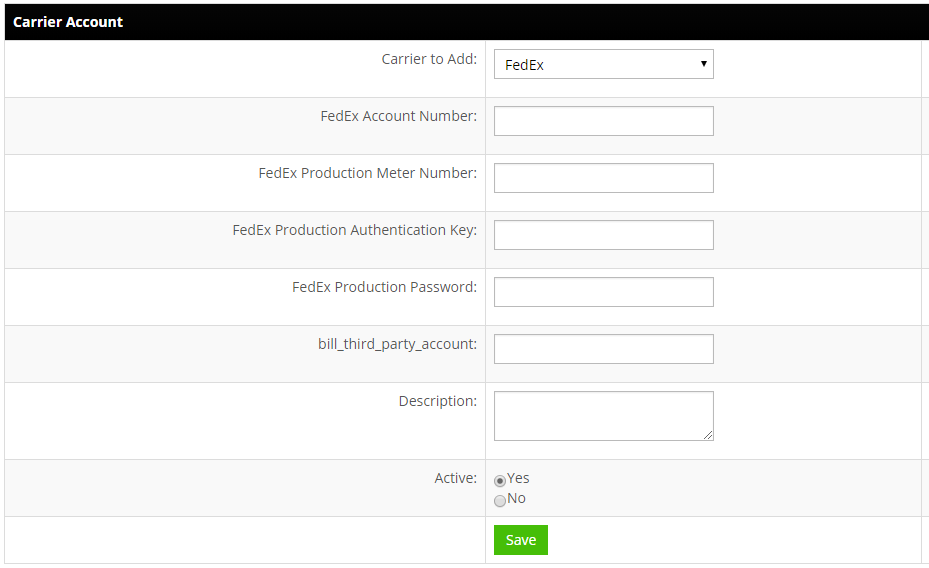
First, add your FedEx Account to your EasyPost.com account. Then log into your InfiPlex OMS site and navigate to Settings > Shipping > EasyPost. You will see your FedEx account get pulled into InfiPlex and you will be able to click on the Carrier name to edit it and add 3rd Party Billing options. In the FedEx account form, add the bill_third_party_account field shown below. Please note that this carrier set-up is ALWAYS tied to the third party account and you should add a description like "Walmart DSV" to differentiate the account.
How to get your FedEx Meter Number: for help getting your FedEx information, please reference this EasyPost article - How to get your FedEx Meter Number.
- FedEx Account Number - enter your FedEx account number
Important: It is recommended that you initially add Carrier accounts via the tools on easypost.com. If you do that, your FedEx settings will already be shown if you set-up your account from your easypost.com account. This applies for all settings except for the 3rd party billing settings.
- FedEx Production Meter Number - enter your meter number - see how to get it
- FedEx Production Authentication Key - enter your production key - see how to get it
- FedEx Production Password - enter your production password - this is emailed to you from FedEx after creating your Production Key.
- bill_third_party_account - enter the third party account number - note that this account is ALWAYS tied to this third party billing.
- Description - usually left blank - for Walmart DSV clients enter Walmart DSV and put the Walmart account number into the bill_third_party_account field above. Adding the description will help identify this account verses your regular FedEx account if you add it.
IMPORTANT: Walmart’s 3rd Party Labels require your account to be authenticated with FedEx – per EasyPost’s article, contact support@easypost.com to get started on the certification process.
- FedEx Account Number - enter your FedEx account number
- Add a UPS Carrier Account
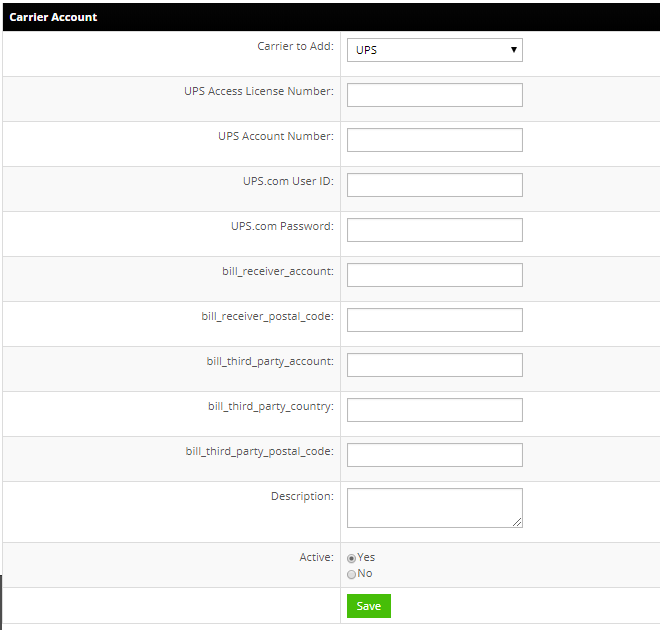
First, add your UPS Account to your EasyPost.com account. Then log into your InfiPlex OMS site and navigate to Settings > Shipping > EasyPost. You will see your UPS account get pulled into InfiPlex and you will be able to click on the Carrier name to edit it and add 3rd Party Billing options. In the UPS account form, add the bill_receiver_account field shown below. Please note that this carrier set-up is ALWAYS tied to the third party account and you should add a description like "Walmart DSV" to differentiate the account.
For setting up 3rd party billing with UPS, add your standard UPS account information and add the bill_receiver_account and bill_third_party_account fields shown below. Please note that this carrier set-up is ALWAYS tied to the third party receiver account and you should add a description like "Walmart DSV" to differentiate the account.- UPS Access Key (License Number) - enter your UPS Access Key - go here to view manage or view your UPS Access Keys
Important: It is recommended that you initially add Carrier accounts via the tools on easypost.com. If you do that, your UPS settings will already be shown if you set-up your account from your easypost.com account. This applies for all settings except for the 3rd party billing settings.
- UPS Account Number - enter your account number
- UPS.com User ID - enter your user ID
- UPS.com Password - enter your password
- bill_receiver_account - leave blank - you can use the bill_receiver_account and bill_receiver_postal_code settings instead of the bill_third_party_account. This will show on the label as BILLING: F/C BILL RECEIVER.
- bill_receiver_postal_code - leave blank
- bill_third_party_account - enter the third party account number - note that this account is ALWAYS tied to this third party billing account and you should enter a description to differentiate it from another UPS account.
- bill_third_party_country - US - use the two-letter country code, in this case US for United States.
- bill_third_party_postal_code - enter the postal code associated to the bill_third_party_account
- Description - usually left blank - for Walmart DSV clients enter Walmart DSV and put the Walmart account number into the bill_receiver_account field above. Adding the description will help identify this account verses your regular FedEx account if you add it.
- UPS Access Key (License Number) - enter your UPS Access Key - go here to view manage or view your UPS Access Keys
