
Last Updated: Feb 21, 2019
This document outlines the set-up of Third-Party Shipping with your Walmart Drop Ship Vendor (DSV) account and your ShipStation account.
Walmart DSV Third-Party Shipping
Walmart supplies all Walmart DSV sellers with shipping accounts for UPS and FedEx. These accounts can be used to do Third-Party billing in InfiPlex OMS and shipping software like ShipWorks or ShipStation.
Walmart DSV Third-Party Shipping Set-up with ShipStation
These instructions are specific for clients wanting to connect their Walmart DSV account with their ShipStation account. You can also reference this ShipStation article on using their third party shipping for individual orders.
- Set-up ShipStation Custom Store Connection
You can view the speicfic ShipStation integration instructions here. - Add Shipping Mappings in InfiPlex Custom Store
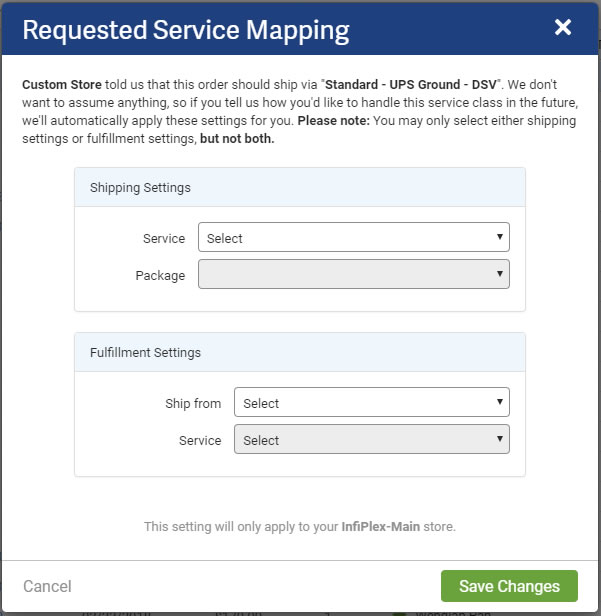
In the Custom Store you set-up to connect to InfiPlex OMS, you need to set-up shipping mappings that correspond with the requested shipping values passed by InfiPlex OMS to ShipStation.- Go to Selling Channels > Store Set-up > InfiPlex
- Edit the InfiPlex Custom Store then select Shipping Services
- Click the Add Service Mappings button to set-up a mapping. Reference the InfiPlex Marketplace Values at the bottom of this page. You need to add a mapping for each of those values so ShipStation knows what to do with requested shipping values.
- Service Key: (Name of requested service key passed by InfiPlex OMS listed below)
- Service: Map appropriate UPS / FedEx service
- Package: select if appropriate or leave blank as default
- Fulfillment Settings: select if needed or leave blank as default
- Set-up Automation > Order Filters in ShipStation
From the Settings area (click the wrench icon in top right menu), click the Automation menu in the left column and then click Order Filters.- Click Create Filter to add a new order filter
- Create new filter for FedEx orders with 2 Filter Criterias:
- Filter Name: Walmart DSV Order - FedEx
- Add Criteria: Requested Service (Marketplace Value) > Contains... > FedEx
- Add Criteria: Source > Equals... > Walmart
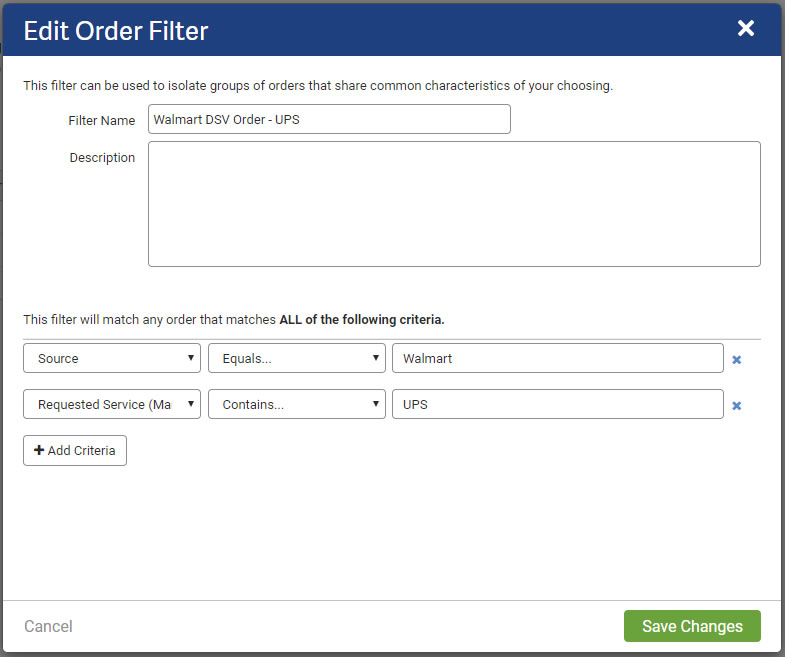
- Create new filter for UPS orders with 2 Filter Criterias:
- Filter Name: Walmart DSV Order - UPS
- Add Criteria: Requested Service (Marketplace Value) > Contains... > UPS
- Add Criteria: Source > Equals... > Walmart
- Create new filter for Walmart S2S Orders with 2 Filter Criterias:
- Filter Name: Walmart S2S Orders
- Add Criteria: Source > Equals... > Walmart
- Add Criteria: Requested Service (Marketplace Value) > Contains... > S2S
- Add Walmart S2S Order Tag
From the main Orders page, you can easilty use the Tag drop-down to add a new tag. Name it "Walmart S2S Order" and select Navy blue for Walmart - Add Automation Rules
- Under left menu Automation, select Automation Rules
- Click Create a Rule button and set-up 3 rules:
- Walmart DSV Order - UPS
- Rule Name: Walmart DSV Order - UPS
- Is Active - check this box to make sure the rule runs
- Choose the option "Only Apply these actions to orders that match an existing filter": Walmart DSV Order - UPS
- Add ONE Action - Charge Shipping to 3rd Party
- Account #: Enter the UPS account number Walmart gave you
- Billing Country: United States
- Billing Zip Code: Enter the Zip Code Walmart gave you
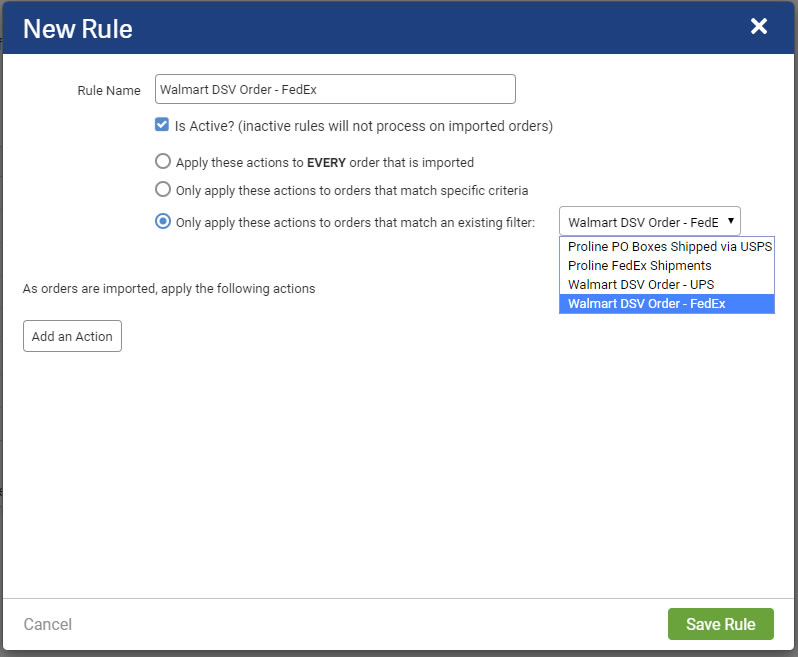
- Walmart DSV Order - FedEx
- Rule Name: Walmart DSV Order - FedEx
- Is Active - check this box to make sure the rule runs
- Choose the option "Only Apply these actions to orders that match an existing filter": Walmart DSV Order - FedEx
- Add ONE Action - Charge Shipping to 3rd Party
- Account #: Enter the FedEx account number Walmart gave you
- Billing Country: United States
- Billing Zip Code: Enter the Zip Code Walmart gave you
- Walmart S2S Order Tag
Added to identify orders that require you to go back to InfiPlex OMS to print the S2S label for Ship To Store orders.- Rule Name: Walmart S2S Order Tag
- Is Active - check this box to make sure the rule runs
- Choose the option "Only Apply these actions to orders that match an existing filter": Walmart S2S Orders
- Add ONE Action - Add a Tag...
- Select the Walmart S2S tag
- Walmart DSV Order - UPS
- Add Walmart address to UPS and FedEx accounts
In order for ShipStation 3rd Party settings to work, create a new Ship From Address specifically for Walmart with their billing address below. Go to Settings > Shipping > Ship From Locations.
Billing Address:
WALMART.COM 3RD PARTY DSV
1301 SE 10TH ST
BENTONVILLE, AR 72712
Ship To Store Orders and S2S Labels
Orders that need to be shipped to a Walmart store location require an additional label called a Site to Store Label (S2S Label). Orders that require this label will show the Walmart S2S order tag in your ShipStation order listing if you follow the instructions above. You will need to print these labels from the OMS after you have purchased a label for the order. Once a tracking number has been added to the order in the OMS, the OMS can generate the required S2S label. You can also bulk print S2S labels or one at a time in the OMS.
Walmart Ship By Date
Walmart DSV includes a Ship By Date and an additional Order ID. These two fields are sent in the following ShipStation custom fields:
- CustomField1: Ship By Date
- CustomField2: Additional Order ID
You can easily add these custom fields to your Order List page in ShipStation and sort by these fields.
Walmart DSV Shipping Mappings
You will need to add a Shipping Mapping for each of the following possible requested services. Please note that Walmart may add new ones in the future which will require you to update your shipping mappings referenced above. You will notice new (missing) mappings because the orders will not be automatically set for third-party shipping.
- Standard - UPS Ground - DSV
- Standard - UPS Ground - S2S
- Standard - UPS Second Day Air - S2S
- Express - UPS Ground - DSV
- OneDay - UPS Ground - DSV
- Standard - FedEx 2Day
- Standard - FedEx 2Day - S2S
- Standard - FedEx 3 Day
- Standard - FedEx Ground
- Standard - FedEx Ground - S2S
- Standard - FedEx Home Delivery
- Express - FedEx 2Day
- Express - FedEx Home Delivery
- OneDay - FedEx 2Day
- OneDay - FedEx Home Delivery
