
Last Updated: Nov 25, 2020
InfiPlex OMS integrates with QuickBooks Desktop version, QuickBooks Pro 2009 or above. Easily manage orders and clients by having them all automated with the OMS. It makes managing your accounting easy.
To use QuickBooks with the InfiPlex platform you must be at QuickBooks Pro 2009 or above. You enable the QuickBooks tools by going to the Settings > Miscellaneous tab. Look for the quickbooks_enable setting. Be sure to Save the settings. Once QuickBooks is enabled there will be a QuickBooks tab visible on the blue OMS / Shop menu bar. The instructions for setup are on the first tab. Assistance in setup beyond the base instructions is available on a billable, hourly basis.
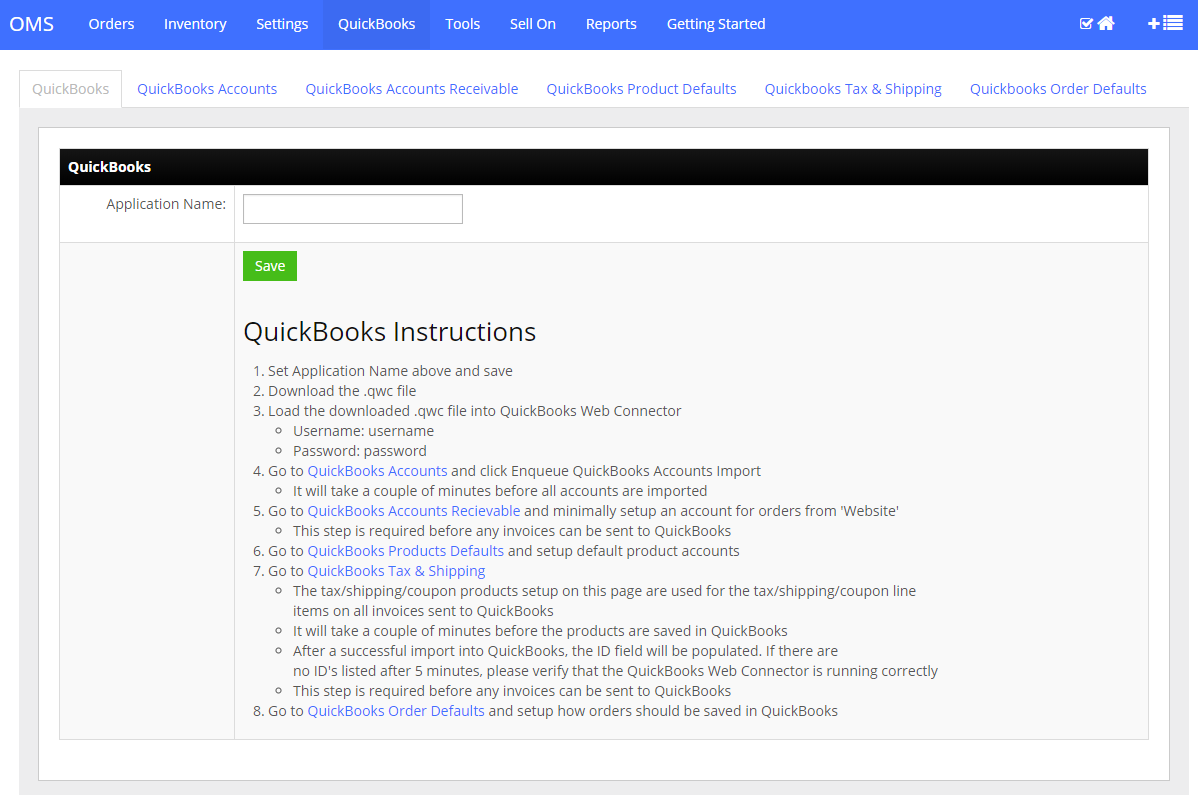
InfiPlex uses the QuickBooks Web Connector to communicate with QuickBooks. During the initial setup, your QuickBooks software will need to be open. However once all the IDs for the QuickBook Account tab and Quickbooks Tax & Shipping tab in InfiPlex have both been propogated, there is a setting in the QuickBooks webconnector that allows you to specify how/when you want to receive your QuickBooks data from the website.
When your invoice data is sent to QuickBooks, the Item Code will be the Product Name in Infiplex plus the internal InfiPlex product ID. The Description will be the InfiPlex Product name followed by the SKU. The Billing/Shipping address will be passed, however QuickBooks does not provide a method to pass the Billing/Shipping name on an invoice.
