
Last Updated: Sep 21, 2026
 By default InfiPlex Inventory & Order Management System (OMS) sends Costco a tracking confirmation the moment a label is received, and marks the order Fully Shipped. Costco sometimes asks a supplier to confirm tracking only after the carrier has actually picked up, usually when a carrier is missing daily pickups. This guide covers switching the Costco connection to that pickup-confirmed mode.
Step 1: Enable the Order Status Setting
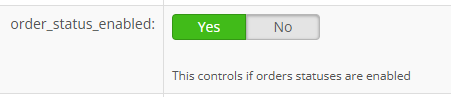
Go to Settings > Base Settings, Standard tab, and set order_status_enabled to Yes. This adds an Order Status control to the Order List and Order Detail pages.
Step 2: Set the Costco Push Tracking Status
In the Costco settings, change costco_push_order_tracking_order_status from the default < Any > (send as soon as tracking is received) to Pick Up Confirmed. From then on InfiPlex sends tracking to Costco only for orders in that status.

Step 3: Confirm Pickups from the Order List
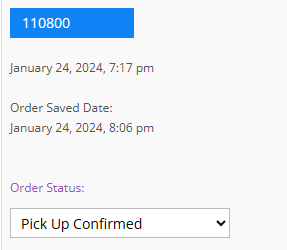
After a tracking number is on the order and the carrier has picked up, set the order's status to Pick Up Confirmed on the Order List page. InfiPlex sends the tracking confirmation to Costco on the next cycle. Costco requires the confirmation within two weeks of the order date.
Set-up Support
Contact InfiPlex with any Costco questions. Support is included with every InfiPlex package, and our team can review your first Costco orders with you.
