
Last Updated: Sep 21, 2026
 Alerts in InfiPlex Inventory & Order Management System (OMS) send a text or an email when something you care about happens: a SKU drops to a threshold, an order arrives from a particular channel, an order lands in an amount range, a specific SKU sells, or a log entry of a chosen type is written. Texts go through your own Twilio account; emails need no extra account.
Step 1: Twilio (Text Alerts Only)
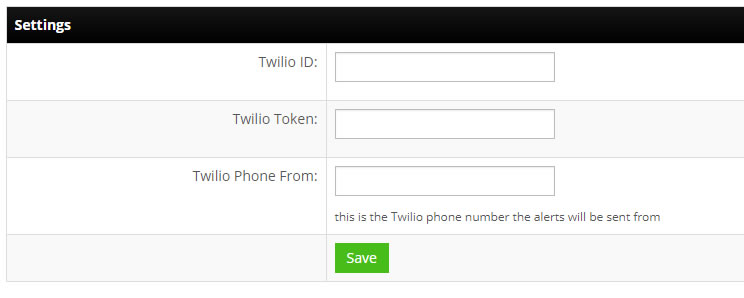
Skip this for email-only alerts. Sign up at Twilio.com, then go to Tools > Alerts, click Settings, enter your Twilio credentials, and save.
Step 2: Create an Alert
Go to Tools > Alerts and click Create Alert.
- Alert Name: a descriptive name.
- Alert Type: extra fields appear at the bottom of the form based on the type:
- Shop Log Saved: choose the log type to watch.
- SKU - Low Inventory Level: enter the SKU and the level; the alert fires when inventory is at or below it.
- Order from Specific Source: enter the exact order source name.
- Order in Amount Range: enter the minimum and maximum order total.
- Specific SKU Ordered: enter the exact SKU.
- SMS Alert Message and SMS Send To: text alerts only; one phone number per line.
- Email Send From: one address; noreply@infiplex.com is the recommended default. Alerts can land in junk folders; billable support can tune the email set-up to reduce that.
- Email Send To, Email Subject, Email Alert Message: email alerts only; one address per line.
- No Disturb Start / End: with both set (12-hour format, for example 11:00 PM), nothing is sent or saved between those times.
- Alert Frequency: Always, or once every 1, 2, 4, 8, 12, or 24 hours. Limit frequency when watching for a recurring error.
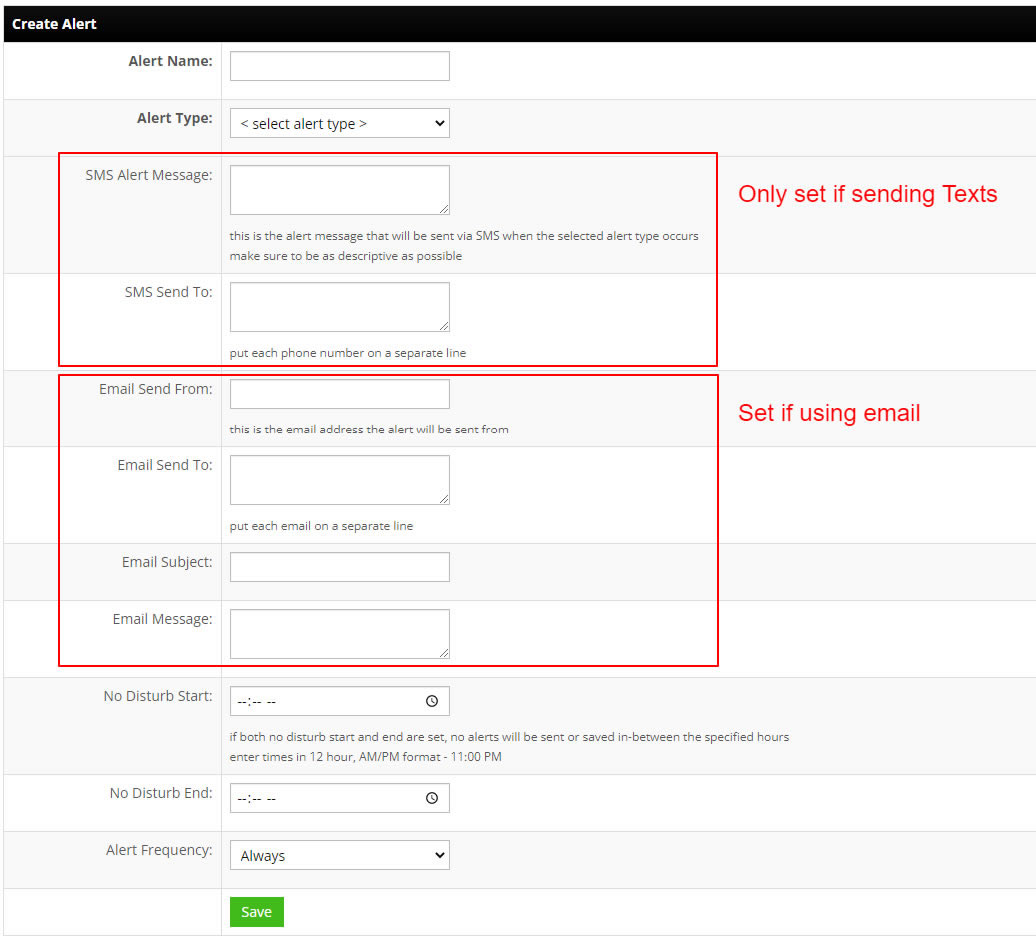
Click the green Save button.
Set-up Support
Contact InfiPlex with any alerts questions. Support is included with every InfiPlex package.
