
Last Updated: Aug 15, 2026
This document outlines the set-up for integrating the InfiPlex Inventory and Order Management System (OMS) with your Wayfair.com seller account.
InfiPlex Wayfair.com Quick Set-up

InfiPlex uses Wayfair's latest OAuth integration to connect with your Wayfair Seller Account. Follow the steps below to quickly make the integration connection with Wayfair.
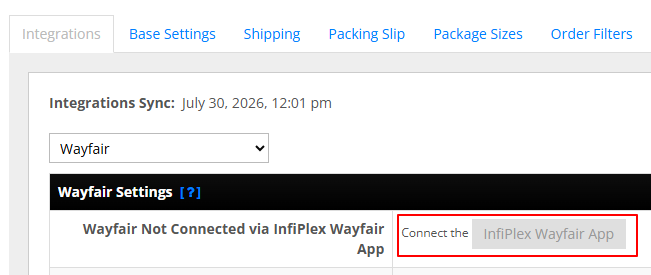
- Log into your InfiPlex OMS site first, and go to the Settings > Integrations > Wayfair page. Click the grey "InfiPlex Wayfair App" button. This will open the Wayfair / InfiPlex Vendor page in the Wayfair portal.
- Log into the Wayfair Vendor Marketplace with your main Wayfair Admin login account.
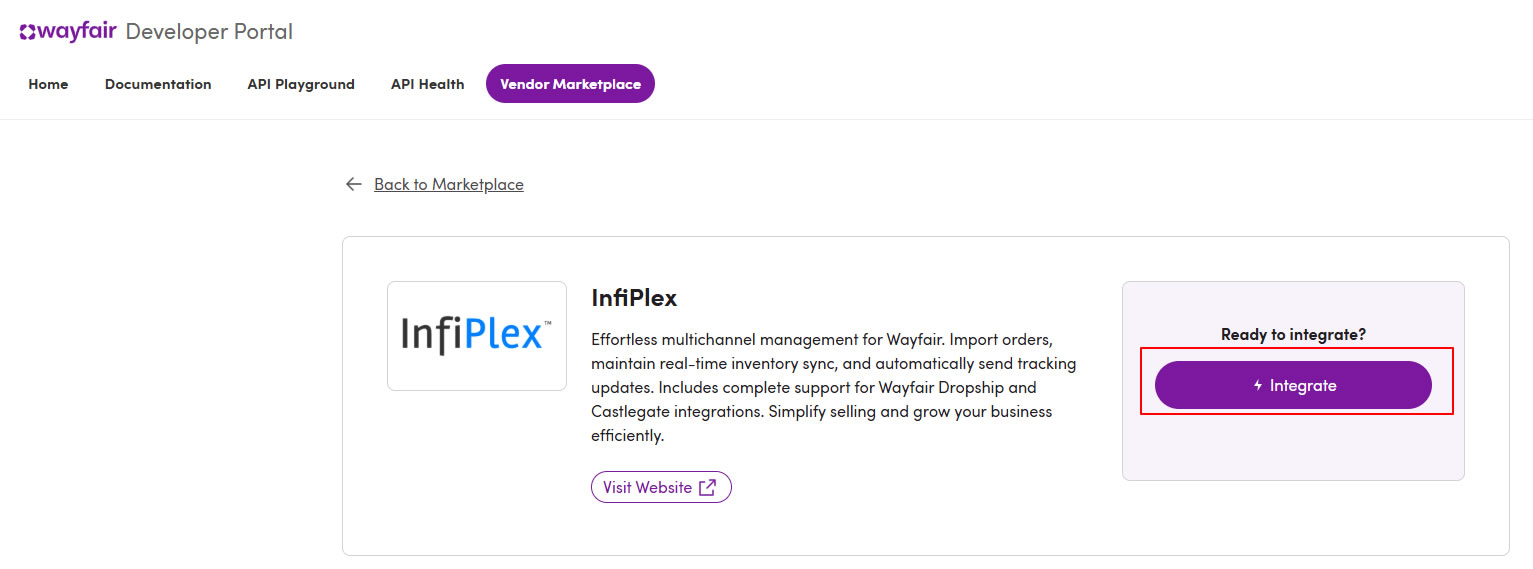
- Click the purple "Integrate" button to begin the authorization process.
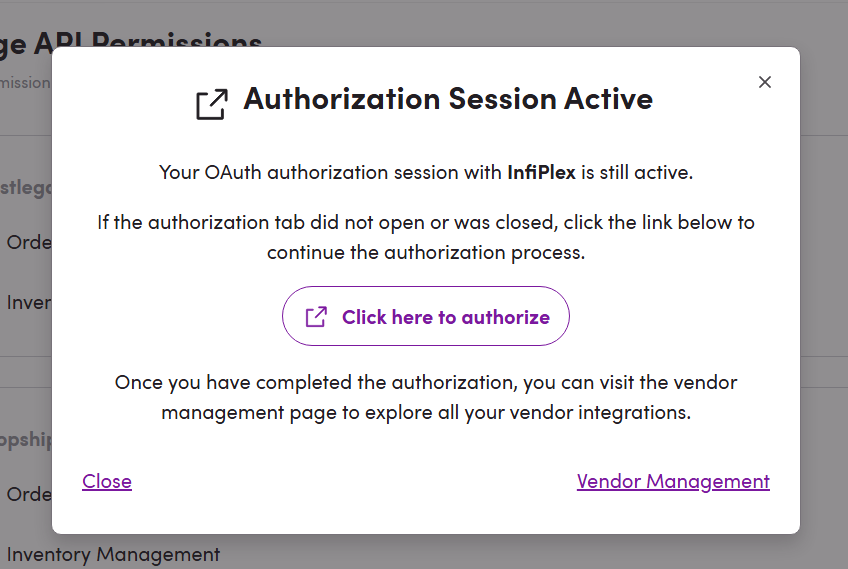
- Confirm the InfiPlex integration connection in the next step from the Wayfair Developer portal. This will finalize the connection with your Infiplex OMS account.
- After confirming the App in the Wayfair portal, you can go to your InfiPlex OMS site, navigate to the Settings > Wayfair page, and confirm the connection. You will see confirmation similar to the image below.

Important:
Make note of the Expiration date of the Refresh Token. You will need to re-authorize the InfiPlex Wayfair app before that time. The Refresh Token lasts approximately 6 months.
Wayfair Inventory Set-up
You will be required to add all of your Wayfair SKUs to InfiPlex in order to manage inventory properly with your Wayfair account. Wayfair requires that all SKUs have their inventory updated daily. The full Wayfair inventory file is pushed once a day via the API. Incremental updates are sent during the day as inventory changes are recorded for Wayfair SKUs. SKUs that are missing from your feed will be set with a zero inventory level by Wayfair.
Multiple Warehouse Set-up with Wayfair
InfiPlex also supports a multi-warehouse set-up with Wayfair. As part of your initial set-up and inventory testing, InfiPlex will work with you to configur multiple warehouses with your Wayfair connection.
Wayfair Shipping Labels & Packing Slips
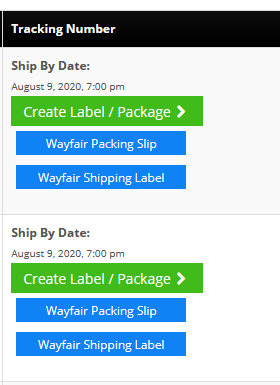
The InfiPlex - Wayfair integration can pull a label and packing slip from Wayfair. This needs to be turned on in the Wayfair settings. You can then print the provided label and packing slip directly from the Order List page. Wayfair provides these labels as PDF files, so you will be required to print them one at a time. Simply click the blue Wayfair Packing Slip or Wayfair Shipping Label button to open or download the PDF file.
It is recommended that you turn on the order_processed_packing_slip setting in the Settings > Base Settings > Stardard page. This will flag the order as "Processed" when you print the label, allowing you to identify orders that have been previously printed and processed.
Wayfair 3rd Party Shipping
You can also choose to print labels using Wayfair 3rd Party Shipping accounts for UPS and FedEx shipments. You will need to set-up 3rd Party shipping in the OMS or your shipping application to use Wayfair's accounts.
If you do not know the Carrier account numbers that Wayfair is using for your account, you can find them listed at the bottom of the order detail page. You can then use this information to create your 3rd Party Shipping account set-up in InfiPlex or your other shipping application.
Wayfair Replacement Part Orders
Replacement part orders must be processed via the Wayfair Partner Home portal. Replacement part POs are not available via the API. These orders will need to be processed manually via Order Management in the Partner Home portal.
Wayfair Multi-Warehouse Setup
Follow the steps below to set up multiple warehouses for your Wayfair integration:
- Add Your Warehouses & Wayfair Warehouse IDs:
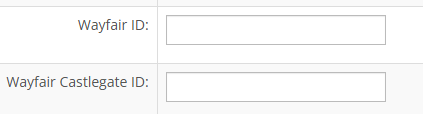
Use the Warehouse tools to add your warehouses to InfiPlex. Be sure to include address details and add the Wayfair Warehouse ID to the Wayfair ID setting. Note, InfiPlex can also integrate with Wayfair's Castlegate Multi-Channel program. If your setup is for Wayfair Castlegate, then add the Castlegate warehouse ID to the Wayfair Castlegate ID setting.
- Update Your Wayfair Settings:
After you have added your Wayfair warehouses in step 1, update your Wayfair integration setting - wayfair_inventory_sync_type - to be Multiple Warehouses. This will enable InfiPlex to send separate inventory updates to each Wayfair warehouse.

