
Last Updated: Aug 27, 2019
This document outlines how to connect with EasyPost Fulfillment and set-up your SKUs.
InfiPlex OMS Set-up with EasyPost Fulfillment
InfiPlex integrates with EasyPost Fulfillment to send all of your marketplace orders to EasyPost for fulfillment. The steps below outline the basic set-up process to add your SKUs and connect with EasyPost Fulfillment to ship all of your orders.
- Turn on EasyPost Warehouse Settings
- Go to Settings > Base Settings > Warehouse
- Set the setting easypost_fbe_enabled set to YES
- Add Your SKUs
- Go to Tools > Product Upload and use the upload tool to add your SKUs and barcodes
- Prepare the .csv file and then upload the file
- Be sure to minimally include your SKU number and the associated barcode
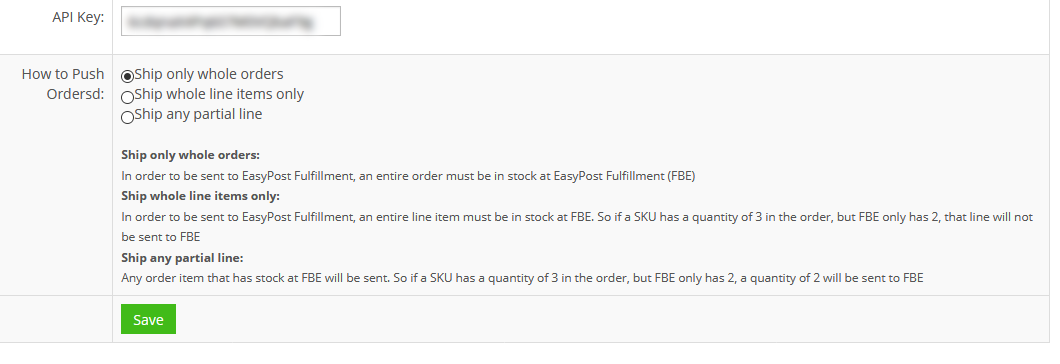
- Add EasyPost FBE API KEY
- Go to the Inventory > EasyPost FBE page (Fulfilled By EasyPost)
- Add your API Key
- Select how to push orders
- Click the Save button to save your settings
- Pull in EasyPost SKUs
- Go to the Inventory > EasyPost FBE page
- Click the Download FBE Product List button
- This will download products from EasyPost and associate them to the existing SKUs in InfiPlex
- This needs to be done as new SKUs are added to EasyPost, making sure the SKUs and barcodes are set-up in InfiPlex before clicking the download button
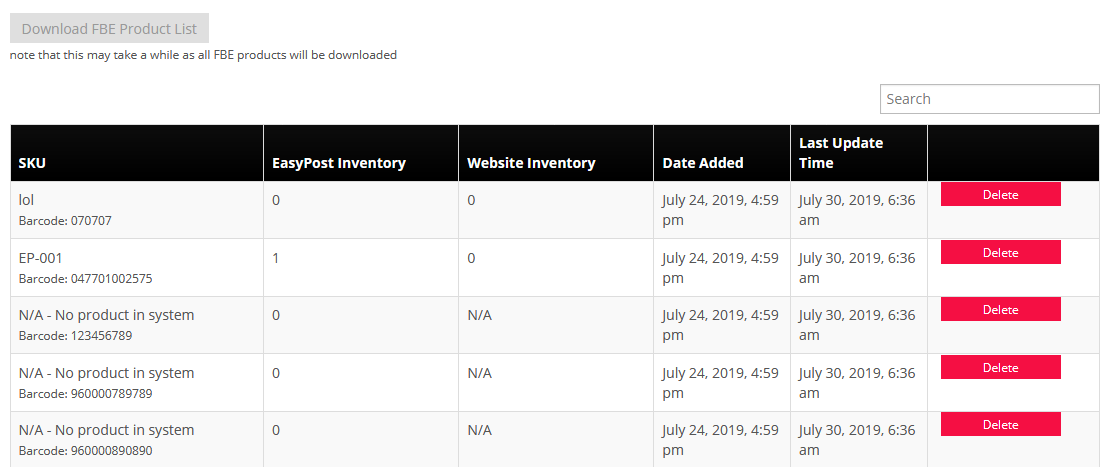
Barcode must be included with your SKUs
InfiPlex uses the barcode to match your SKU to the product listing in EasyPost. The barcode associated to your SKU in Step 2 must match the barcode that EasyPost has in their system for the product. You can go to the Inventory > EasyPost FBE page to confirm if an EasyPost product is assigned to a matching SKU via the barcode.
Adding New SKUs
When you send new products to EasyPost for Fulfillment, those products will be added to your EasyPost account. You also need to add the same product to InfiPlex as outlined in Step 2, with your SKU and the barcode used by EasyPost. Once you add the SKUs to InfiPlex, you need to go to the Inventory > EasyPost FBE page and click the Download FBE Product List button to pull in the new products from EasyPost and create the connection to the SKU in InfiPlex that has the matching barcode.
Important: if your EasyPost products do not show a matching SKU, your orders will not get sent to EasyPost. You MUST set this up correctly. If you have questions, please open a suport ticket from your InfiPlex admin area.
Marketplace Connections
You can review our Integrations page to see our current active integrations. You can also search for our set-up documents within the Knowledge Base. We can also help you connect with any other marketplace that is not listed, as long as they have an API. If you have any questions, please contact us.
Canceling Orders in EasyPost Fulfillment
The cancel button in InfiPlex OMS is not connected to EasyPost Fulfillment. If you need to cancel an order for some reason, you will need to cancel it in both systems. Canceling an order in EasyPost Fulfillment will not notify InfiPlex OMS. You should go into the OMS and add notes about the reason for the cancelation and either cancel that order in the OMS and marketplace if needed, or simply set the order as Fully Shipped and Processed.
