
Last Updated: Nov 15, 2016
You can easily add PayPal as a payment option for your transactional systems within InfiPlex. Each system, like the Shop and/or Donation system, will have separate settings for you to enter the appropriate PayPal Client ID and Client Secret. These are two key strings that are required for the system to properly connect with PayPal. The following documentation outlines how to get those two keys from your PayPal Business Account.
Please note that each system has its own settings to allow you to have different PayPal accounts for each system. Setting it up this way enables you to have the option to use different checking accounts per system.
Set-up Steps
Follow the steps outlined below to generate the appropriate keys required to connect your InfiPlex website to PayPal.
- Create a PayPal Business Developer Account:
- Go to https://developer.paypal.com/
You will need to create an account if you do not have a PayPal account. If you do have one, you can log in with that account. Just be sure it is the account you want to use for your business and not your personal PayPal account. - Once you log in, click on the Dashboard link in the top menu to pull up the dashboard

- Scroll Down the page until you see the REST API apps area. Click on the “Create App” button at the top of that section. Creating an App is where the PayPal System creates the required API Keys for your website to connect to PayPal. If you have already created the App, you can click on the App name to view it's details and get your keys.
- Name the App – “Website PayPal Payments”.
This name is not specifically required; you just need to call it something.
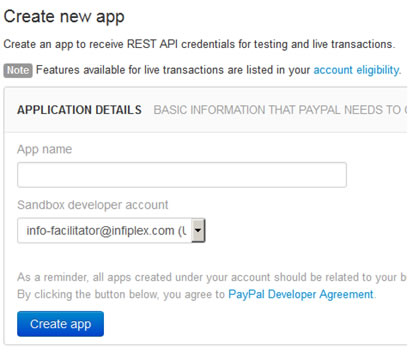
- Be sure to click the Create App button, this will then take you to the App Detail page
- Go to https://developer.paypal.com/
- On the App Detail page, get the following keys for the website settings. Be sure to click the “Live” link at the top right of the page to get the production keys. The keys that are shown by default are the testing keys, and will cause an error when you go to test the PayPal Payment button on the checkout page.
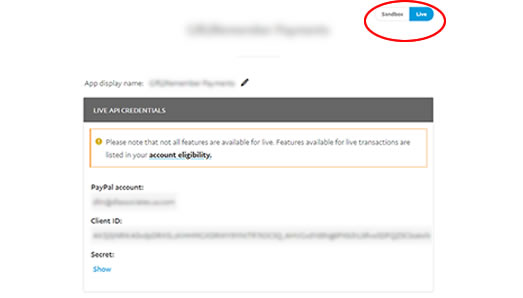
- Under the Live Credentials area, copy the ClientID and Secret keys and add them to the following settings for your application:
- paypal_client_id
- paypal_client_secret
- In your InfiPlex Shop admin area - be sure to turn on PayPal checkout in the settings area as well. Go to Settings > Base Settings > PayPal tab and turn on PayPal and add the client id and secret copied above.
How to Limit PayPal to US Shipping Only
Read the article Limiting PayPal Shipping to US Only.
