
Last Updated: Sep 21, 2026
 InfiPlex Inventory & Order Management System (OMS) creates international labels through your EasyPost account. International labels need customs data, which comes from two places: per-SKU data (tariff number and country of origin) and account-level defaults in the EasyPost settings. Requires the EasyPost integration.
Step 1: Add Required SKU Data
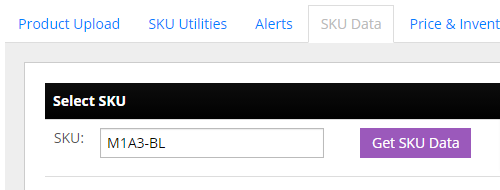
Every SKU in an international package needs a Harmonized Tariff Schedule number and a country of origin. Go to Tools > SKU Data.
- Enter the SKU and click Get SKU Data.
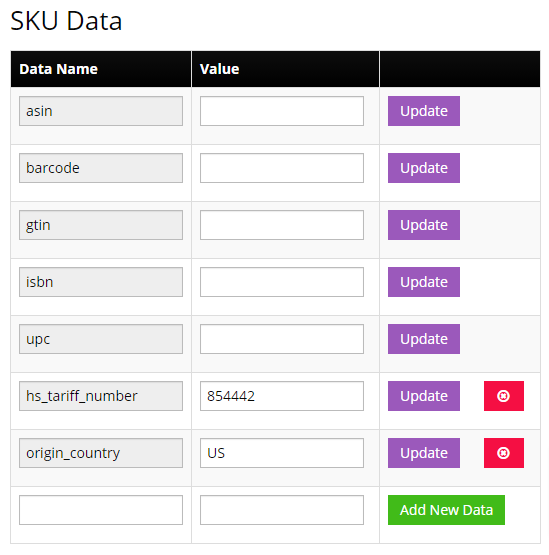
- Use Add New Data at the bottom to add two items:
- hs_tariff_number: from the US HTS site
- origin_country: the two-letter ISO country code
For many SKUs at once, the SKU Utilities tool uploads identifying data from a CSV.
Step 2: EasyPost International Settings
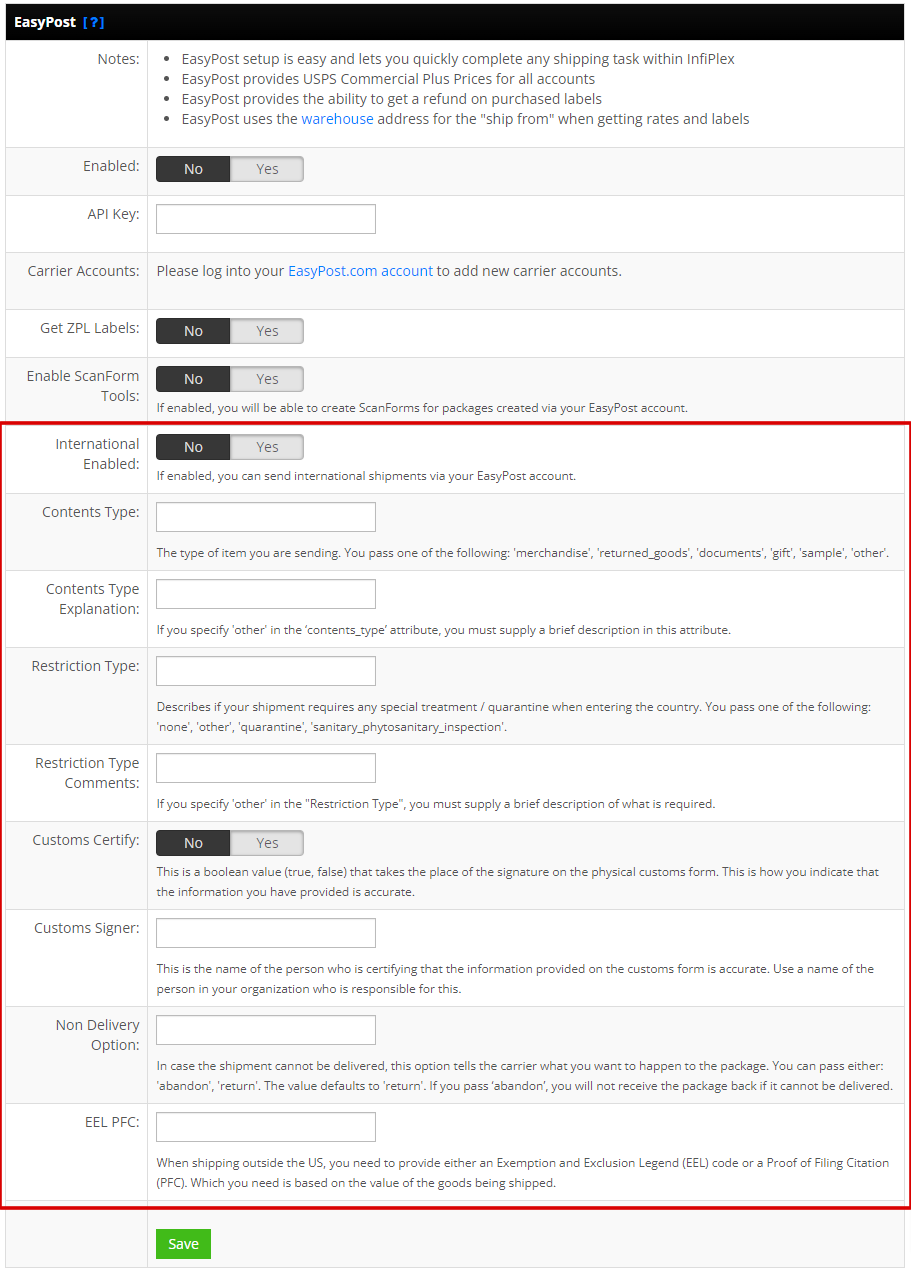
Go to Settings > Shipping > EasyPost. These defaults auto-fill the customs form on every international label:
- International Enabled: Yes, after the defaults below and the SKU data above are in place.
- Contents Type: one of merchandise, returned_goods, documents, gift, sample, other.
- Contents Type Explanation: required when Contents Type is other.
- Restriction Type: one of none, other, quarantine, sanitary_phytosanitary_inspection.
- Restriction Type Comments: required when Restriction Type is other.
- Customs Certify: Yes. Stands in for the signature on the paper customs form and certifies the information is accurate.
- Customs Signer: the name of the person in your company responsible for that certification.
- Non Delivery Option: return (default) or abandon. With abandon, an undeliverable package is not sent back.
- EEL PFC: the Exemption and Exclusion Legend code or Proof of Filing Citation required for exports, which depends on the value of the goods.
Set-up Support
Contact InfiPlex with any EasyPost international shipping questions. Support is included with every InfiPlex package.
