
Last Updated: Sep 21, 2026
 InfiPlex Inventory & Order Management System (OMS) connects to your Wish.com merchant account. Once connected, InfiPlex pulls Wish orders, sends tracking back when you ship so Wish can confirm fulfillment, and keeps Wish inventory in step with your other channels.
Before You Start
You need an existing Wish merchant account. If you do not sell on Wish yet, sign up as a Wish merchant first.
Wish Set-up Steps
- Open the Wish settings in your OMS. Log into your InfiPlex OMS site and go to Settings > Base Settings > Wish.
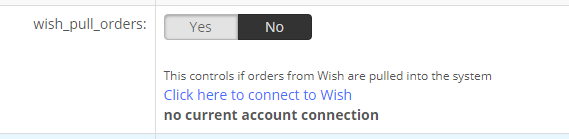
- wish_pull_orders: set to Yes, then click the connect to Wish link. Wish opens a window asking you to log in with your main merchant admin account and approve InfiPlex access.
- wish_send_tracking_numbers: set to Yes to send tracking back to Wish when an order ships. Wish confirms fulfillment from that tracking, so leave this on.
- wish_sow_enabled: set to Yes to send inventory levels to Wish for SKUs flagged as Sell On Wish.
- Save. InfiPlex starts checking Wish for new orders on the next cycle.
Inventory on Wish
Inventory updates go only to SKUs flagged as sold on Wish. Add your Wish SKUs to InfiPlex and set them as Sold On Wish, and InfiPlex keeps the Wish quantity in step with every other channel from then on.
Set-up Support
Contact InfiPlex with any Wish set-up questions. Support is included with every InfiPlex package, and our team can review your first Wish orders with you.
