
Last Updated: Sep 21, 2026
 The Sell On area in InfiPlex Inventory & Order Management System (OMS) controls which SKUs receive inventory updates for a marketplace. Flagging a SKU as Sold On does not change its listing on the marketplace, only whether InfiPlex sends it inventory. A marketplace or retail EDI connection must have inventory enabled to appear in Sell On.
Step 1: Upload New Products
SKUs must exist in InfiPlex before they can be flagged. Add them with the Product Upload tool (inventory 0 if you have none yet).
Product Upload now sets warehouses and marketplaces in the same step. If your upload file already assigns marketplaces, Step 2 below is optional; use it later only when your active SKU list for a marketplace changes.
Step 2: Flag SKUs as Sold On
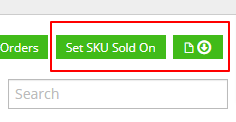
On the marketplace's Sell On page, click Set SKU Sold On above the search box.
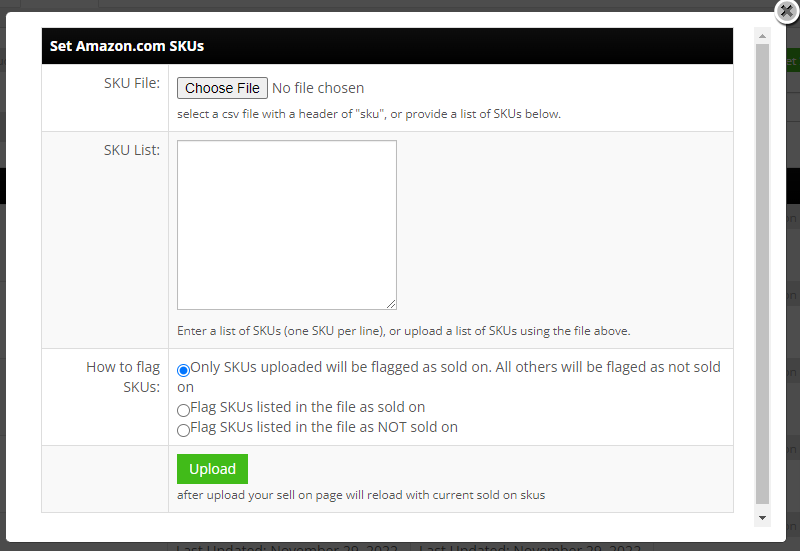
Upload a .csv or paste a SKU list into the pop-up. Three modes control what happens to your existing list:
- Only SKUs uploaded will be flagged as sold on: replaces the whole list. Upload your complete active SKU set for the marketplace.
- Flag SKUs listed in the file as sold on: adds the uploaded SKUs to the existing list.
- Flag SKUs listed in the file as NOT sold on: removes the uploaded SKUs from the existing list.
Step 3: Queue Changes
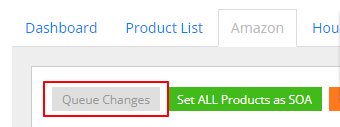
Click the grey Queue Changes button at the top left of the Sell On page. It queues inventory for any SKU whose system level differs from what the marketplace last received, which is how newly flagged SKUs get their first push. The Marketplace column shows the last successfully pushed level; "N/A" means never pushed, or an error, check Tools > Log for details.
Downloading the Current List
The download button next to Set SKU Sold On exports a .csv of every SKU currently flagged for that marketplace, with SKU and product name.
Updating Inventory Levels
Change levels on the Inventory page one at a time, or bulk-update with Tools > Price & Inventory Tools; see Managing Inventory. To have unrecognized SKUs added automatically, see Auto-Create SKUs from Marketplace Orders.
Set-up Support
Contact InfiPlex with any SKU assignment questions. Support is included with every InfiPlex package.
