
Last Updated: Sep 21, 2026
 InfiPlex Inventory & Order Management System (OMS) connects directly to your Magento 2 store. You choose the direction: InfiPlex can pull Magento orders in, making InfiPlex the system of record, or push marketplace orders into Magento, making Magento the system of record. Either way, tracking and inventory move automatically between Magento and every other channel. The connection requires Magento 2; Magento 1 stores are not supported.
Step 1: Create the Integration Token in Magento
- In the Magento Admin, go to System > Extensions > Integrations.
- Click Add New Integration. Enter a unique name, enter your admin password in Your Password, and leave the other fields blank.
- On the API tab, select the resources the integration can access (all resources, or a custom list that covers orders, products, and inventory).
- Save, then click Activate for the new integration and click Allow. Magento shows the token dialog:
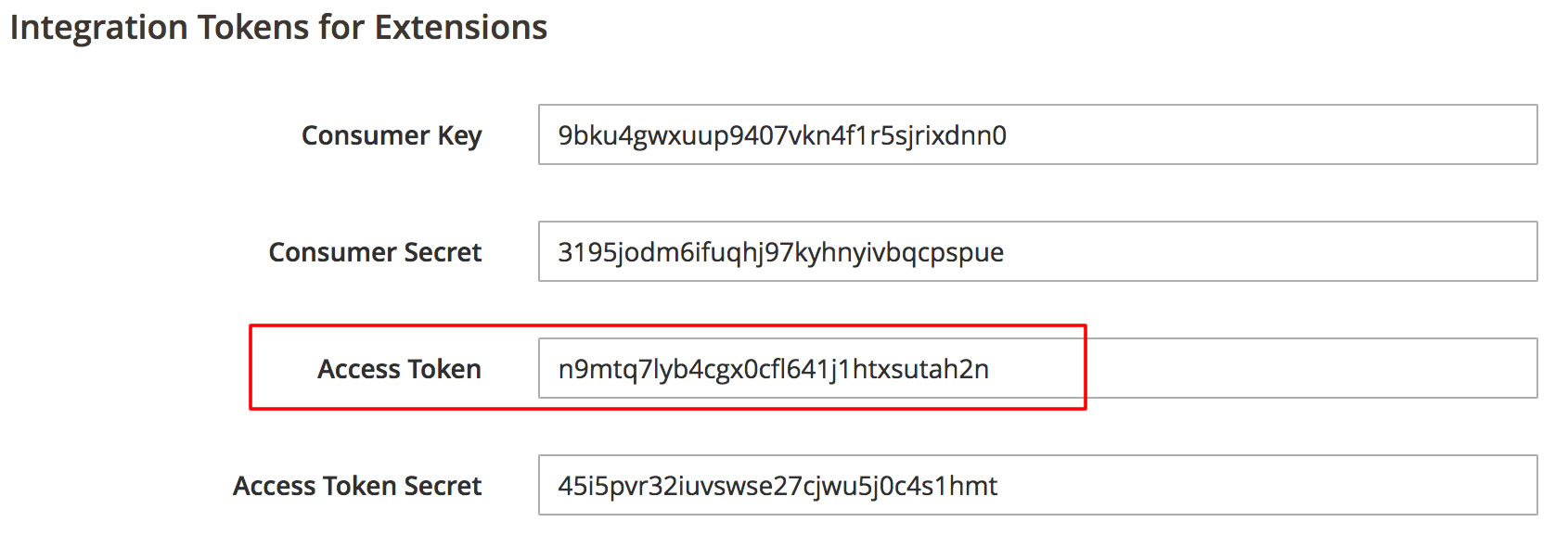
- Copy the Access Token. Magento's token authentication guide covers the screen in detail.
Step 2: Magento 2 Settings in InfiPlex
Log into your InfiPlex OMS site and go to Settings > Integrations > Magento 2. Two values make the connection: the access token and the REST URL of your store. The push settings are listed here; the pull settings are on the same page.
- magento2_rest_url: the full REST URL of your store, for example https://example.com/rest/all
- magento2_rest_auth_token: the access token from step 1
- magento2_push_orders_enabled: set to Yes to push marketplace orders into your Magento 2 store
- magento2_push_orders_create_invoice: set to Yes to create a Magento invoice with each pushed order
- magento2_get_inventory_from_push_connection: set to Yes to read inventory levels from Magento
- magento2_get_tracking_from_push_connection: set to Yes to read tracking numbers from Magento
- magento2_push_orders_order_source_storeid_map: maps each order source to a Magento store ID. Separate maps with two semicolons and the values inside a map with two colons, for example
Walmart::2;;Amazon.com::3
Magento Inventory Settings for the Push Connection
When InfiPlex reads inventory from Magento, the connected store ID should be configured in Magento to decrease stock when an order is placed. Magento's global inventory options page covers that setting.
Choose the SKUs That Take Inventory from Magento
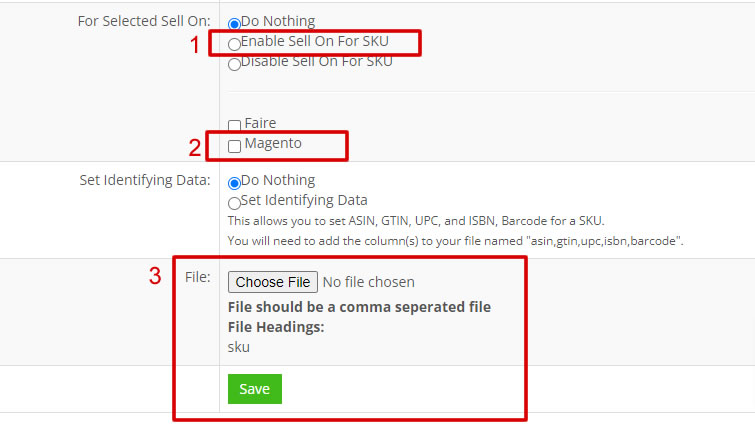
When inventory comes from Magento, InfiPlex updates only the SKUs you flag. Use the SKU Utilities tool to upload a CSV of those SKUs:
- Choose Enable Sell On For SKU in the For Selected Sell On row.
- Check the Magento box.
- Upload a CSV with one column headed
sku.
Only these SKUs receive inventory from Magento. Keep the list current as you add SKUs to InfiPlex.
Set-up Support
Contact InfiPlex with any Magento 2 set-up questions. Support is included with every InfiPlex package, and our team can review your first Magento 2 orders with you.
