
The InfiPlex Order Reports tool turns raw order history into seller insight: 3 report types, over 20 filters, and 5 breakout summaries covering products, order sources, returns, and tax. Pick a Report Type, filter down to exactly the orders you care about, export to CSV, and save any report to re-run on demand.
What Can You Use the Order Reports For?
- Get order totals for a date range. Base order info gives a fast, one-row-per-order view with item, discount, shipping, and tax totals.
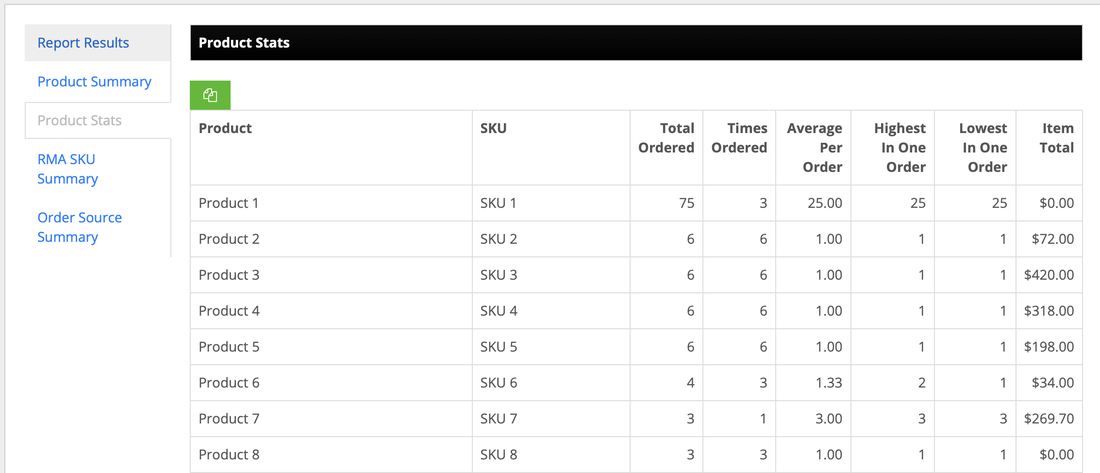
- See which products actually sell. Product Stats shows total ordered, times ordered, average per order, and highest and lowest quantity in a single order, per SKU. That's how you separate a product that sold 75 units to one buyer from one that sold 75 units to 75 buyers.
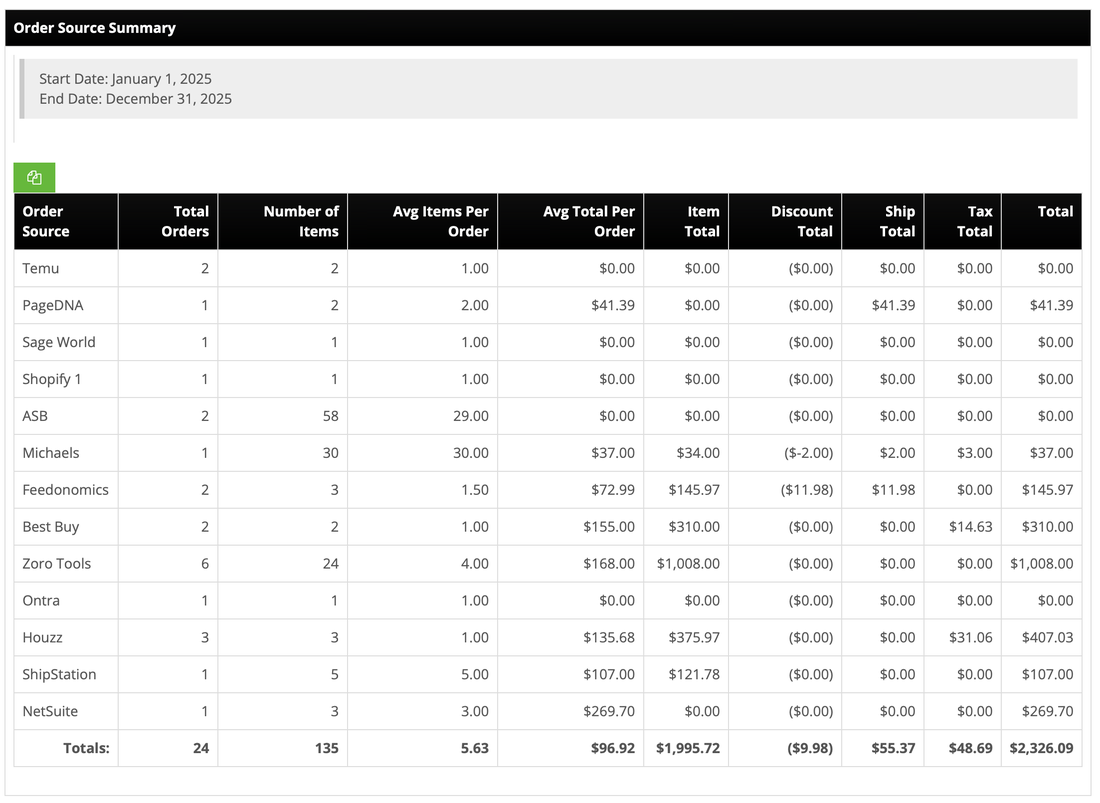
- Compare channels side by side. Order Source Summary totals orders, items, average order value, and revenue by order source, so you can see which marketplace is actually driving sales.
- See where orders ship from. Filter by warehouse, or turn on Include Order Warehouses to add the fulfilling warehouse to every row, useful for splitting volume across your own locations, FBA, and 3PLs.
- Break sales down geographically. Filter by shipping or billing city, state, region, zip, or country to see how a territory or market is performing.
- Track returns. RMA SKU Summary lists line items tied to a Return Merchandise Authorization.
- Re-run the same report on demand. Save a filter combination once and run it again later without rebuilding it.
Where Do I Find the Order Reports?
Reports > Order Reports.
What Are the Three Order Report Types?
| Report Type | What It Shows |
|---|---|
| Base order info | One row per order: totals, discounts, shipping, and tax, plus a tax summary by jurisdiction. |
| Detailed | The same period split five ways: order results, per-SKU product summary, product stats, RMA SKU summary, and order source summary. |
| Order Source Summary | Order totals grouped by channel. Uses only the date range; every other filter is ignored. |
Each type is covered in its own section below.
How Do I Filter the Order Reports?
The same filter form drives all three report types, with one exception: Order Source Summary uses only the date range and ignores everything else.
- Date Range: a preset range, or a custom Start Date and End Date.
- Report Type: Base order info, Detailed, or Order Source Summary.
- Warehouse and Include Order Warehouses: Warehouse filters to a specific location. Include Order Warehouses (Yes/No) adds a Warehouses column to the output, placed right after Order Number and before Number of Items. This only applies to Base Order Info and Detailed.
- Order Filter: apply any saved Order Filter for multi-condition scoping. See Create Order Filters.
Everything else is a straightforward filter on a single field:
Product Name, Product SKU
Order Minimum Total, Order Maximum Total
Order Source, Order Tag, Coupon Code
Shipping City, Shipping State, Shipping Region, Shipping Zip, Shipping Country
Billing City, Billing State, Billing Region, Billing Zip, Billing Country
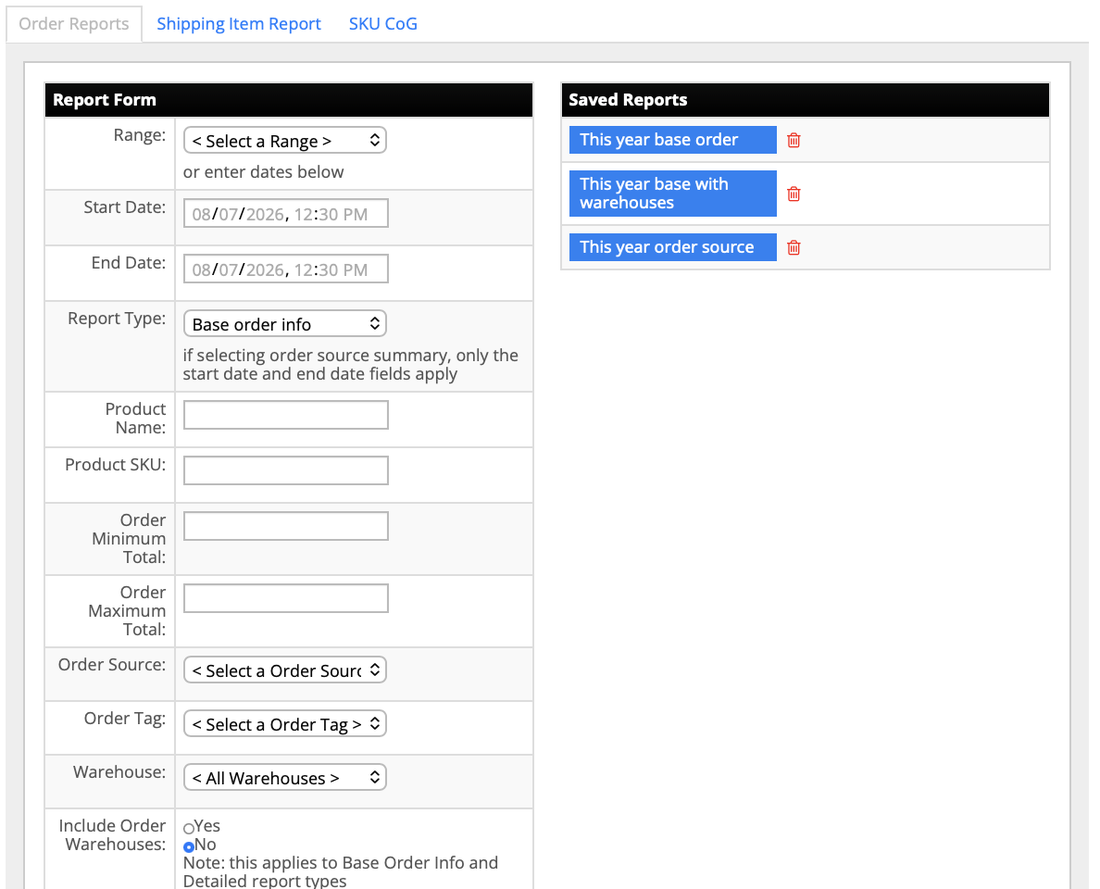
Can I Save an Order Report to Run Again Later?
Yes. Set Save Report to Yes and give it a Name before submitting. Saved reports appear in the Saved Reports panel next to the form, ready to run again with one click, or delete with the trash icon.
This is how recurring reporting gets fast: save one report per question you answer regularly, like a year-to-date base order report, the same report with warehouses included, and a year-to-date order source comparison. Month-end reporting becomes three clicks instead of three form fills.
What Does the Base Order Info Report Show?
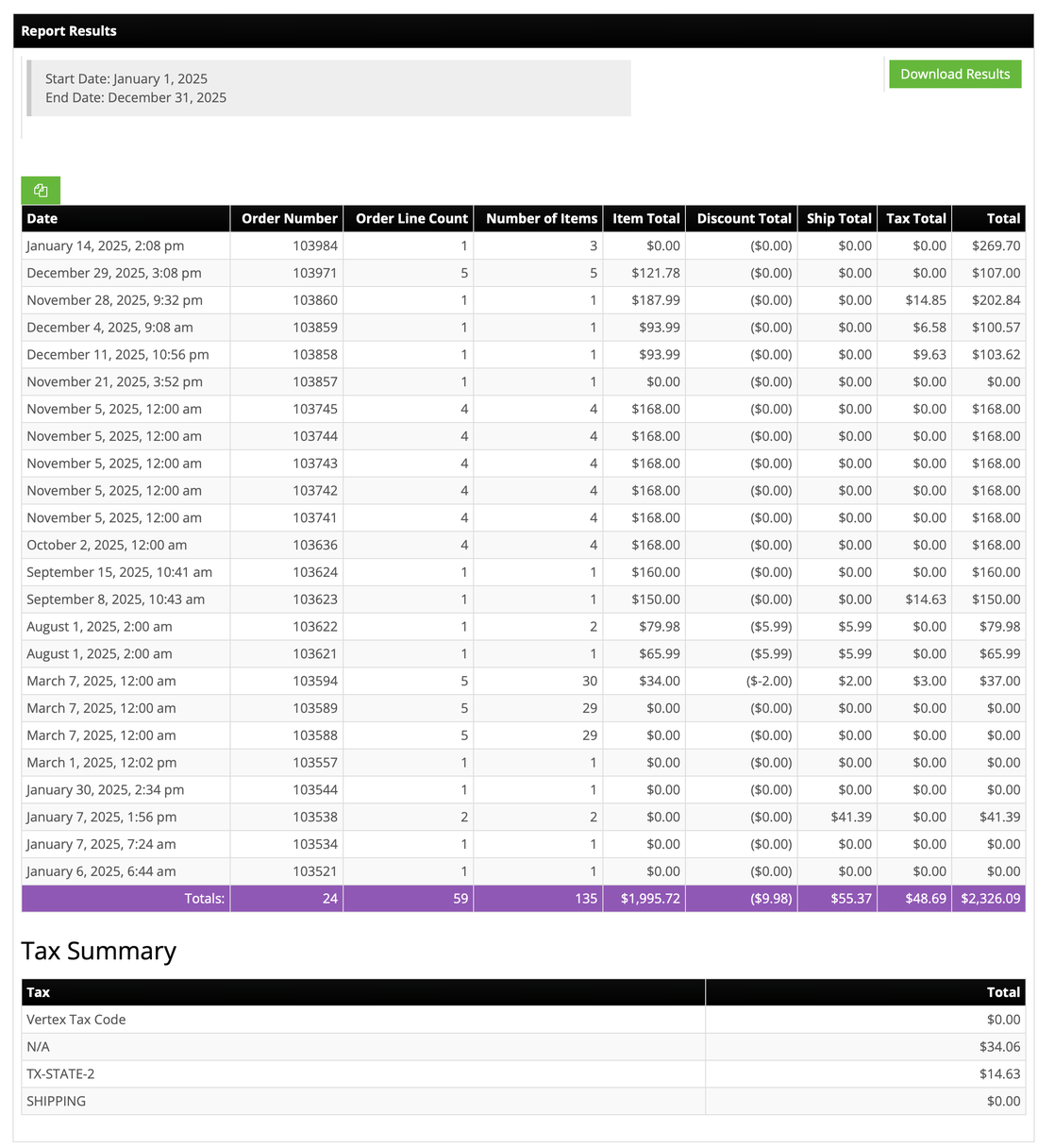
Base order info returns one row per order. Use it when the question is about orders themselves: how many came in, what they totaled, how discounts, shipping, and tax break out order by order. It's also the fastest run of the three.
Date, Order Number, Order Line Count, Number of Items, Item Total, Discount Total, Ship Total, Tax Total, Total
Below the main results, a Tax Summary table totals tax by tax code, so the same run shows tax collected under each jurisdiction or integration code (for example a state code vs an N/A group) without any extra filtering. Discount Total shows as a negative in parentheses, like ($11.98), and is already reflected in the Total column.
What Does the Detailed Order Report Show?
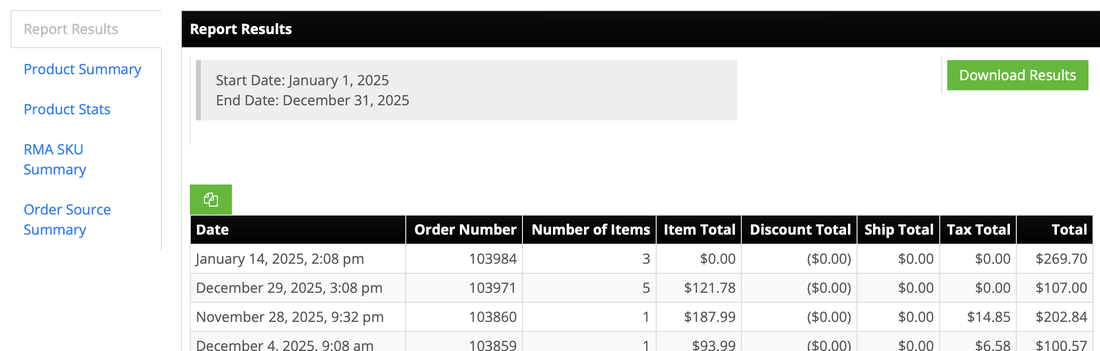
Detailed splits the same period five ways, each in its own tab. Use it when the question is about what's inside the orders: which SKUs sold, in what quantities, with what buying patterns, plus returns and a per-channel rollup, all from one run. If you'd otherwise run Base order info and then wonder "okay, but which products was that," start with Detailed.
Date, Order Number, Number of Items, Item Total, Discount Total, Ship Total, Tax Total, Total, plus the same Tax Summary table as Base order info.
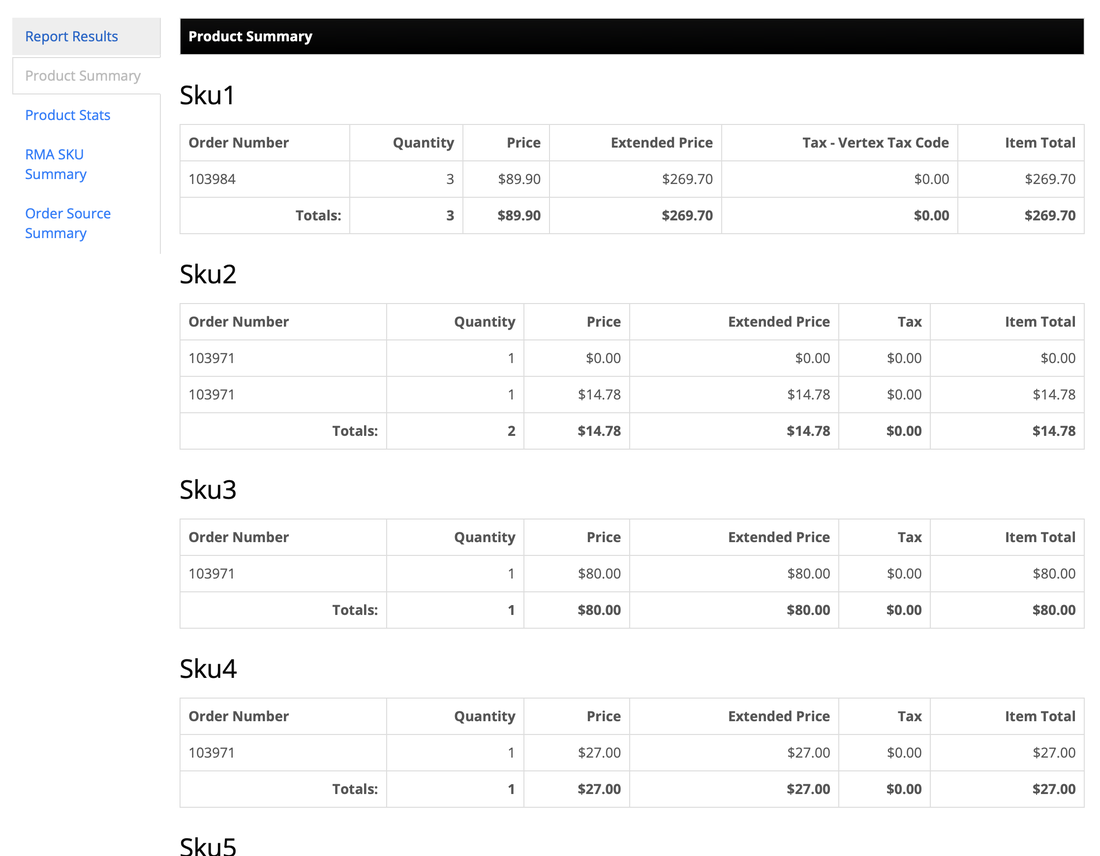
Every SKU ordered, grouped by SKU: Order Number, Quantity, Price, Extended Price, Tax, Item Total.
Product, SKU, Total Ordered, Times Ordered, Average Per Order, Highest In One Order, Lowest In One Order, Item Total.
Line items tied to a Return Merchandise Authorization: Order Number, Product, SKU, Quantity, Price, Total.
Order Source, Total Orders, Number of Items, Avg Items Per Order, Avg Total Per Order, Item Total, Discount Total, Ship Total, Tax Total, Total.
In Product Summary, the Tax column reflects the specific tax group a SKU's order falls into. A SKU with no special tax group just shows Tax. A SKU that falls into a specific tax group, like one using Vertex, shows that tax type's name in the column instead, and appears once per tax type if more than one applies.
In Product Stats, Times Ordered vs Total Ordered separates buying patterns. A SKU with Total Ordered 75 and Times Ordered 3 sold in large batches (Average Per Order 25). A SKU with Total Ordered 6 and Times Ordered 6 sold one at a time. Highest In One Order and Lowest In One Order show the range.
What Does the Order Source Summary Report Show?
Order Source Summary totals orders by channel for a date range. Use it when the only question is channel performance for a period and you don't need any product or order-level filtering. It's the quickest way to a side-by-side channel comparison, and the same table is also available as a tab inside the Detailed report.
Order Source, Total Orders, Number of Items, Avg Items Per Order, Avg Total Per Order, Item Total, Discount Total, Ship Total, Tax Total, Total
Avg Items Per Order separates buyer types. In the example below, one source shows 2 orders and 58 items (29 items per order), while another shows 2 orders and 2 items. Same order count, completely different kind of buyer: one is bulk or B2B-style purchasing, the other is one-off retail. Order count alone would make them look identical.
How Do I Export or Copy the Order Report Results?
Use the Download Results button above the results table to export to CSV.
To grab a single table without downloading, every results table has a green copy button at its top left. Click it to copy that table to your clipboard, ready to paste into a spreadsheet. Each tab in the Detailed report has its own copy button, so you can grab just the Product Stats table or just the Order Source Summary.
Order Reports Questions
What's the difference between the three Order Report types?
Base order info gives one row per order. Detailed splits the same period five ways across separate tabs. Order Source Summary totals orders by channel using only a date range.
Why did my Order Report filters stop doing anything?
Report Type is likely set to Order Source Summary. That report type only uses Start Date and End Date. Every other filter is ignored until you switch to Base order info or Detailed.
What does Include Order Warehouses do?
Include Order Warehouses adds a Warehouses column to the Order Report output, placed right after Order Number and before Number of Items. It applies to Base Order Info and Detailed, not Order Source Summary.
Can I scope an Order Report to a specific set of orders?
Yes. Use the Order Filter field to apply any saved Order Filter, in addition to the individual filters like Order Source, Product SKU, or Order Tag.
Can I run the same report again without rebuilding it?
Yes. Set Save Report to Yes and give it a name when you submit. It will appear in the Saved Reports panel for one-click reuse.
Can I copy a single results table instead of downloading the whole CSV?
Yes. Every results table in the Order Report has a green copy button at its top left that copies that table to the clipboard, including the individual tabs inside the Detailed report.
Need Something This Report Doesn't Cover?
Contact Us and we'll take a look. Support is included with every InfiPlex plan. For a version of this report that runs on a schedule and emails itself, see Scheduled custom reports with the MCP server and API.
See every report InfiPlex includes
Order Reports is one of four built-in reports, covering shipping, cost, orders, and marketplace settlements.
