
The InfiPlex MCP server lets you connect Claude, ChatGPT (through Codex), Cursor, or any MCP-compatible AI agent directly to your own InfiPlex instance. Once connected, the agent can search orders, explain why an order routed to a given warehouse, check inventory across warehouses, list what needs restocking, read the shop log, record tracking, set prices, and read or change settings, all in plain English, with a preview before anything channel-visible changes. This guide walks through the full set-up: enabling MCP on an API key, choosing permissions, and connecting each client. Most teams are asking their first question within five minutes. For what the server is and why it matters, see the InfiPlex MCP Server page; for every tool it publishes, see the MCP tools reference.
Jump to What You Need
| If You Want To… | Go To |
|---|---|
| Turn MCP on for an API key | Enable MCP on an API Key |
| Decide what the agent is allowed to do | Choose Scopes and the Two MCP Flags |
| Find the URL and header your client needs | The Two Values Every Client Needs |
| Connect Claude on claude.ai or Claude Desktop | Connect Claude |
| Connect Claude Code | Connect Claude Code |
| Connect ChatGPT through Codex | Connect ChatGPT via Codex |
| Connect Cursor, Windsurf, or a custom agent | Connect Any Other MCP Client |
| Confirm it worked and ask a first question | Your First Five Questions |
| Fix a connection that will not come up | Troubleshooting |
Enable MCP on an API Key
MCP access rides on an ordinary InfiPlex API key. In your InfiPlex admin go to Tools > Admin API and either open an existing key or click Create New API Key. We recommend a dedicated key per agent or per person, so revoking one later never affects anything else and your API log shows who did what.
Scroll to the MCP Settings section and set MCP Enabled to Yes.
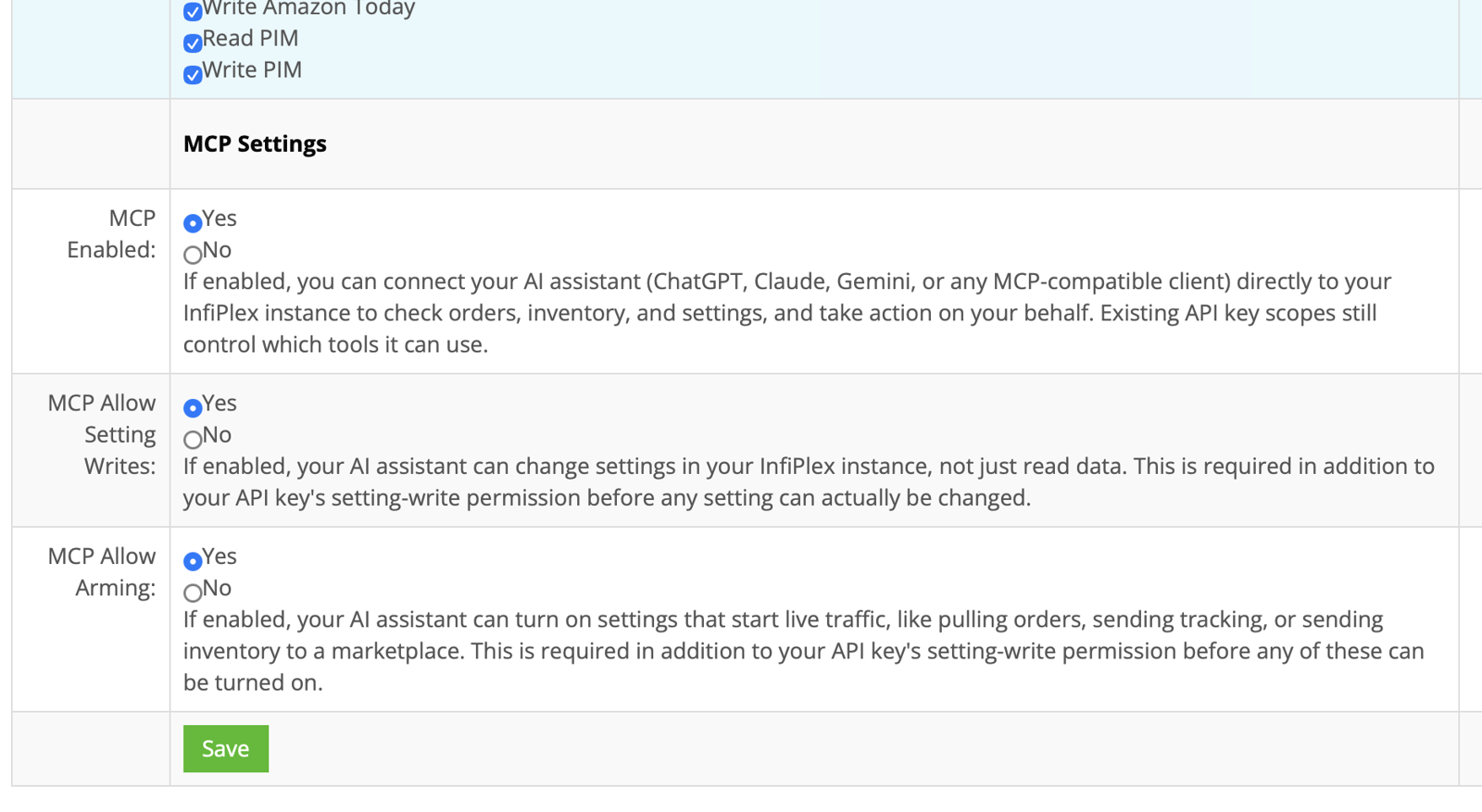
Leave MCP Allow Setting Writes and MCP Allow Arming at No for now; the next section explains when to turn them on. Save the key.
Choose Scopes and the Two MCP Flags
The agent can only use tools whose underlying API permission is checked on the key. The read and write checkboxes above the MCP section are the same scopes the REST API uses, and the MCP server publishes a tool only when its scope is present. Uncheck Write Inventory and the inventory write tools do not appear in the agent at all.
Three profiles cover most teams:
- Read-only (recommended start). Check every Read scope, no Write scopes, both MCP flags No. The agent can find and explain orders, routing decisions, stock, restock lists, prices, settings, and logs, and can generate marketplace connect links. It cannot change anything.
- Warehouse and fulfillment. Read scopes plus Write Orders and Write Inventory, both MCP flags No. Adds tracking, receiving and cycle counts, bin locations, notes, processed and status, and cancellations. Every channel-visible write still stops at a preview.
- Administrator. All scopes, MCP Allow Setting Writes Yes. Turn MCP Allow Arming on only for a session where you need the agent to switch channel traffic on or off, then turn it back off.
The two flags gate one tool, shop_setting_set. Allow Setting Writes is required before the agent can change any setting, on top of the Write Settings scope. Allow Arming is additionally required for settings that start or stop live marketplace traffic, such as pulling orders or sending inventory or tracking. Credential settings can never be read or written through MCP regardless of flags. The full model is in how AI agent writes are protected.
The Two Values Every Client Needs
After you save with MCP Enabled, the key page shows an MCP Setup Instructions block with the two values every client needs, already filled in for your instance.
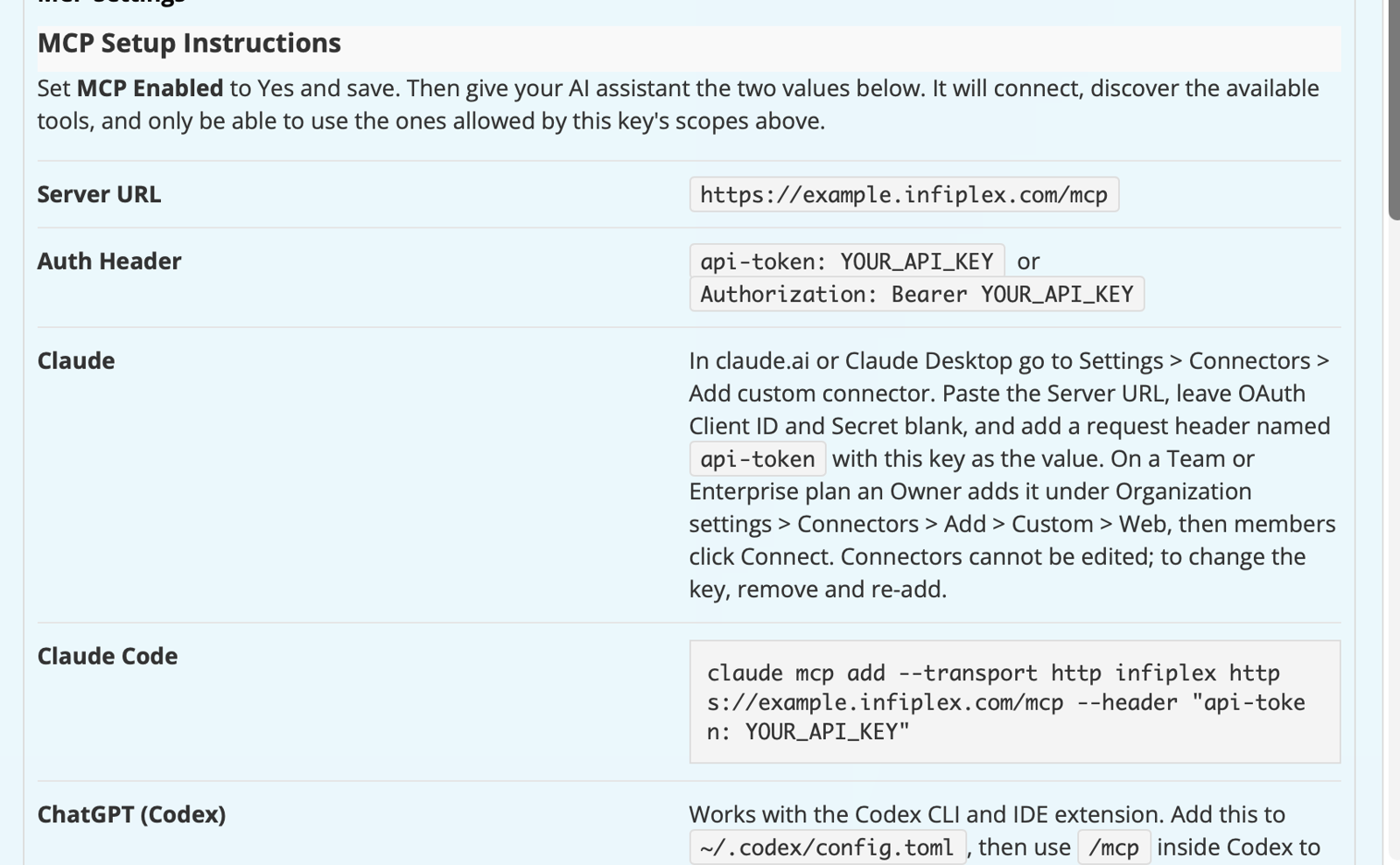
| Server URL | https://yourcompany.infiplex.com/mcp (your instance subdomain plus /mcp; Streamable HTTP transport) |
| Auth header | api-token: YOUR_API_KEY or Authorization: Bearer YOUR_API_KEY. Both are accepted. |
Treat the key like a password. Anyone holding the URL and header has exactly the access the key's scopes allow. If it is ever exposed, regenerate it on the key page and update your client.
Connect Claude (claude.ai and Claude Desktop)
- In claude.ai or Claude Desktop, open Settings > Connectors and click Add custom connector.
- Give it a name, for example InfiPlex, and paste the Server URL.
- Leave OAuth Client ID and Client Secret blank.
- In the request header field, enter the header name api-token and your API key as the value.
- Save. Claude connects, calls the server's tool list, and shows the tools this key allows.
- In a chat, open the tools menu, make sure the InfiPlex connector is enabled, and ask a question.
On a Team or Enterprise plan, an Owner adds the connector under Organization settings > Connectors > Add > Custom > Web; members then click Connect under Customize > Connectors. Each member can use a different key if you want per-person permissions.
Claude.ai connectors cannot be edited after creation. To change the key or URL, remove the connector and add it again.
Connect Claude Code
One command in the terminal:
claude mcp add --transport http infiplex https://yourcompany.infiplex.com/mcp --header "api-token: YOUR_API_KEY"
Run /mcp inside Claude Code to confirm the server shows as connected and to see its tools.
Connect ChatGPT via Codex
ChatGPT connects through the Codex CLI and IDE extension, which support remote MCP servers with a custom header. Add this to ~/.codex/config.toml:
[mcp_servers.infiplex]
url = "https://yourcompany.infiplex.com/mcp"
http_headers = { "api-token" = "YOUR_API_KEY" }
Start Codex and run /mcp to confirm it connected.
Connect Any Other MCP Client
Cursor, Windsurf, and custom agents built on an MCP SDK all follow the same shape: a remote server over Streamable HTTP, with the key sent as either the api-token header or a standard bearer token. A typical JSON config:
{
  "mcpServers": {
    "infiplex": {
      "type": "http",
      "url": "https://yourcompany.infiplex.com/mcp",
      "headers": { "Authorization": "Bearer YOUR_API_KEY" }
    }
  }
}
The server supports MCP protocol versions 2025-11-25, 2025-06-18, and 2025-03-26. Clients that only support OAuth sign-in for remote servers are not supported at this time.
Your First Five Questions
Ask these in order. Each one exercises a different tool and confirms the connection, the scopes, and the preview gate are all working.
- "How many orders came in today, by channel?" Confirms the connection and the Read Orders scope. Uses order_search with a count.
- "Why did order 12345 ship from the warehouse it did?" Use a real InfiPlex order id. Returns the routing event log through order_warehouse_routing_explanation_get; see multi-warehouse order routing for how those decisions are made.
- "What is at or below its reorder point?" Uses inventory_restock_list, the same list behind Restock Alerts.
- "Did any channel fail to pull orders in the last 24 hours?" Uses log_types_get then log_search on the failed types.
- "Set the price of SKU TEST-001 to 9.99." Only if the key has Write Pricing. The agent reads the current price, then shows you the server's preview and asks you to confirm. Say no. You have just seen the gate work without changing anything.
More ready-to-use prompts, grouped by role, are in AI agent prompts for order management.
Troubleshooting
- The client connects but lists no tools. MCP Enabled is No on the key, or no Read or Write scopes are checked. Fix the key and reconnect; Claude.ai requires removing and re-adding the connector.
- 401 or "unauthorized" on connect. The header name is wrong (it is api-token, or Authorization with the word Bearer), or the key was pasted with a trailing space.
- The agent says a tool is missing. Its scope is not checked on the key. The agent sees only tools the key allows.
- "Setting writes are not enabled for this api key." Turn on MCP Allow Setting Writes.
- "This setting starts or stops live marketplace traffic." Turn on MCP Allow Arming, or leave it off and change that setting in the admin.
- "The confirmation token is missing, expired, or does not match." More than ten minutes passed between preview and confirm, or the arguments changed. Ask the agent to preview again.
- The client cannot reach the server at all. Your instance must be reachable from the public internet. If it sits behind an IP allowlist, allow your AI vendor's published egress ranges.
InfiPlex MCP Set-Up Checklist
- Go to Tools > Admin API and open an existing key or click Create New API Key; one key per agent or person.
- Check the Read scopes you want; add Write scopes only where the agent should act.
- Set MCP Enabled to Yes. Leave Allow Setting Writes and Allow Arming at No unless needed.
- Save, then copy the Server URL and auth header from the MCP Setup Instructions block.
- Add the server in your client: Claude connector, Claude Code command, Codex config, or JSON config.
- Ask "How many orders came in today?" to confirm the connection.
- Ask for a price change on a test SKU and decline the preview to see the gate.
InfiPlex MCP Set-Up Questions
What is the InfiPlex MCP server URL?
It is your instance address plus /mcp, for example https://yourcompany.infiplex.com/mcp. Every InfiPlex instance has its own endpoint on its own subdomain. The key page shows yours filled in.
Which header does the InfiPlex MCP server use for authentication?
Either api-token with your API key as the value, or a standard Authorization: Bearer header. Both are accepted on every client. Claude.ai's custom connector form uses the header field with api-token.
Do I need a separate API key for MCP?
No. Any InfiPlex API key can have MCP Enabled set to Yes. A dedicated key per agent or person is recommended so you can revoke one without affecting others and so your API log attributes activity correctly.
Does MCP cost extra?
No. It is included with API access on every InfiPlex plan, with no AI add-on and no per-call fee.
Which AI assistants can connect?
Claude on claude.ai and Claude Desktop, Claude Code, ChatGPT through the Codex CLI and IDE extension, Cursor, Windsurf, and any other client that supports remote MCP servers over Streamable HTTP with a custom header or bearer token.
Can I connect ChatGPT directly in the ChatGPT app?
Not at this time. The ChatGPT web and desktop apps require OAuth sign-in for remote MCP servers. ChatGPT connects to InfiPlex through Codex, which supports header-based authentication.
What can the agent do once connected?
Whatever the key's scopes allow: search and read orders, explain warehouse routing, read inventory, history, and restock lists, read prices and product records, read warehouses, search and read settings, search the shop log, generate marketplace connect links, and, with write scopes, record tracking, adjust inventory, set prices, create products and warehouses, and change settings. The full list is in the MCP tools reference.
How do I stop the agent from changing anything?
Give it a key with only Read scopes. The write tools are not published to a key without write scopes, so there is nothing for the agent to call.
How do I change the API key a Claude connector uses?
Claude.ai connectors cannot be edited. Remove the InfiPlex connector under Settings > Connectors and add it again with the new key.
Can a 3PL give each client agent access?
Yes. Issue each client a key with the scopes you want them to have, typically read-only. The client connects their own assistant to your instance with that key and sees only what the key allows.
How do I connect a marketplace account through the agent?
Ask the agent for a connect link for the channel, for example an Amazon or Walmart connect link. It calls marketplace_connect_link_get and returns a one time authorization URL for the marketplace account owner to click. The link expires the same day, and no credentials pass through the agent.
Headless order management, five minutes from now
The MCP server is included with API access on every InfiPlex plan. Enable it on a key, paste one URL and one header into the assistant your team already uses, and start asking.
Related guides
- InfiPlex MCP Server
- Watch a Demo
- Is It Secure? A Plain-English Overview
- Headless Order Management
- Autonomous Fulfillment Agent
- AI Agents for 3PL Clients
- MCP Tools Reference
- How AI Agent Writes Are Protected
- AI Agent Prompts for Order Management
- InfiPlex OMS API Overview
- InfiPlex API Reference
- Multi-Warehouse Order Routing & Splitting
- Geo Order Routing by Zip Code
- Multichannel Inventory Sync: Stop Overselling
- InfiPlex Restock Alerts
- InfiPlex 3PL Connector
- NetSuite Custom Field Mapping and Order Rules
- AI agent for Amazon Vendor Central
- AI agent for Temu
- AI agent for Walmart DSV
- Nightly restock agent
- Morning unshipped orders agent
- Daily inventory by warehouse report agent
- Receive a container from a spreadsheet with the MCP server
- Scheduled custom reports with the MCP server and API
- Custom SKU Data: secondary IDs and supplier codes
- MCP to EDI: five real retailer sessions
