
Last Updated: Sep 21, 2026
The Order List in InfiPlex Inventory & Order Management System (OMS) is where most shipping happens: create the package, compare rates across your carriers, buy the label, and print the packing slip and label for each order, or print pick lists, slips, and labels in bulk.
Before You Start
- Connect a label carrier under Shipping Settings, usually EasyPost.
- Define your box sizes with the Package Sizes tool.
- Load SKU weights with the Product Upload Tool.
Create a Package and Buy a Label
- Click the green Create Label/Package button. If the marketplace supplied a ship-by date, it shows above the button.
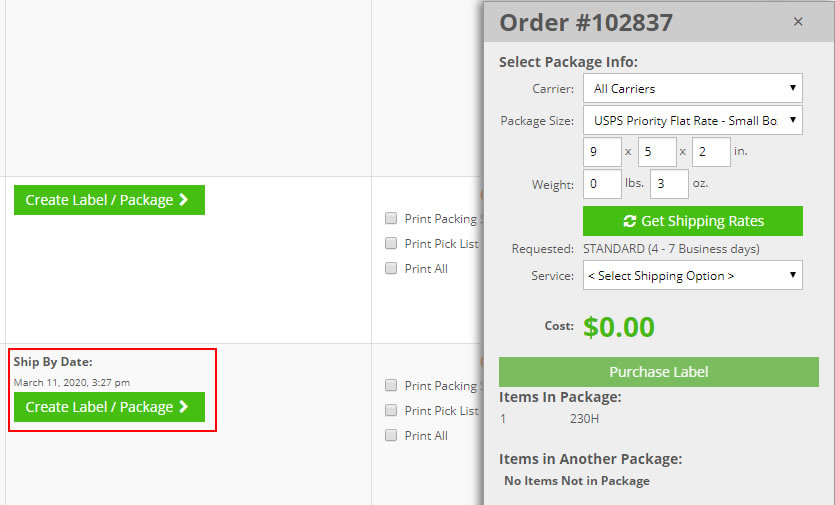
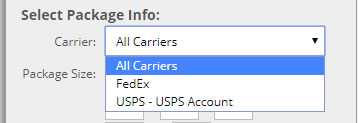
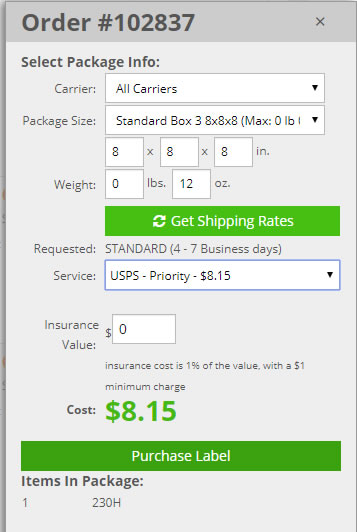
- Select the carrier. Choose one carrier, or All to compare rates from every connected carrier.
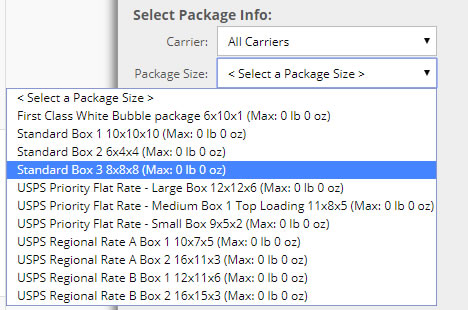
- Select the package size. Pre-loaded sizes fill length, width, and height, which rates require.
- Click Get Shipping Rates.

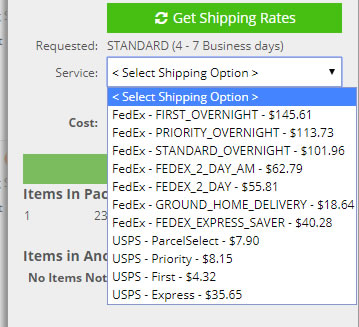
- Pick the carrier and method. Every available service is listed with its label price.
- Click Purchase Label. The selection and cost are shown, with optional insurance for USPS shipments.
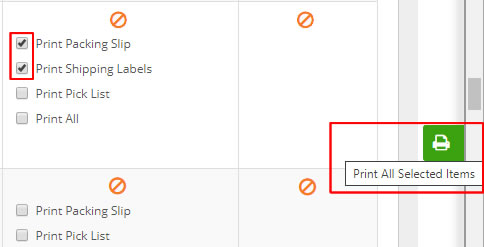
- Choose what to print. After purchase, check Print Packing Slip and Print Shipping Labels for the order and click the print icon on the right.
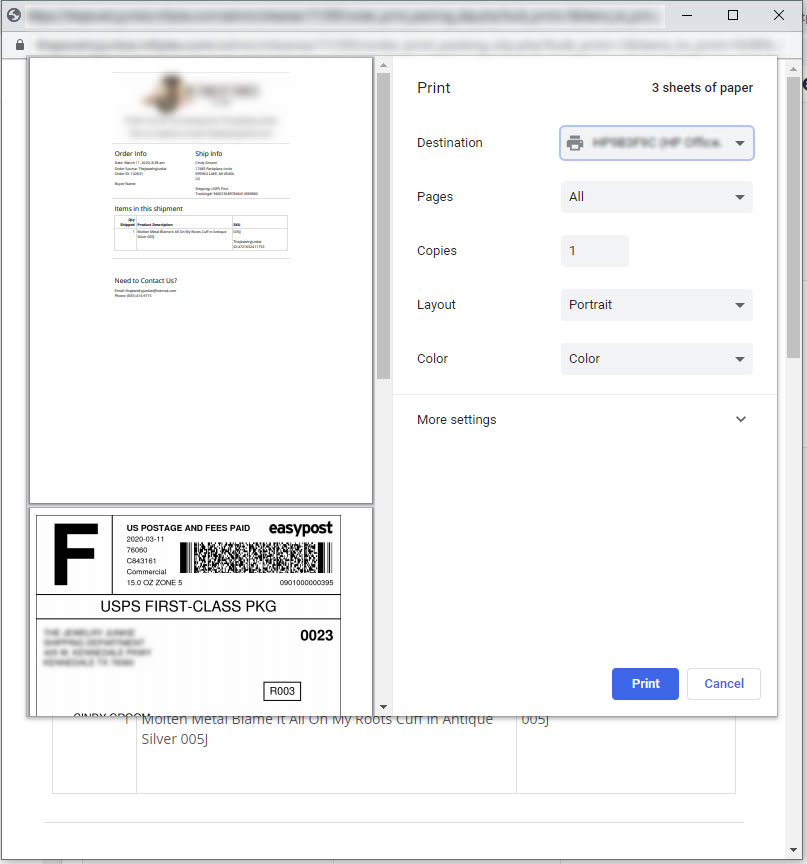
- Print. The browser print dialog opens; set your printer for the packing slip and label.
Bulk Printing
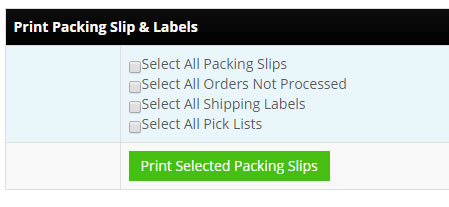
The bottom of the Order List has bulk options for pick lists, packing slips, and shipping labels. Filter the list first, then print the whole set at once.
Set-up Support
Contact InfiPlex with any shipping questions. Support is included with every InfiPlex package.
