
The InfiPlex Shipping Item Report gives you a complete, line-item-level record of everything that shipped in a given time frame, with tracking, ship method, and destination detail for each one. Each row is a single shipped item, not a full order, so an order with three line items appears as three rows in the results.
What Can You Use the Shipping Item Report For?
- Get a full record of what shipped. Pull every item shipped in a date range, whether that's yesterday or last quarter.
- Prepare for carrier pickup. Run it at end of day, before FedEx, UPS, or USPS arrives, to confirm everything that's supposed to go out.
- Audit on-time performance. Compare Ship Date against Requested Ship Date to catch late shipments.
- Confirm tracking made it back to the channel. Check the Tracking column for gaps.
- Look up serialized items. Search by Serial # or UPC for warranty or compliance requests.
Where Do I Find the Shipping Item Report?
Reports > Shipping Item Report
How Do I Filter the Shipping Item Report?
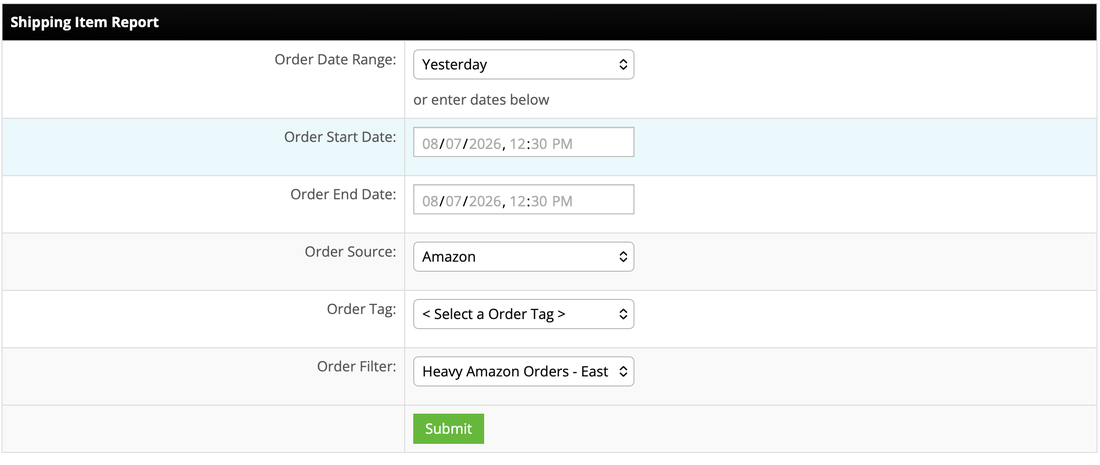
Scope the report before running it:
- Order Date Range: a preset range like Yesterday, or a custom start and end date.
- Order Source: a specific marketplace or channel.
- Order Tag: orders carrying a specific tag.
- Order Filter: any saved Order Filter. For example, a filter like Heavy Amazon Orders - East (see Create Order Filters) can be applied here to scope the report to just those orders.
What Columns Does the Shipping Item Report Include?
30 columns cover everything from order identity to ship-to address, grouped here by what they describe.
Order Number, Order Source, Order Source #, External Order Source, External Order ID, External External Order Source, Additional Order ID
Ship Date, Requested Ship Date, Order Date
Requested Shipping, Ship Method, Tracking, Label Cost, Insurance Amount
Ship to Name, Ship to Company, Ship to Street 1, Ship to Street 2, Ship to City, Ship to State, Ship to Zip, Ship to Country, Ship to Phone
SKU, UPC, Serial #, Item Cost, Order Unit Price, Order Total
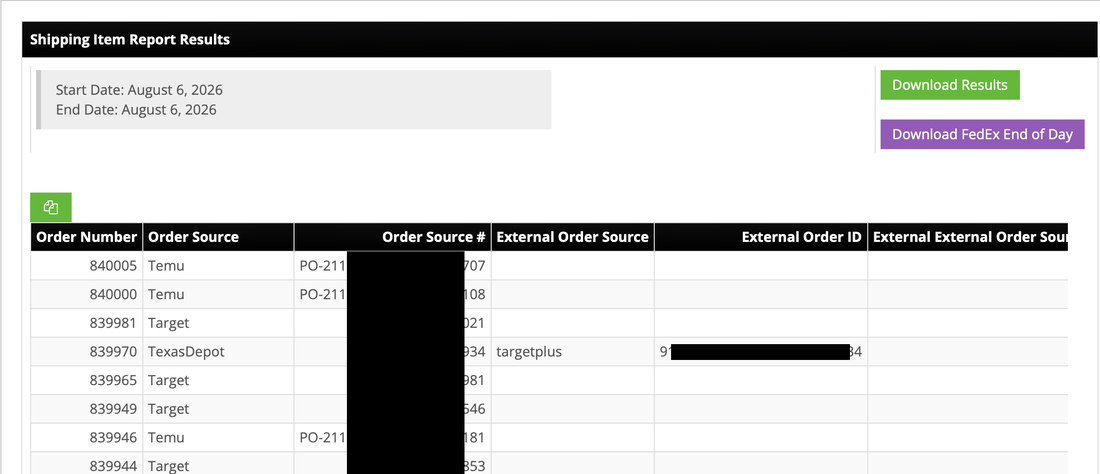
Orders placed through a reseller carry the upstream channel's identifiers in the Order Identity fields. For example, an order sourced from Target's TargetPlus marketplace shows targetplus under External Order Source, with the matching order ID under External Order ID.
Requested Shipping reflects what the order asked for, from the marketplace or customer. Ship Method reflects the carrier service and package type actually used to create the label, and it can differ from what was requested.
How Do I Export the Shipping Item Report?
Two export options sit above the results grid:
- Download Results: the full result set as a CSV, a complete record of every item shipped in the selected time frame.
- Download FedEx End of Day: the manifest FedEx needs when they arrive for the day's pickup.
Shipping Item Report Questions
Does the Shipping Item Report show one row per order or one row per item?
One row per shipped item, not one row per order. An order with three line items appears as three separate rows, each with its own tracking, ship method, and cost detail.
How do I get a manifest for FedEx pickup?
Use the Download FedEx End of Day button on the results screen. It generates the manifest FedEx needs for that day's pickup, scoped to whatever date range the report is currently filtered to.
Can I scope the report to a saved Order Filter?
Yes. Any saved Order Filter can be applied alongside Order Date Range, Order Source, and Order Tag, so a filter like Heavy Amazon Orders - East narrows the report to just those orders.
Why don't Requested Shipping and Ship Method always match?
Requested Shipping is what the order asked for, from the marketplace or customer. Ship Method is the carrier service and package type actually used to create the label, which can differ from the request.
Where do I find the Shipping Item Report?
Reports > Shipping Item Report.
Need Something This Report Doesn't Cover?
Contact Us and we'll take a look. Support is included with every InfiPlex plan. For a version that runs on a schedule, see Scheduled custom reports with the MCP server and API; for sending tracking back to a marketplace InfiPlex does not connect to yet, see Selling on a marketplace InfiPlex does not connect to yet.
See every report InfiPlex includes
Shipping Item Report is one of four built-in reports, covering shipping, cost, orders, and marketplace settlements.
