
Last Updated: Sep 21, 2026
 The Returns system in InfiPlex Inventory & Order Management System (OMS) tracks every RMA from creation to refund. Returns are created by hand from any order, and marketplaces with connected return systems (Walmart) add their returns automatically so the refund is finalized back to the marketplace from InfiPlex.
Creating a Manual Return
On the order detail page:
- Set the Quantity to Return.
- Generate an RMA number or type your own.
- Click the green Create RMA button.
The RMA appears on the order detail and on the Returns tab at the top of the Orders area.

Marketplace Returns
Connected marketplaces post their returns to the Returns list automatically. Turn on the marketplace's return alert email in its settings (for example walmart_return_alert_email) so you know when one arrives.
Processing a Standard Return
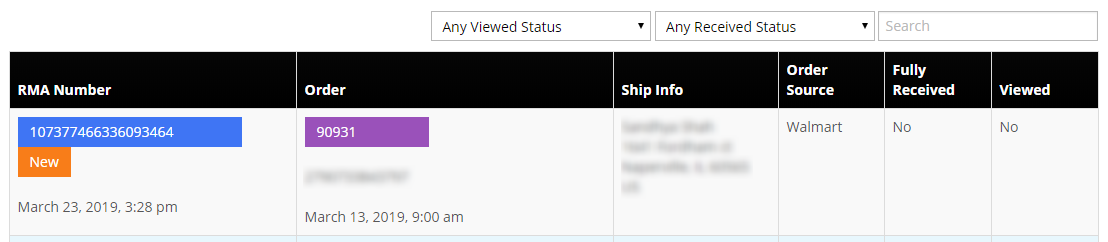
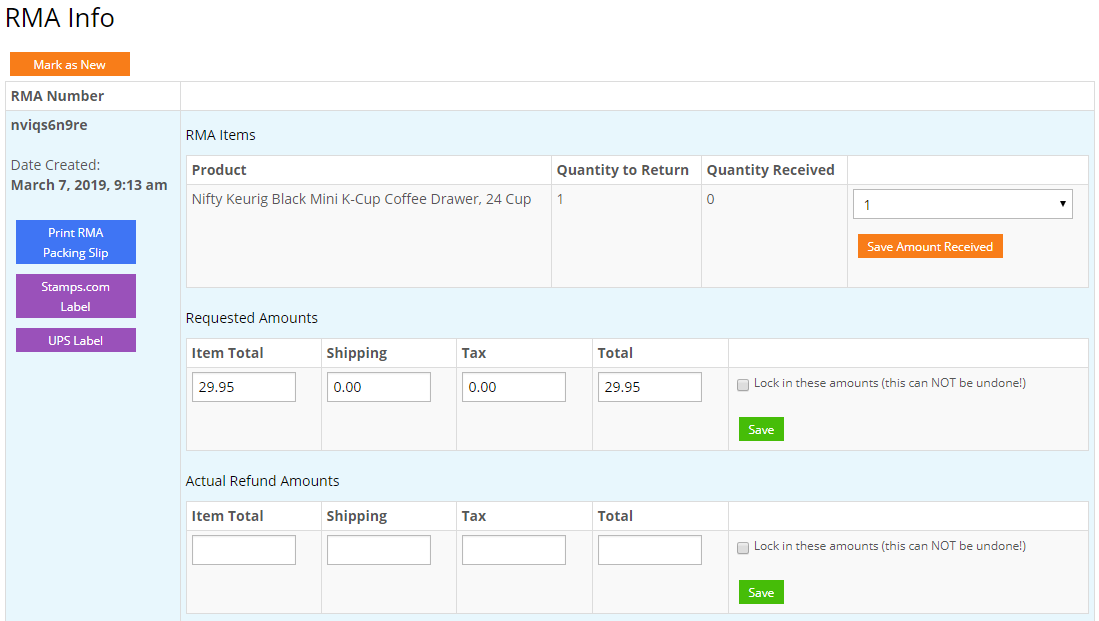
Click the blue RMA number. When the item arrives, enter the quantity received and click Save Amount Received. Two lines finalize the return: save the requested return amounts, then save the actual refund amounts. Both are recorded on the RMA.
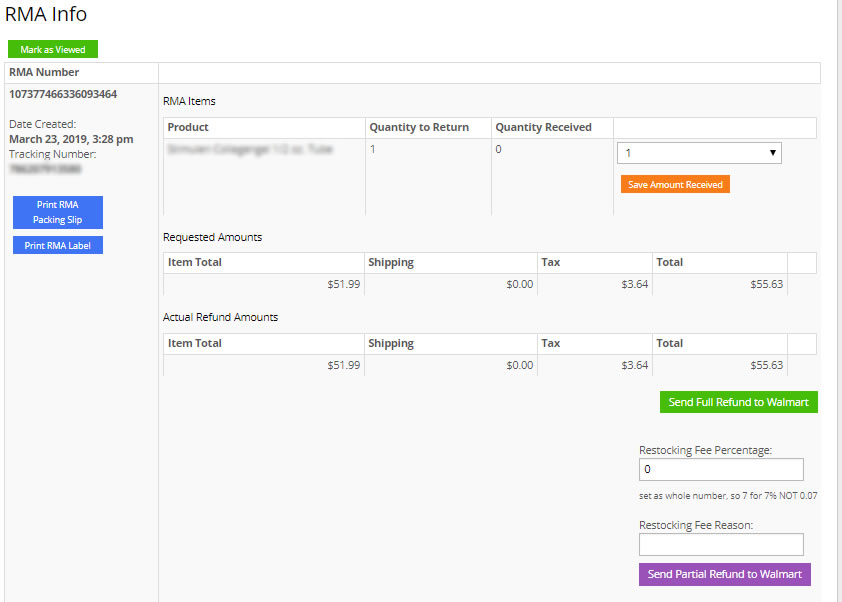
Processing a Walmart Return
Walmart returns carry two refund actions: the green Send Full Refund to Walmart and the purple Send Partial Refund to Walmart. Depending on your Walmart terms, a restocking fee and reason may be required before sending.
RMA Notes
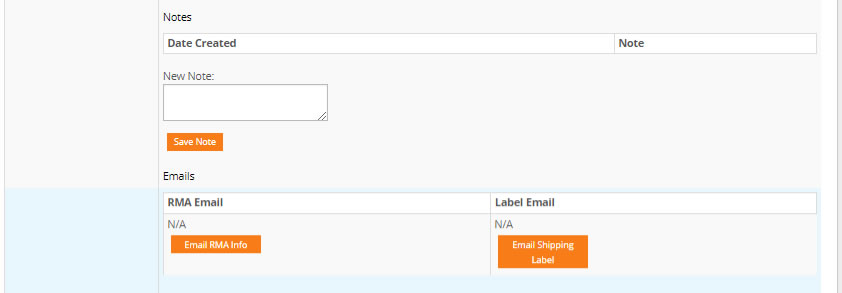
Record contact with the buyer or anything else about the return in the note area and click Save Note.
Set-up Support
Contact InfiPlex with any returns questions. Support is included with every InfiPlex package.
