
Last Updated: Sep 21, 2026
 User Roles in InfiPlex Inventory & Order Management System (OMS) let a Main Admin restrict a user to specific warehouses and specific pages. A 3PL can give each client's staff, or each warehouse team, access to only their own orders and inventory.
The Two Roles
- Main Admin: full access to orders and inventory for every warehouse.
- Warehouse Admin: access to orders and/or inventory for selected warehouses only.
Step 1: Add the User
Create the account in the Users application with the Admin security group (see Admin User Management). By default that is a Main Admin; the next step narrows it.
Step 2: Limit the User
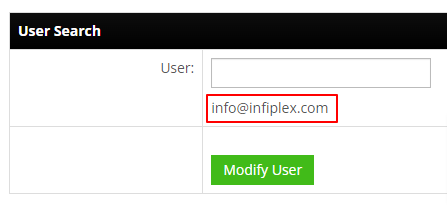
Go to Settings > Users in the OMS, type the user's name or email, and click the match in the grey selection box.
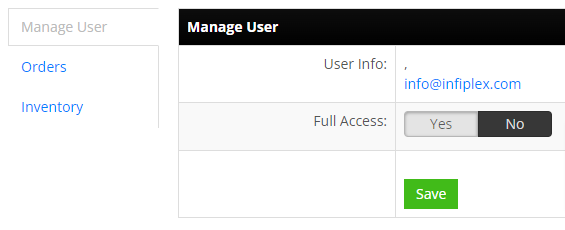
- Manage User tab. Full Access: No. This is what turns a Main Admin into a Warehouse Admin; the Orders and Inventory tabs then control what they see.
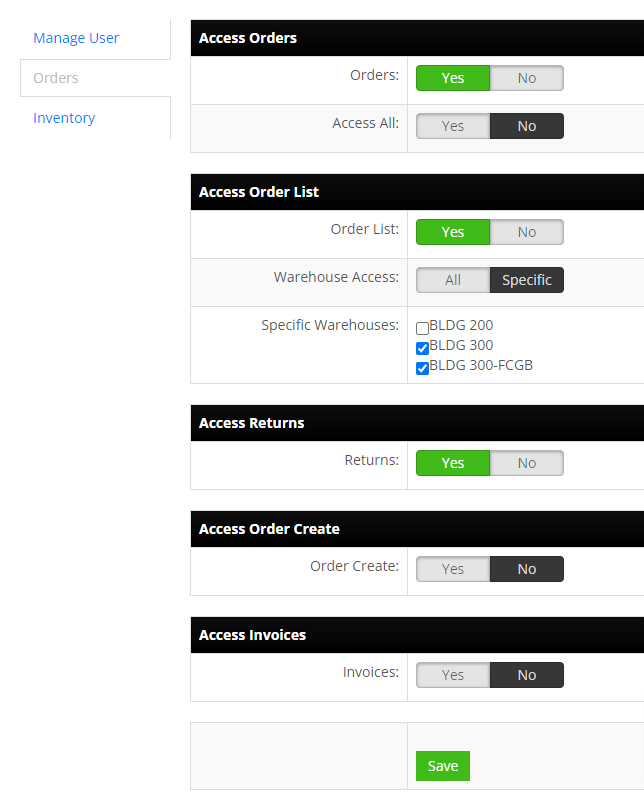
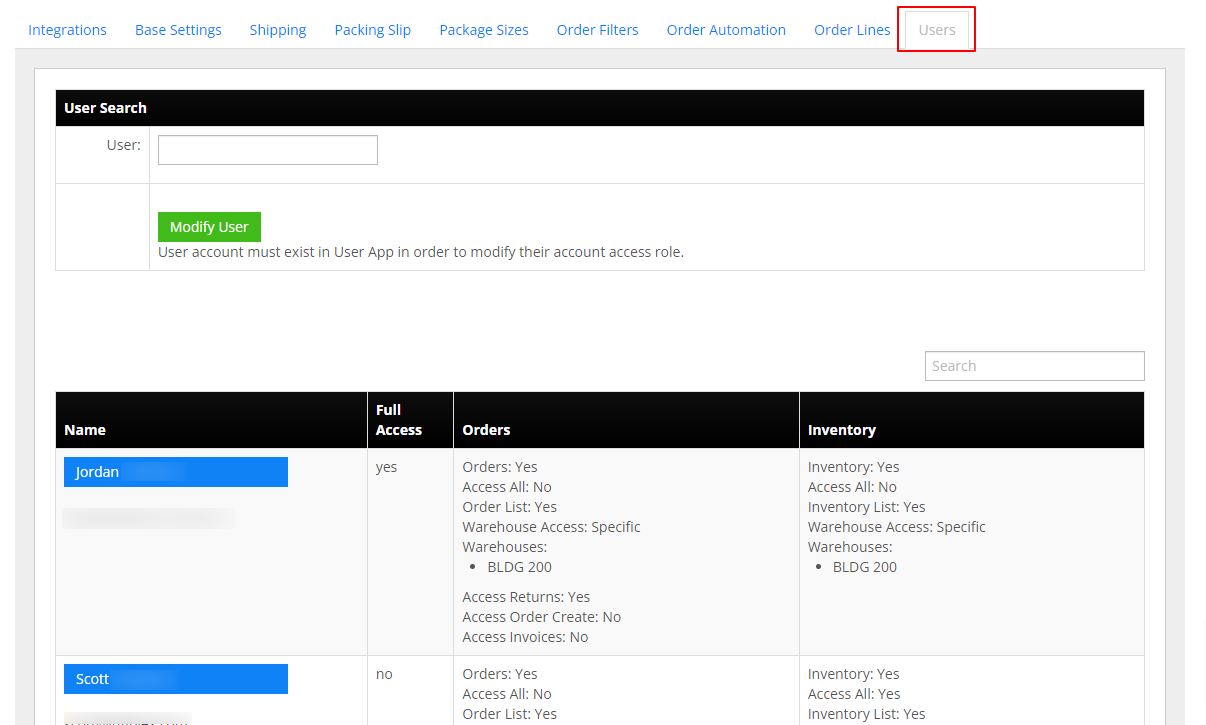
- Orders tab. Orders Yes/No grants the order tools; Access All Yes overrides every other order setting, so set it No to use the rest; Order List, Access Returns, Access Order Create, and Access Invoices grant those pages individually; Specific Warehouse Access checks the warehouses whose orders the user can ship.
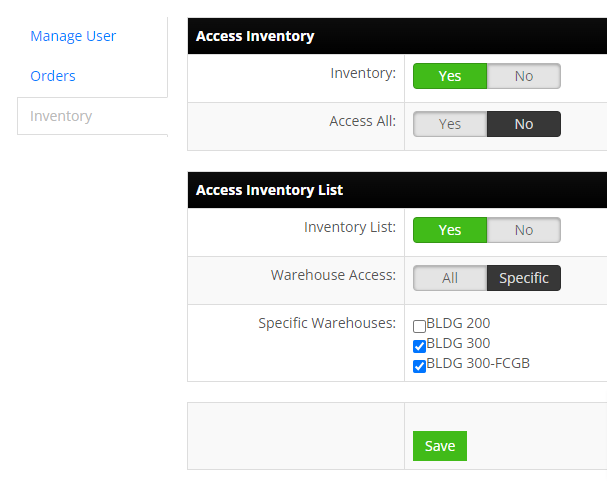
- Inventory tab. Same pattern: Inventory Yes/No, Access All (set No to use the rest), Inventory List, and Specific Warehouse Access for the warehouses whose SKU inventory the user can manage.
Limited users appear in the list on Settings > Users.
Set-up Support
Contact InfiPlex with any user roles questions. Support is included with every InfiPlex package.
Ask an AI Agent Instead
A limited user needs a login. An AI agent on a read-only API key needs neither a login nor a screen, and sees only what the key allows. For 3PLs this is how each client gets self-service answers: AI agents for 3PL clients. Every InfiPlex instance runs a native MCP server, so Claude, ChatGPT through Codex, or any MCP client connected to your instance can do it from a chat window, with a preview before anything channel-visible changes. See the five-minute set-up and the prompts by role.
