
Last Updated: Oct 9, 2026
InfiPlex OMS offers several ways to manage inventory for your SKUs: manual updates using the Inventory tool, file updates using the .csv file upload, FTP automatic updates connecting to a posted inventory file, the REST API, or connections to your existing webstore, ERP, 3PL, or WMS. This guide covers each method, how to receive new stock when a container or shipment arrives, and how to download current and historical inventory.
Receiving New Stock When a Container Arrives
InfiPlex does not have a separate purchase order or container receiving screen. Received stock is added by updating the inventory of each SKU, and the right method depends on how many SKUs are on the shipment and where the counts live.
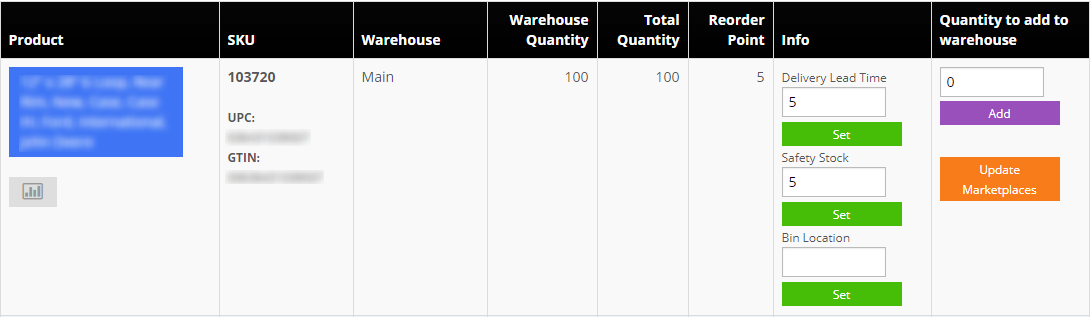
- A few SKUs: the Inventory page. Open the Inventory menu, find the SKU, type the received count into the Quantity to add to warehouse field on the row for the warehouse that received it, and click the purple Add button. The number is added to the existing level, so entering 24 on a SKU with 100 on hand gives 124. A negative number subtracts, which works for damages and shorts found at receiving. Click Update Marketplaces on the row to push the new level to your channels right away instead of waiting for the next scheduled sync.
- A whole container: the .csv upload. The Price & Inventory upload on Tools > Price & Inventory Tools sets each SKU's inventory to the number in the file. It does not add to the existing level. Download the current inventory for the receiving warehouse first (see Downloading Current Inventory below), add the received quantities to the on-hand counts in that file, and upload the new totals. Uploading a file that holds only the received quantities will overwrite your on-hand counts. Upload soon after the download, since a sale that lands in between is overwritten by the total you send; the API
quantity_to_addroute does not have that gap. - Receipts from your own system: the API. The Inventory Set Bulk endpoint takes one quantity field per row. Send
quantity_to_addwith the received count and InfiPlex adds it to the current level at the moment the row is processed, so a sale that lands between your read and your write is not lost. Usequantity_to_setonly when you are sending an exact count, such as a cycle count or a correction. On accounts with more than one warehouse, always sendwarehouse_id; use Warehouse Search to look up the IDs. - A receiving sheet with SKU, incoming quantity, and warehouse name: the MCP server. Connect Claude or another AI assistant to the InfiPlex MCP server with a key that has inventory write scope, give it the spreadsheet, and tell it to receive the container. It looks up each warehouse ID from the name, builds one row per SKU with
quantity_to_add, and callsinventory_set_bulk, which returns a preview of every change first; nothing moves until you confirm. No column mapping and no script on your side, and the same SKU can land in two warehouses on one sheet. See the MCP tools reference and write safety guide. - Counts that already live in another system: let that system feed InfiPlex. If a warehouse's inventory is pulled from an ERP, 3PL, WMS, or storefront, receive the stock in that system. Its next pull replaces any value you set in InfiPlex for the SKUs it reports, so a manual add in InfiPlex would be overwritten. See Multichannel Inventory Sync for how per-warehouse inventory sources work.
Before you receive:
- New SKUs must exist first. Add any SKU that is new to InfiPlex on the Tools > Product Upload page before adding inventory to it. A SKU that does not exist is skipped by the .csv upload and the API.
- Pick the right warehouse. The Inventory page shows one row per warehouse, and the .csv upload and download both ask for a warehouse. Receive into the warehouse that physically holds the stock so warehouse routing and per-warehouse sync stay correct.
- SKU Groups apply. If the SKU is in a SKU Inventory Group, an add is applied to each SKU in the group and a set sets every SKU in the group to that number. See SKU groups vs bundles vs SKU maps.
Once a level changes, InfiPlex sends the new quantity to every connected sales channel that has inventory sync enabled, on each channel's normal schedule. A marketplace only receives inventory for SKUs flagged as sold on that marketplace, and Inventory Buffers and set-to-zero thresholds are applied before the number goes out. Every add, set, upload, and pull is recorded in the SKU's inventory history, which you can review on the SKU or through the Inventory Change History endpoint.
Updating a Marketplace InfiPlex Does Not Connect To
If one of your sales channels is not integrated yet, InfiPlex still holds the inventory; you move the numbers to that marketplace by hand or on your own schedule.
- Manual, from the OMS. Run the Price & Inventory Download on Tools > Price & Inventory Tools for the warehouse that ships that channel (see Downloading Current Inventory below), map the sku and inventory columns into the marketplace's own inventory upload template, and upload it in that marketplace's seller portal.
- Automatic, on your own schedule. A cron job on the Inventory Search endpoint, or an AI agent on the InfiPlex MCP server, pulls every SKU and quantity each evening, writes the marketplace's template, and uploads or emails it. The Nightly Restock Agent guide shows the unattended pattern.
- Get it connected. Growth Packages include building the new API integrations you need at no additional cost. Check the Integrations list first; if the marketplace is not on it and has an API, contact us.
Manual Updates Using the Inventory Tool
The OMS Inventory Tool makes it easy to quickly update the inventory, lead time, safety stock and bin location of any SKU. Each warehouse has its own row with its own Quantity to add to warehouse field. The lead time and safety stock settings are used by the Restock settings to send you restock alerts on your SKUs. The restock alerts are based on actual sales over time; see InfiPlex Restock Alerts: How the Reorder Point Is Calculated for the formula.
Mass Inventory .csv File Update
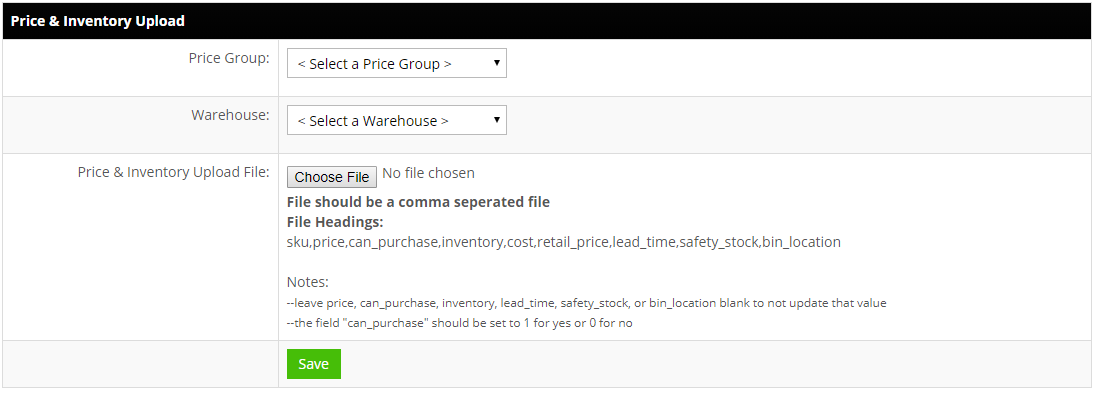
InfiPlex OMS also allows you to update inventory levels using a .csv file upload on the Tools > Price & Inventory Tools page. The upload sets each SKU's inventory to the value in the inventory column for the warehouse you select; it does not add to the existing level. The Price & Inventory file has the following headings:
- sku
- price
- can_purchase
- inventory
- cost
- retail_price
- lead_time
- safety_stock
- bin_location
- product_name
The lead_time and safety_stock columns set the per-SKU values that feed each SKU's reorder point in Restock Alerts; SKUs without them use the account defaults.
FTP Inventory Updates
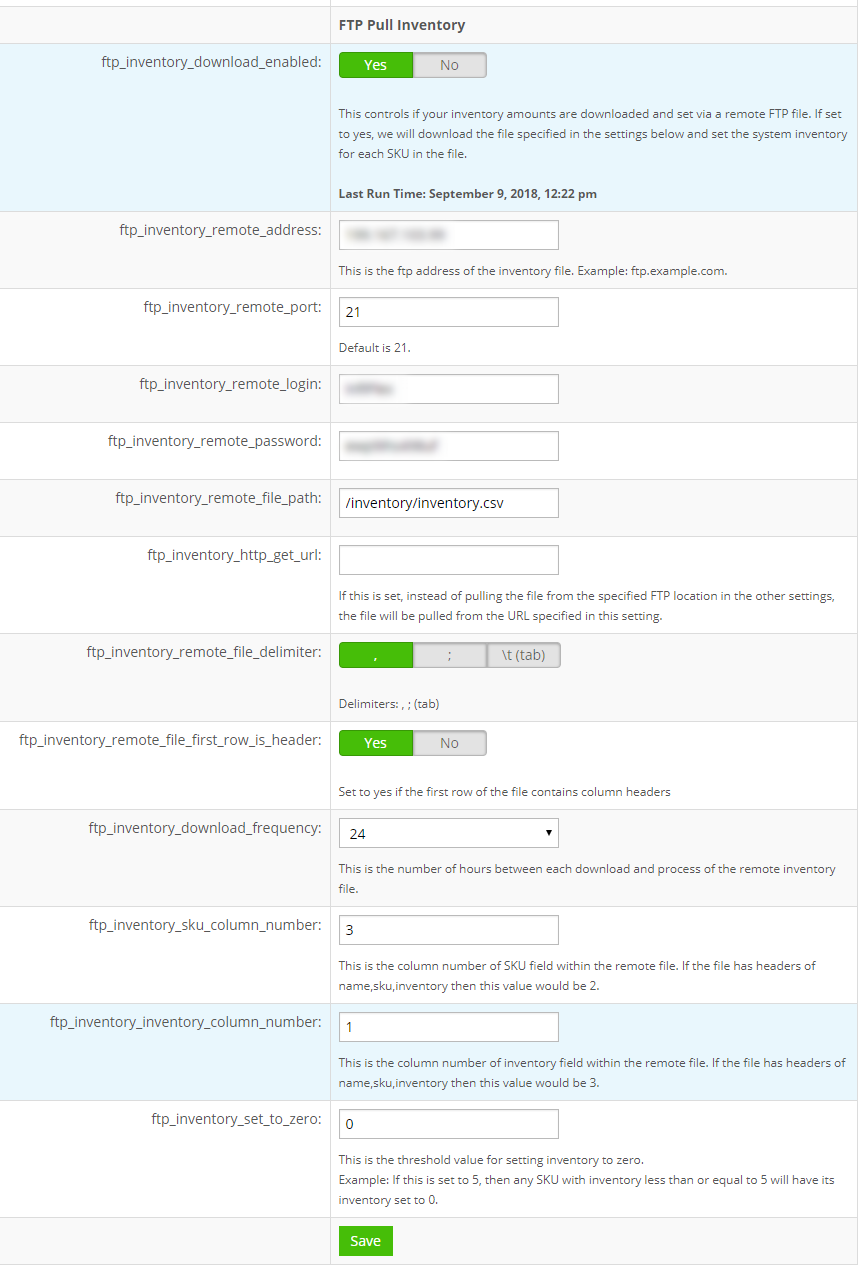
The FTP Pull Inventory settings allow you to establish an automated connection to pull inventory from a file on the internet. You can schedule inventory pulls every 6 - 48 hours to fit your business process. Like the .csv upload, a pulled file sets each SKU to the quantity in the file.
API Inventory Updates
Your own systems can read and write inventory through the InfiPlex Inventory API. Inventory Set Bulk updates any number of SKUs in one call with either quantity_to_add or quantity_to_set per row, Inventory Get returns the current levels for a SKU by warehouse, and Inventory Restock List returns the SKUs that have dropped below their reorder point. The same tools are available to AI agents through the InfiPlex MCP server.
Other Inventory Connections
InfiPlex OMS has settings for some types of webstore connections to allow your inventory levels to be pulled from your webstore, and connected 3PL, WMS, and ERP systems can be the inventory source for the warehouses they manage. The source is set per warehouse, so an ERP can feed some warehouses while a fulfillment provider feeds others on the same account. We can also work with you to establish a custom connection to an internal system; please contact us for more information on custom inventory connections.
Downloading Current Inventory
You can download current inventory by going to the Tools > Price & Inventory Tools page. Under the Price & Inventory Download heading, use the download form to select the following:
- Price Group: Standard
- Warehouse: select one of your defined warehouses
- Sell On Filter: select < All > or one of your connected marketplaces to filter the SKUs selected
The download file is a .csv that uses the same format used to upload inventory levels as shown above, which makes it the starting point for a container receipt: download, add the received quantities to the on-hand counts, upload.
Downloading Historical Inventory
You can download historical inventory levels from a specific date and time by going to the Tools > Price & Inventory Tools page. Under the Historical Inventory Download heading, use the download form to select the specific date and time you would like to see. The file will include the following columns:
- sku
- product_name
- total_inventory
Note that the file will not show the time chosen, so you should update the file name with the historical date chosen.
Managing Inventory Questions
What is the process for adding inventory to InfiPlex when a new container arrives at my warehouse?
Update the inventory on the received SKUs. For a few SKUs, use the Quantity to add field and purple Add button on the Inventory page, which adds to the existing level. For a full container, download the current Price & Inventory file for the receiving warehouse, add the received quantities to the on-hand counts, and upload the new totals. If your receiving is done in your own system, send the received counts with quantity_to_add on the Inventory Set Bulk API. If an ERP, 3PL, or WMS feeds that warehouse, receive the stock there and let its next pull update InfiPlex.
Does the .csv upload add to inventory or replace it?
It replaces it. The upload sets each SKU to the number in the inventory column for the selected warehouse. Only the Inventory page Add button and the API quantity_to_add field add to the existing level.
How do I add to existing inventory instead of overwriting it with the bulk .csv upload?
The .csv upload has no add mode; the inventory column is always a set-to-this-number value. To add by file, download the current Price & Inventory file for the warehouse, set each SKU's inventory to current plus received in the spreadsheet, and upload the totals right away. For a true add that cannot overwrite a sale in between, send quantity_to_add on the Inventory Set Bulk API, or enter the received count on the Inventory page.
Can I upload a file with SKU, incoming quantity, and warehouse name and have it added to inventory?
Yes, through the MCP server. Hand the sheet to an AI assistant connected to InfiPlex with an inventory write key and ask it to receive the container; it maps warehouse names to IDs, sends each row as quantity_to_add on inventory_set_bulk, and shows you the full preview to confirm before anything changes. The same rows can be sent straight to the Inventory Set Bulk API from your own script. The Price & Inventory .csv upload does not fit this layout, since it has no warehouse column and sets totals rather than adding.
Can I add inventory to a SKU that is not in InfiPlex yet?
No. Create the SKU on the Tools > Product Upload page first, then add its inventory.
How do I add inventory to a specific warehouse?
On the Inventory page, each warehouse has its own row and Add field. The .csv upload asks for the warehouse. On the API, send warehouse_id on every row when the account has more than one warehouse.
How long until my marketplaces show the new inventory?
Each connected channel receives the new level on its normal inventory sync schedule. To push a single SKU immediately, click Update Marketplaces on its Inventory page row.
Can I subtract inventory for damaged units?
Yes. Enter a negative number in the Quantity to add field on the Inventory page, or send a negative quantity_to_add on the API.
Can I update inventory manually on a marketplace InfiPlex does not integrate with?
Yes. Download current inventory for the warehouse from Tools > Price & Inventory Tools, put the sku and inventory values into that marketplace's upload template, and upload it in its seller portal. To automate it, a cron job on Inventory Search or an AI agent on the MCP server can write and send the file every evening. Growth Packages include building a new integration for the channel at no additional cost.
Where can I see who changed a SKU's inventory and when?
Every change is logged in the SKU's inventory history, available on the SKU in the OMS and through the Inventory Change History API endpoint.
Every warehouse, every channel, one inventory
Receive stock once and InfiPlex sends the new levels to Amazon, Walmart, Shopify, your EDI retailers, and every other connected channel, with buffers and thresholds applied.
Related Inventory guides
- Multichannel Inventory Sync: Stop Overselling
- Inventory Set-up to Eliminate Overselling
- Inventory Buffer tool
- InfiPlex Restock Alerts: How the Reorder Point Is Calculated
- SKU Inventory Groups tool
- SKU groups vs bundles vs SKU maps
- Nightly restock agent
- Receive a container from a spreadsheet with the MCP server
- Daily inventory by warehouse report agent
- Custom SKU Data: secondary IDs and supplier codes
- Selling on a marketplace InfiPlex does not connect to yet
- Vacation mode: set inventory levels to zero
