
Last Updated: Sep 21, 2026
 InfiPlex Inventory & Order Management System (OMS) pulls inventory from Finale Inventory at the facility sublocation level. Each InfiPlex warehouse maps to one Finale sublocation, and the quantities Finale reports flow into InfiPlex and out to every sales channel.
Step 1: Finale Inventory Settings in InfiPlex
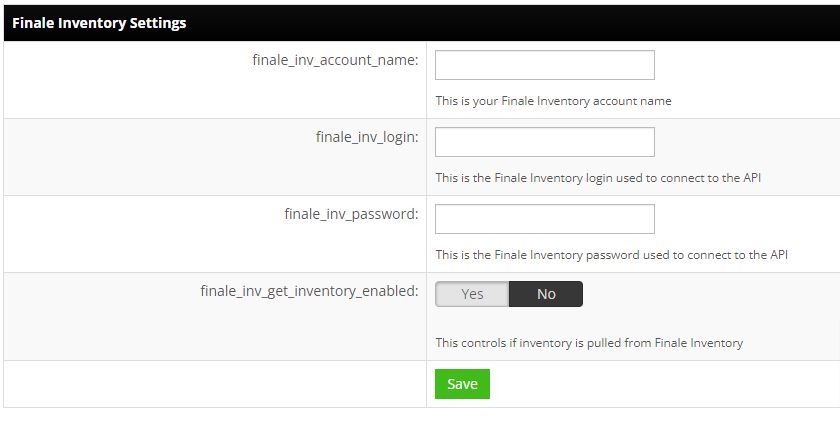
- Log into your InfiPlex OMS site, go to Settings > Integrations, open the ERPs tab, and click the Finale Inventory logo.
- finale_inv_account_name: the account name you use to log into Finale Inventory
- finale_inv_login: the Finale login used for the API connection
- finale_inv_password: the password for that login
- finale_inv_get_inventory_enabled: set to Yes to pull inventory from Finale
- Save.
Step 2: Map Each Warehouse to a Finale Sublocation
Go to Inventory > Warehouses, open the warehouse to map, and under Integration Warehouse IDs enter the Finale sublocation ID in the Finale Inventory ID field. Repeat for each warehouse that should take inventory from Finale.

Finding a Finale Sublocation ID
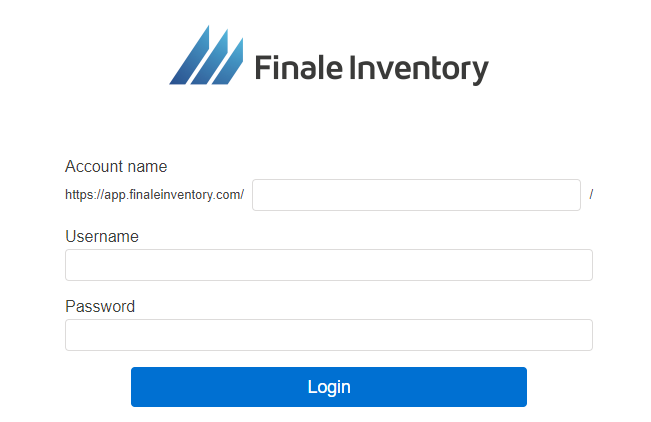
- Log into Finale Inventory with the same account, login, and password used above.
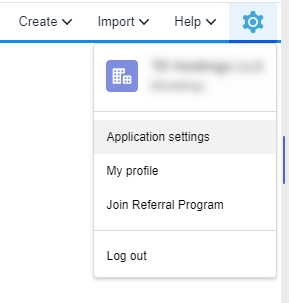
- Open Application Settings from the settings menu in the top right.
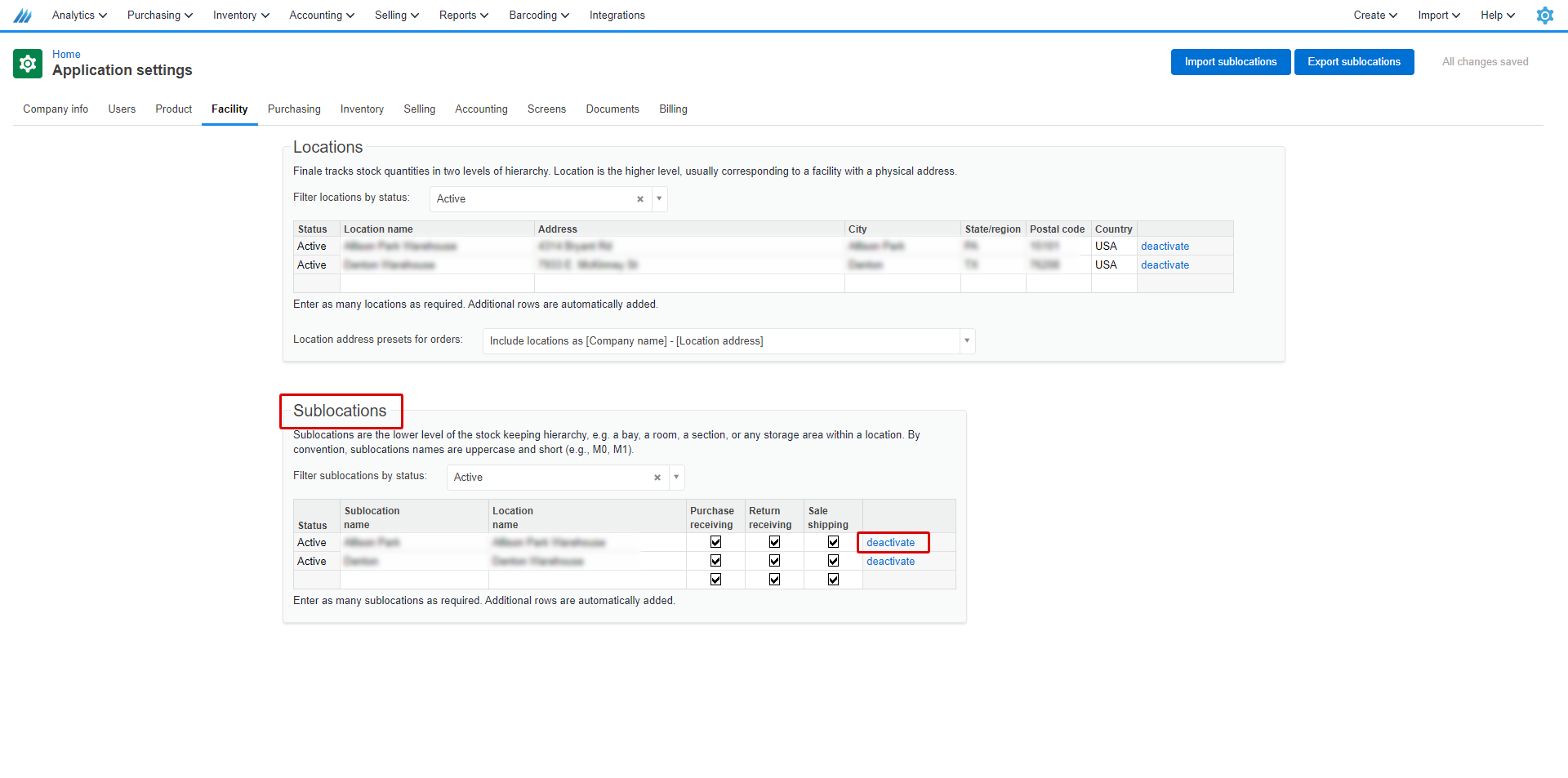
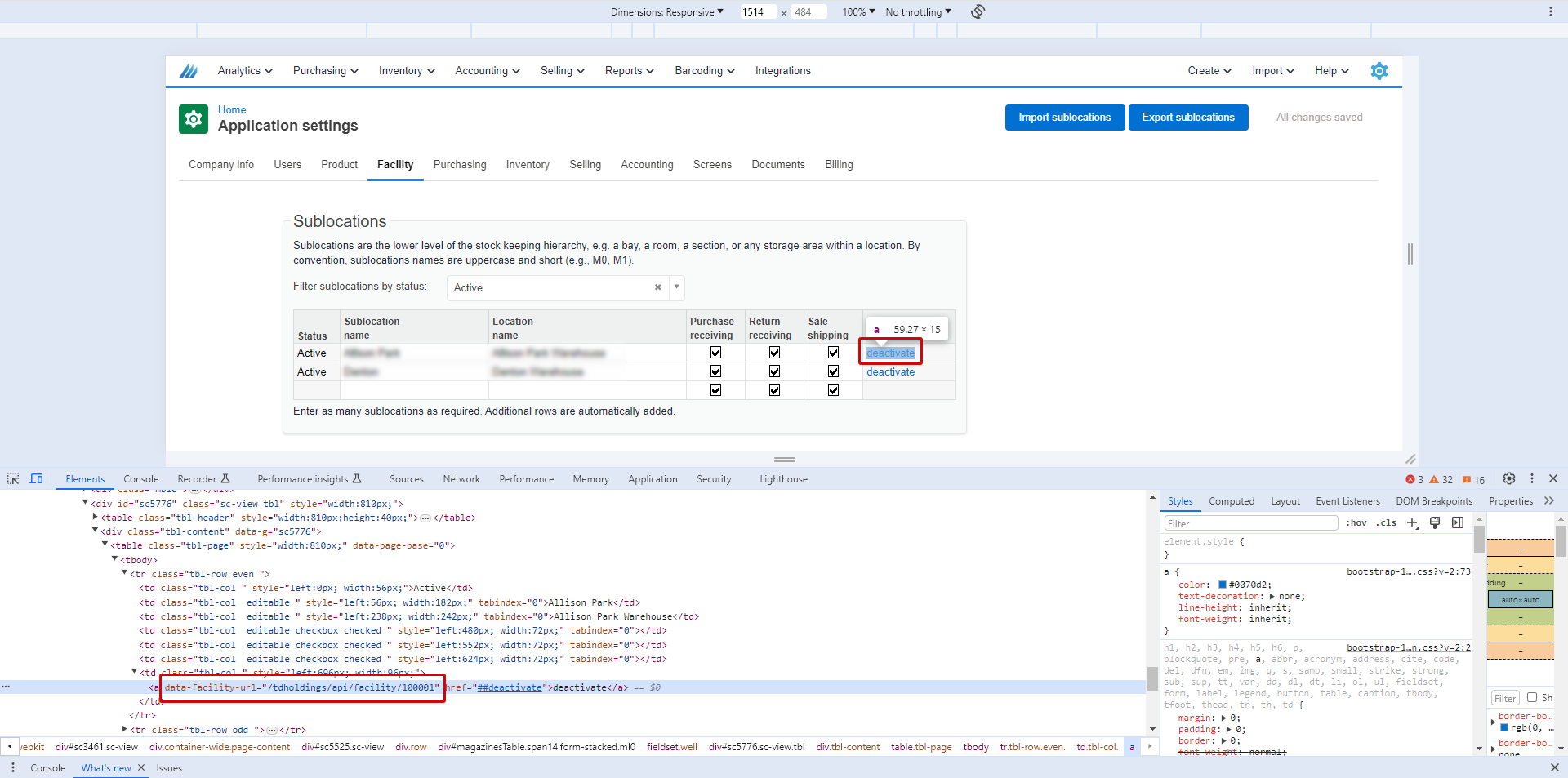
- On the Facilities page, find the sublocation to connect, right-click its deactivate link, and choose Inspect. The sublocation ID is in the link's HTML; in the example below it is 100001. InfiPlex can pull this for you if you prefer.
Set-up Support
Contact InfiPlex with any Finale Inventory questions. Support is included with every InfiPlex package, and our team can review your first Finale Inventory orders with you.
