
Last Updated: Sep 21, 2026
 The SKU Inventory Groups tool in InfiPlex Inventory & Order Management System (OMS) ties several SKUs to one inventory level: the same product listed under different SKUs on different channels, for example. Any change to one SKU in the group is applied to every SKU in the group.
Creating a Group
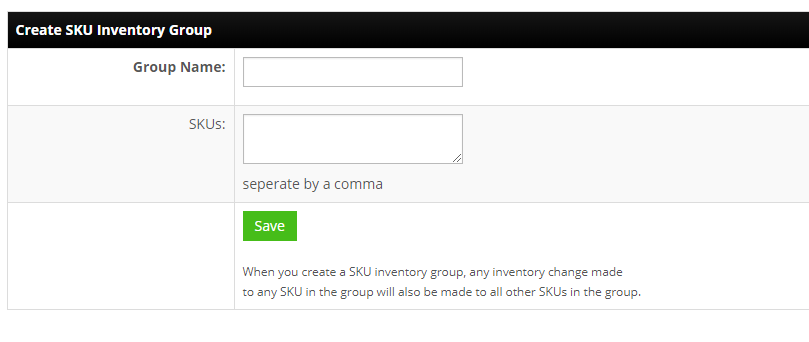
Go to Inventory > SKU Inventory Groups. Name the group and enter the SKUs separated by commas. Every SKU must already exist in your product list.
To start every SKU at the same level, upload the level for one SKU with Tools > Price & Inventory Tools; the upload hard-sets that SKU and every SKU in its group.
Loading Groups by File
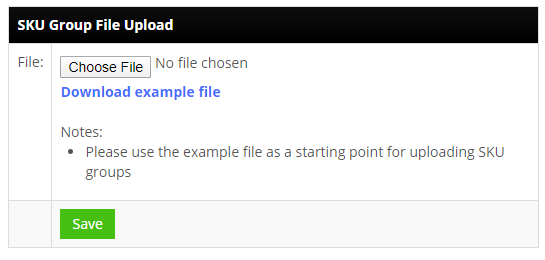
The SKU Group File Upload accepts a .csv with a sku_group_name column followed by the SKUs. Download the example file to start. Re-uploading a group name overwrites that group. SKUs not already in your product list are dropped from the group.
How Updates Work
Orders for any SKU in the group, and manual changes on the Inventory page, add or subtract the same number from every SKU in the group. That keeps them moving together, but it does not make them equal if they started apart: a Price & Inventory upload or FTP inventory pull with the master SKU hard-sets the whole group to one level.
Enterprise Enhanced Feature
On Standard and Pro packages, marketplace inventory updates go out only for the SKUs actually on the order. Enterprise Starter and Full Enterprise packages send updates for every SKU in the group whenever any member changes. It is Enterprise-only because of the update volume it creates for accounts with many groups.
Set-up Support
Contact InfiPlex with any SKU groups questions. Support is included with every InfiPlex package.
