
Last Updated: Sep 21, 2026
 The order detail page in InfiPlex Inventory & Order Management System (OMS) is the second place to ship from, alongside the Order List. It is the right place for partial shipments, multi-package orders, and orders where tracking is entered by hand.
Before You Start
Connect a label carrier under Shipping Settings (usually EasyPost), define your boxes with the Package Sizes tool, and load SKU weights with the Product Upload Tool.
Steps
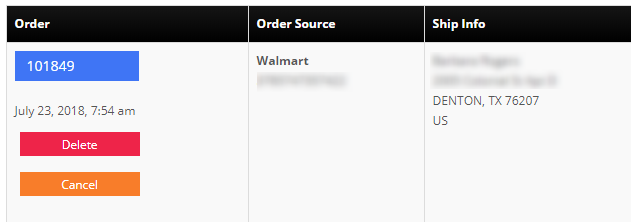
- Open the order. Click the blue order number button on the Order List.
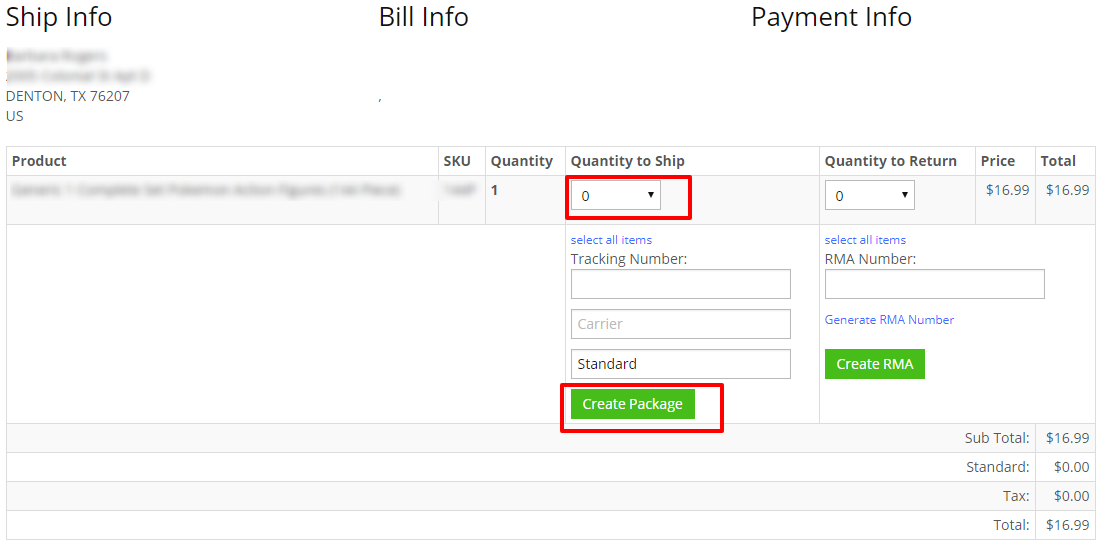
- Set Quantity to Ship and click Create Package. Tracking number and carrier fields are here too, for entering tracking by hand when the label was bought elsewhere.
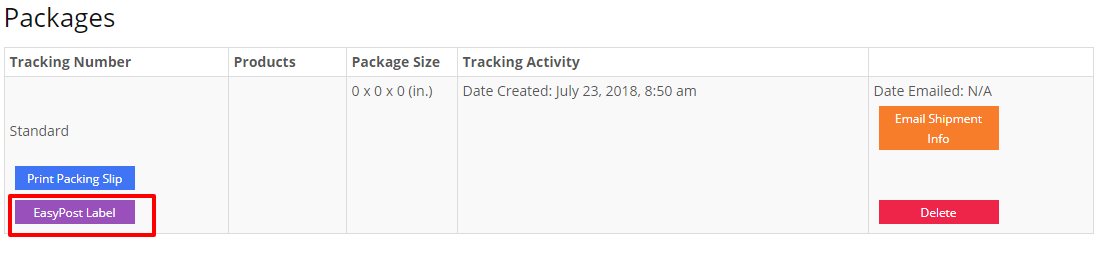
- Choose the carrier integration. EasyPost opens every carrier account connected to it; direct integrations such as UPS appear as their own buttons when enabled.
- Set package size and weight. Pick a saved size or enter length, width, and height. Weight fills from the SKU weights on the order. Click Update Package Info to see available services and prices.
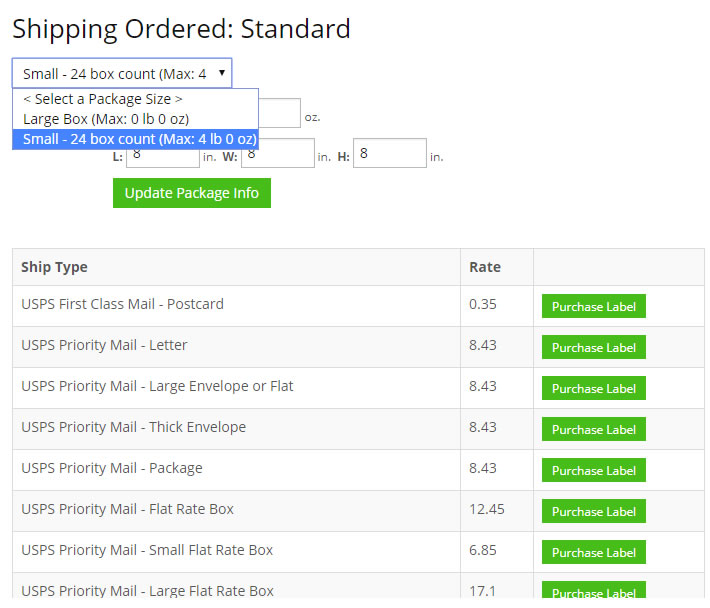
- Purchase the label. The label is bought, saved to the order, and ready to print. The tracking number goes back to the sales channel the order came from.
Set-up Support
Contact InfiPlex with any shipping questions. Support is included with every InfiPlex package.
