
Last Updated: Sep 17, 2026
InfiPlex Restock Alerts tell you which SKUs to reorder before they run out, using a reorder point built from your own sales history. Every day the system looks at each SKU's sales over three time ranges, weights recent sales against longer trends, factors in how long your supplier takes to deliver and the minimum quantity you want on hand, and emails you the SKUs that have reached their reorder point. The same SKUs are highlighted in orange on the Inventory page. This guide explains every setting, writes out the formula, walks through the worked example from the settings page, and shows how to tune the weights for seasonal, steady, and new SKUs.
Jump to What You Need
| If You Want To… | Jump To |
|---|---|
| Turn on the daily restock email | Turning On InfiPlex Restock Alerts |
| Understand each restock setting | The Restock Settings |
| See exactly how the reorder point is calculated | The Reorder Point Formula |
| Set a different lead time or safety stock for one SKU | Per-SKU Lead Time and Safety Stock |
| Weight recent sales heavier for seasonal products | Tuning the Sales Range Weights |
| Read the email and the orange rows | Reading the Daily Restock Report |
| Decide how many units to order | Deciding How Much to Order |
Turning On InfiPlex Restock Alerts
The restock settings live at Settings > Base Settings > Warehouse in your InfiPlex OMS. To start receiving the daily Restock Report, enter your email address in the restock_report_email setting. Multiple addresses are separated by a semicolon. The report runs once a day and lists every SKU whose on-hand inventory has reached its reorder point. Nothing else is required; the defaults below produce a working reorder point for every SKU with sales history, and you refine from there.
The Restock Settings
Eight settings control the calculation. Two set the defaults that apply to every SKU unless a SKU overrides them, and six define the three sales ranges and how much weight each carries.
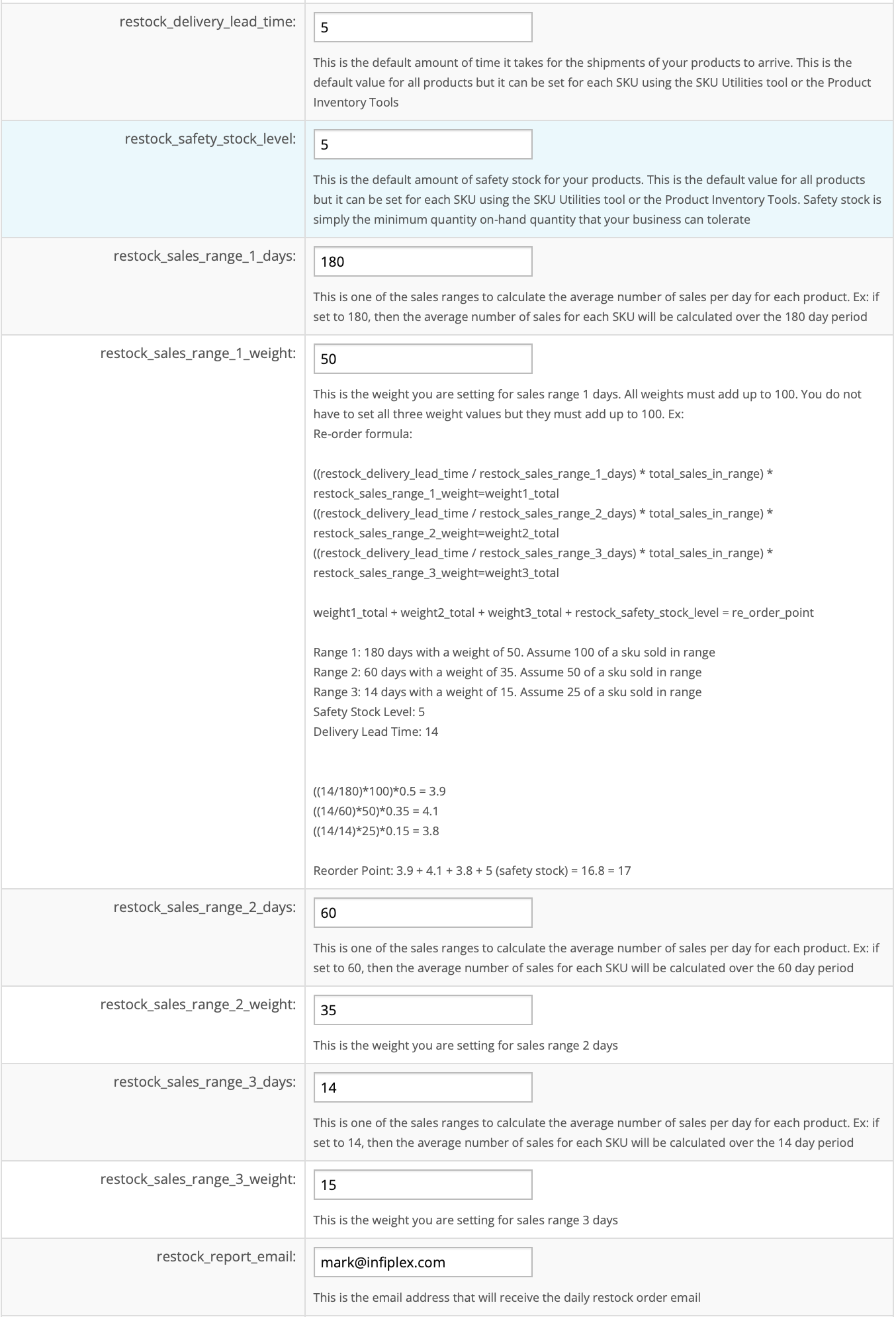
| Setting | Default | What It Does |
|---|---|---|
| restock_delivery_lead_time | 5 | Days from placing a restock order with your supplier to having the units in your warehouse. This is the account default; any SKU can carry its own lead time (see per-SKU settings). |
| restock_safety_stock_level | 5 | The minimum on-hand quantity your business can tolerate. Added to the reorder point as a floor, so a SKU with no sales in any range still reorders when it drops to this level. Also overridable per SKU. |
| restock_sales_range_1_days | 180 | The longest sales window, in days. Sales in this range establish the long-run rate for each SKU. |
| restock_sales_range_1_weight | 50 | How much of the reorder point comes from range 1, as a percentage. |
| restock_sales_range_2_days | 60 | The middle sales window, in days. |
| restock_sales_range_2_weight | 35 | How much of the reorder point comes from range 2. |
| restock_sales_range_3_days | 14 | The shortest sales window, in days. Sales here capture what is happening right now. |
| restock_sales_range_3_weight | 15 | How much of the reorder point comes from range 3. |
The three weights must add up to 100. You do not have to use all three ranges: a weight of 0 removes that range from the calculation, as long as the remaining weights still total 100.
The Reorder Point Formula
For each SKU, InfiPlex converts the sales in each range into the number of units you would expect to sell during your delivery lead time, weights that number, and adds the three results to your safety stock:
range 1: (lead_time / range_1_days) × units_sold_in_range_1 × (range_1_weight / 100)
range 2: (lead_time / range_2_days) × units_sold_in_range_2 × (range_2_weight / 100)
range 3: (lead_time / range_3_days) × units_sold_in_range_3 × (range_3_weight / 100)
reorder point = range 1 + range 2 + range 3 + safety_stock
Each range term is the same idea: units per day over that window, times the days it takes to get more, scaled by the weight. So the reorder point is the number of units you expect to sell while a restock order is in transit, blended across long, medium, and short windows, plus the cushion you never want to go below. When on-hand inventory falls to that number, the SKU appears on the daily report and turns orange on the Inventory page.
The Worked Example from the Settings Page
The help text on the settings page carries this example. Lead time 14 days, safety stock 5, default ranges and weights, and a SKU that sold 100 units in the last 180 days, 50 in the last 60, and 25 in the last 14.
| Range | Calculation | Units |
|---|---|---|
| 180 days, weight 50, sold 100 | (14 / 180) × 100 × 0.50 | 3.9 |
| 60 days, weight 35, sold 50 | (14 / 60) × 50 × 0.35 | 4.1 |
| 14 days, weight 15, sold 25 | (14 / 14) × 25 × 0.15 | 3.8 |
| Safety stock | restock_safety_stock_level | 5 |
| Reorder point | 3.9 + 4.1 + 3.8 + 5 = 16.8 | 17 |
This SKU goes on the restock report when its on-hand inventory reaches 17. Notice that the 14-day range contributes almost as much as the 180-day range despite its 15 weight: 25 units in two weeks is a much faster rate than 100 units in six months, and the formula reflects that automatically.
Per-SKU Lead Time and Safety Stock
The two defaults are starting points. Suppliers differ, and a $4 accessory does not need the same cushion as a $400 unit, so both values can be set per SKU in three places:
- The Inventory tool, where lead time, safety stock, and bin location are edited alongside the on-hand quantity. See Managing Inventory.
- The SKU Utilities tool, for changing settings across a set of SKUs. See Using the SKU Utilities Tool.
- The Price & Inventory upload file on Tools > Price & Inventory Tools, using the lead_time and safety_stock columns, for mass updates from a spreadsheet.
A SKU with its own lead time or safety stock uses those values in the formula; a SKU without them uses the account defaults. The sales ranges and weights are account-wide and apply to every SKU.
Tuning the Sales Range Weights
The default 50/35/15 split leans on the long-run rate and lets recent sales adjust it. Move the weight toward range 3 when you want the reorder point to react quickly, and toward range 1 when you want it to ignore short spikes. Using the same SKU as above (lead time 14, safety stock 5, sold 100 / 50 / 25):
| Profile | Weights (180 / 60 / 14) | Reorder Point | Use When |
|---|---|---|---|
| Default | 50 / 35 / 15 | 17 | Steady catalog with occasional promotions. |
| Recency-heavy | 20 / 30 / 50 | 23 | Seasonal products heading into peak, or a catalog where trends move fast. The reorder point climbs as soon as the two-week rate climbs. |
| Long-run | 70 / 30 / 0 | 14 | Replacement parts and staples with flat demand, where a one-time bulk order should not trigger a restock. |
Two practical notes. First, the weights apply to every SKU, so pick the profile that fits most of your catalog and use per-SKU safety stock to protect the exceptions. Second, a new SKU with only a few weeks of history has little or nothing in the 180-day range, so its reorder point comes almost entirely from the shorter ranges and safety stock until the history fills in. Setting a deliberate safety stock on new SKUs keeps them from sitting at zero while the formula learns their rate.
Reading the Daily Restock Report
The email lists every SKU at or below its reorder point, with the columns you need to act:
- Sales (180 days), Sales (60 days), Sales (14 days): total units sold in each range, the same numbers the formula used.
- On-Hand Inventory: the quantity on hand when the report ran.
- Reorder Point: the calculated value for that SKU, including its lead time and safety stock.
On the Inventory page, the same SKUs show as orange rows, so anyone working in the OMS sees them without opening the email. A SKU can appear with low sales in every range: that means its safety stock alone puts the reorder point above what is on hand, which is the setting doing its job as a floor.
Deciding How Much to Order
The report tells you when to reorder and leaves the quantity to you, because order quantity depends on things the system does not know: supplier minimums, case packs, price breaks, and cash. The Sales (60 days) column is the quick reference. A SKU with 53 units sold in 60 days and 7 on hand needs roughly 48 more to hold a two-month supply (48 plus the 7 on hand). A SKU with 20 sold in 60 days and 3 on hand needs about 17 for the same cover. Adjust for what you know about the supplier and the season, and remember that the reorder point already includes the units you will sell while the order is in transit.
Restock Alerts are about your own warehouse stock. For inventory held in marketplace fulfillment networks, see FBA Inbound Shipments, Amazon AWD Inventory Sync, WFS vs FBA vs 3PL, and CastleGate 1:1 vs Pooled Inventory Sync. For keeping channel listings accurate while stock runs low, see the Inventory Buffer Tool and Inventory Set-Up to Eliminate Overselling.
Frequently Asked Questions About InfiPlex Restock Alerts
Where are the InfiPlex restock settings?
Settings > Base Settings > Warehouse. The eight restock_* settings and the restock_report_email address are all on that page, with the formula and a worked example in the help text.
How does InfiPlex calculate the reorder point?
For each of three sales ranges (180, 60, and 14 days by default), it takes your delivery lead time divided by the range days, multiplies by the units sold in that range, and multiplies by that range's weight. The three results plus your safety stock level are the reorder point. With a 14-day lead time, safety stock of 5, and sales of 100, 50, and 25 in the three ranges, the reorder point is 17.
Do the three weights have to add up to 100?
Yes. You can set one or two of them to 0 to drop a range from the calculation, but the weights you use must still total 100.
Can I set a different lead time or safety stock for one SKU?
Yes. The two account-level settings are defaults. Any SKU can carry its own lead time and safety stock through the Inventory tool, the SKU Utilities tool, or the lead_time and safety_stock columns in the Price & Inventory upload file.
Why is a SKU with almost no sales on my restock report?
Safety stock is added to the reorder point as a floor. If a SKU's on-hand quantity is at or below its safety stock level, it is on the report regardless of sales, which is the point of setting a minimum.
How do I make the reorder point react faster to a sales spike?
Move weight from range 1 (180 days) to range 3 (14 days). With the example SKU, shifting from the default 50/35/15 to 20/30/50 raises the reorder point from 17 to 23, because the two-week rate carries half the calculation.
Does the restock report tell me how many units to order?
No. It tells you which SKUs have reached their reorder point and shows sales over 180, 60, and 14 days plus on-hand inventory so you can size the order. The Sales (60 days) column less on-hand inventory is a quick two-month-supply estimate.
Does the reorder point include the units I will sell while the restock order is in transit?
Yes. Each range term is the expected sales during your delivery lead time, so the reorder point is the stock you need to cover the wait, plus safety stock.
Do Restock Alerts cover FBA, WFS, or CastleGate inventory?
Restock Alerts work from the inventory in your own InfiPlex warehouses. Inventory held in Amazon FBA, AWD, Walmart WFS, or Wayfair CastleGate is synced into InfiPlex for channel quantities and order routing; replenishing those networks is covered in the FBA Inbound, AWD, and CastleGate guides.
Where do the orange rows on the Inventory page come from?
The same calculation. Any SKU whose on-hand inventory is at or below its reorder point is highlighted in orange on the Inventory page, so the report and the page always agree.
Reorder before you run out, on every channel you sell
Restock Alerts are included on every InfiPlex plan, alongside multi-warehouse inventory sync to 130+ marketplaces, carts, 3PLs, and ERPs, per-SKU buffers, and set-to-zero thresholds that stop oversells.
Related guides
- Managing Inventory
- Using the SKU Utilities Tool
- Multichannel Inventory Sync: Stop Overselling
- Inventory Buffer Tool
- Inventory Set-Up to Eliminate Overselling
- SKU Groups vs Bundles vs SKU Maps
- SKU Cost of Goods Report
- Reports Overview
- Amazon FBA Inbound Shipments Integration
- Amazon AWD Inventory Sync
- Walmart WFS vs FBA vs 3PL
- CastleGate 1:1 vs Pooled Inventory Sync
- 3PL Connector
- Geo Routing by Zip Code
- InfiPlex Inventory Sync
