
Last Updated: Sep 21, 2026
 InfiPlex Inventory & Order Management System (OMS) is designed to get a new account running in four steps: load your products, connect shipping, connect your marketplaces, then ship.
Step 1: Upload Your Products
Add your SKUs with the Product Upload tool (Tools > Product Upload). Set inventory to 0 for SKUs with no stock yet; correct levels come next from the Inventory page or a Price & Inventory upload.
Selling on Amazon already? Start there: add your Amazon keys, then download your Amazon SKUs from Sell On > Amazon. The download sets your starting inventory from what Amazon currently shows, and you flag the same SKUs for your other marketplaces from there.
To have InfiPlex add SKUs automatically the first time they appear on an order, see Auto-Create SKUs from Marketplace Orders.
Step 2: Connect Shipping
Most accounts connect through EasyPost, which reaches every major carrier from one account, free to open, with a small per-label cost and negotiated UPS and USPS rates. If you manage shipping outside InfiPlex, connect ShipStation or ShipWorks instead; either one pulls orders and sends tracking back automatically.
Step 3: Add Marketplace Keys and Flag Your SKUs
Every marketplace needs its own access keys. Go to Settings > Integrations, open the marketplace, and follow its set-up instructions to get the keys it needs.
Pricing: most marketplaces can push InfiPlex-controlled pricing, but leave it off until you understand exactly how it works. Open a support ticket before turning it on.
SKU flags: InfiPlex only sends inventory updates for SKUs flagged as sold on a marketplace. Clear the marketplace's Sold On list with the orange button on its Sell On page, then use the SKU Utilities tool to flag exactly the SKUs you sell there; see Set SKUs as Sold On a Marketplace for the current version of this step.
Step 4: Ship Your New Orders
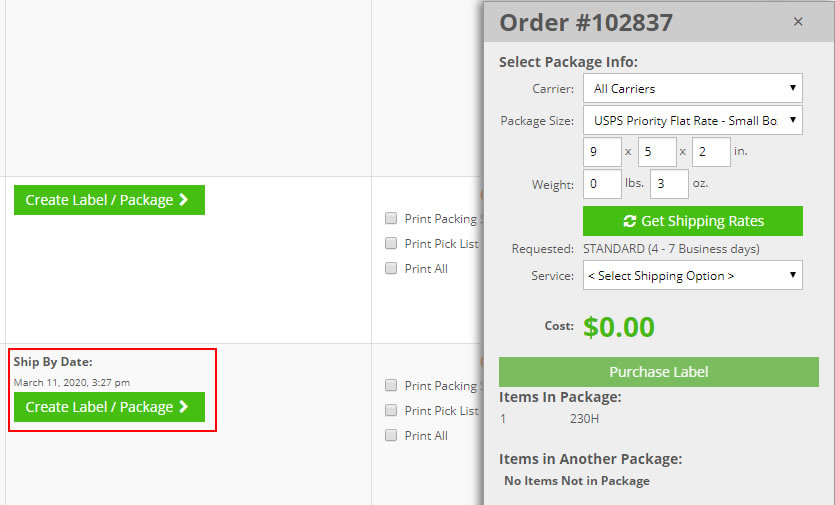
Once a marketplace is active, its orders pull in automatically and inventory updates go out to every connected channel. Ship from the Order List page.
Set-up Support
Contact InfiPlex with any getting started questions. Support is included with every InfiPlex package.
